[Wireless Router] How to ensure compatibility of 160MHz and device with RT-AX89X?
For advanced users who use Intel AC9560, AC9260, AX200, AX201:
1. Please make sure update to the latest drive on Intel Website. (If driver is not up to date, it might cause compatibility issues.)
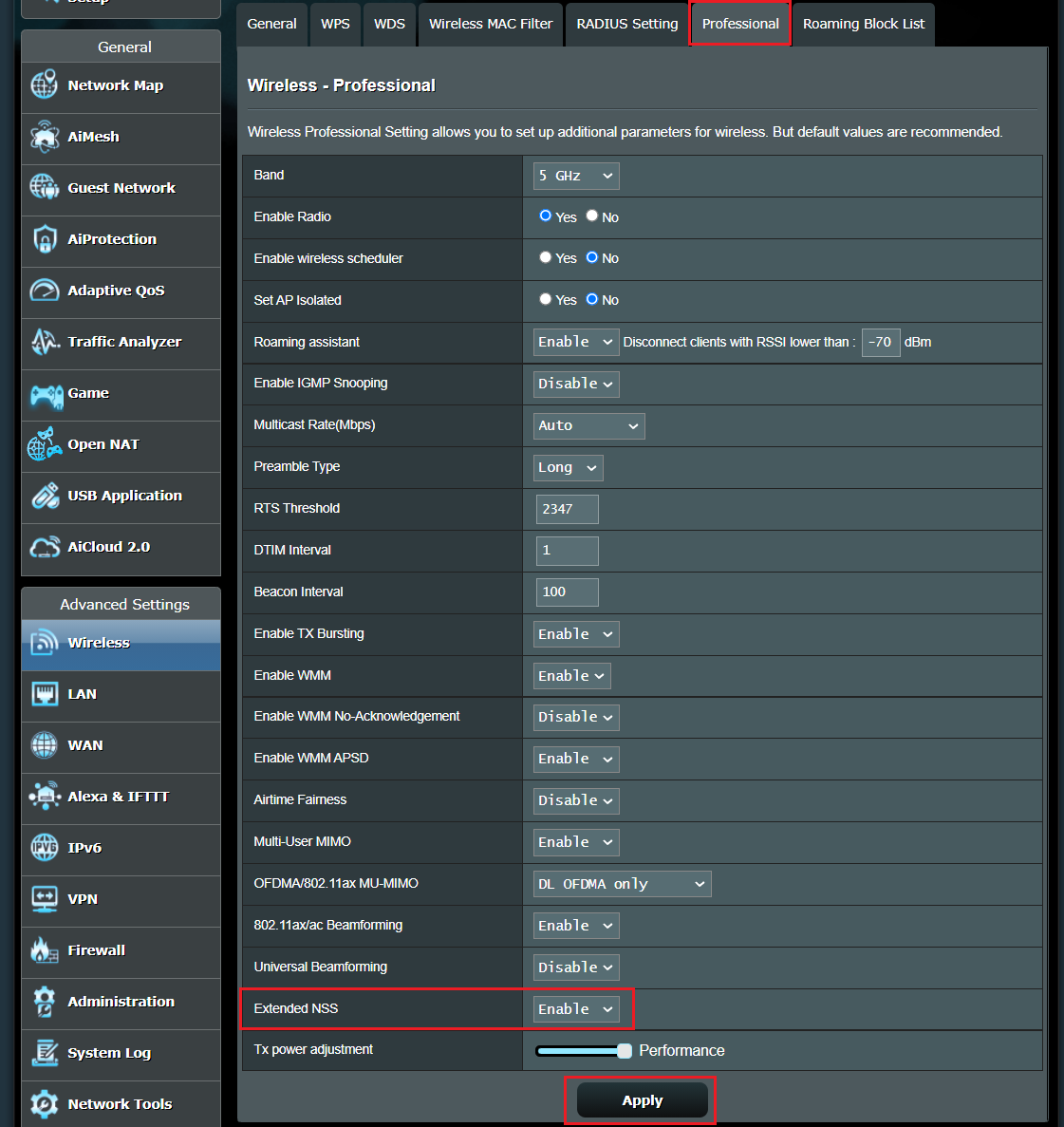
2. Please go to [Wireless] -> [Professional] tab to enable Extended NSS.
(1). Connect your PC to ASUS router via Wi-Fi or Ethernet cable.
(2). Open a web browser and enter your router LAN IP or router URL http://www.asusrouter.com to the WEB GUI.
Key in your router's username and password to log in.

Note: Please refer to How to enter the router setting page(Web GUI) (ASUSWRT)? to learn more.
Note: If you forget the user name and/or password, please restore the router to the factory default status and setup.
Please refer to [Wireless Router] How to reset the router to factory default setting? for how to restore the router to default status.
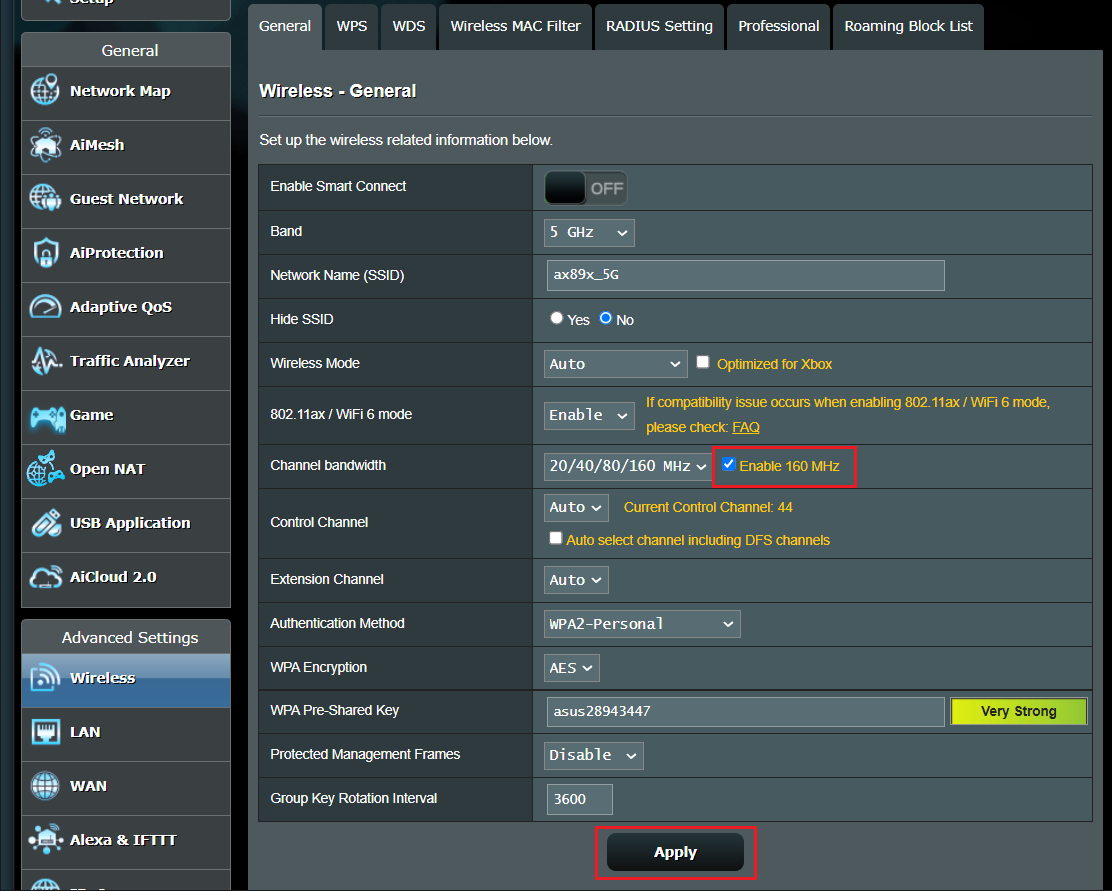
(3). Go to [Wireless] -> [General] tab.
[Enable 160 MHz]on Channel bandwidth and click [Apply] to save.
(4). Go to [Wireless] -> [Professional] tab.
Enable [Extended NSS] and click [Apply] to save.
FAQ:
Why can't my Huawei smart phone find the wifi signal?
- For Huawei smart phone users, please enable Extended NSS to ensure compatibility of Wi-Fi connection.
How to get the (Utility / Firmware)?
You can download the latest drivers, software, firmware and user manuals in the ASUS Download Center.
If you need more information about the ASUS Download Center, please refer this link.


