This widget could not be displayed.
This widget could not be displayed.
Turn on suggestions
Auto-suggest helps you quickly narrow down your search results by suggesting possible matches as you type.
Showing results for
- English
- Other Products
- FAQ
- [Wireless Router] How to configure multiple VPN co...
Options
- Subscribe to RSS Feed
- Mark as New
- Mark as Read
- Bookmark
- Subscribe
- Printer Friendly Page
- Report Inappropriate Content

 FAQBot
Community Manager
Options
- Article History
- Subscribe to RSS Feed
- Mark as New
- Mark as Read
- Bookmark
- Subscribe
- Printer Friendly Page
- Report Inappropriate Content
on
01-29-2024
04:58 PM
- edited on
04-16-2025
03:07 AM
by
ZenBot
[Wireless Router] How to configure multiple VPN connections on ASUS router (VPN Fusion / VPN Client)? (GT-AC5300/GT-AC2900)
What is a VPN?
- Virtual Private Network virtual private networks encrypt your network connection, ensuring the secure transmission of important information and preventing your information from being stolen. Allows remote consumers (VPN clients) to securely connect to VPN servers.
What is the difference between VPN Fusion and General VPN?
- VPN Fusion includes VPN clients, for VPN Client settings, please refer to [VPN] How to set up VPN Client in ASUS Router (Web GUI)?
- This article only applies to ASUS routers GT-AC5300 and GT-AC2900.
You can add VPN policies to the exception list, so that different client devices can connect to different VPN tunnels.
Note:
Up to 16 VPN connection profiles are allowed in the server list at the same time, the max number of concurrent active VPN connections is 4.
Up to 64 devices can be specified in the exception list to set VPN rules.
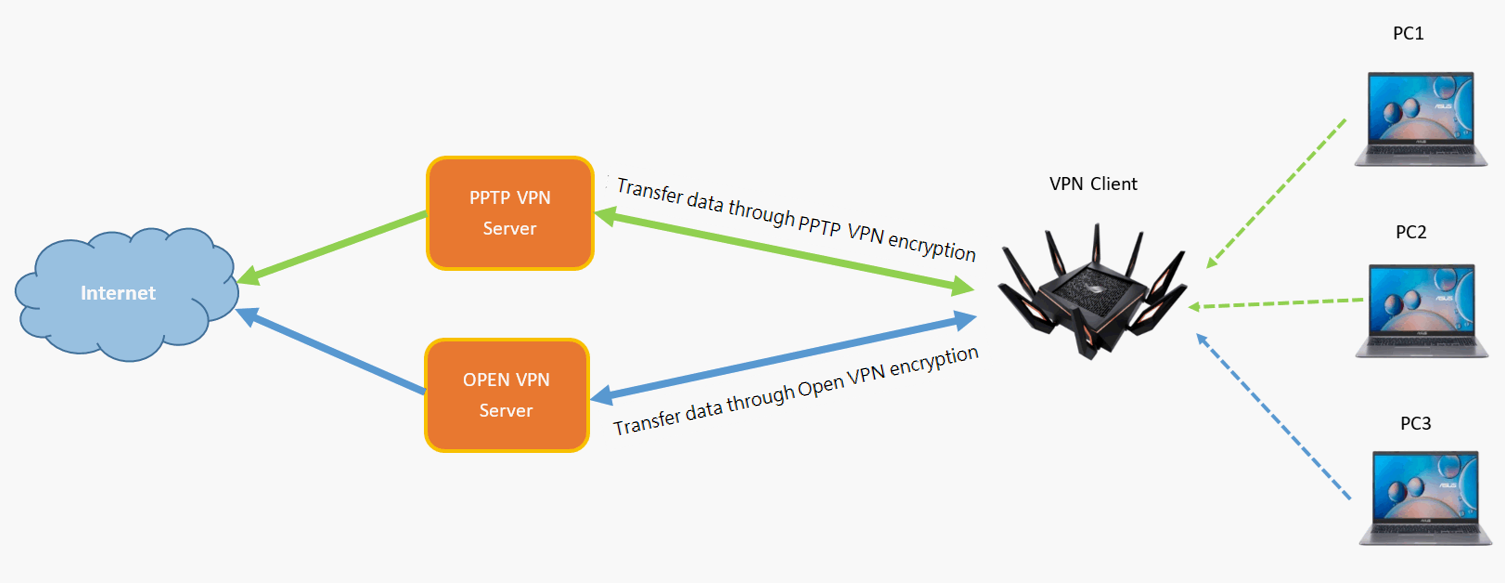
For example, if you use GT-AC5300 as a VPN client, you want to establish a VPN connection with both the PPTP VPN server and Open VPN server.
PC 1 connected to GT-AC5300 is specified to be connected to the Internet via PPTVP VPN, and PC 2 is connected to the Internet via OPEN VPN, which allows VPN Fusion to be used.
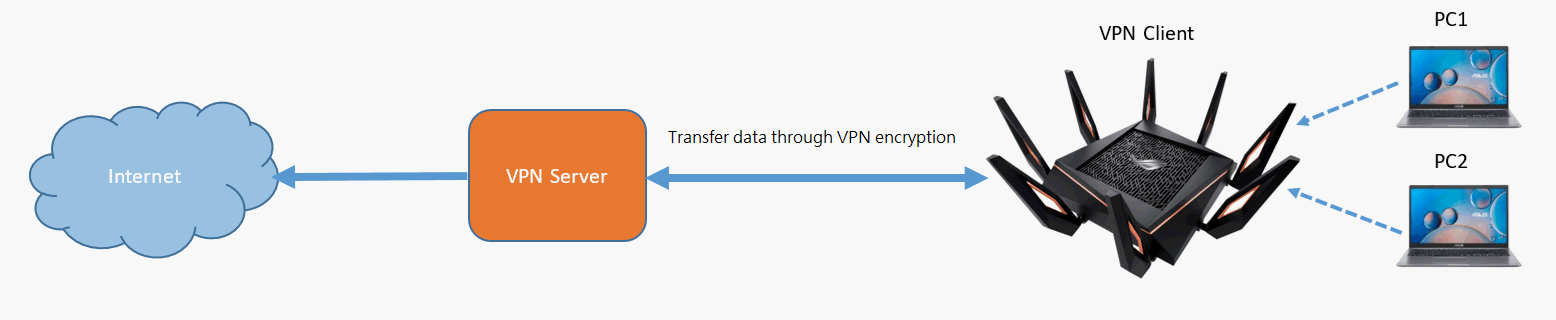
When the GT-AC5300 as a VPN client, only one VPN encrypted connection is established:
When the GT-AC5300 as a VPN client, two VPN encryptions are established at the same time, allowing the underlying device to connect through different VPN servers:
The VPN servers supported by ASUS wireless routers vary by model, and it is recommended that you refer to the product user manual or the product specifications page to confirm that your router is supported.
You can download the latest drivers, software, firmware and user manuals in the ASUS Download Center.
If you need more information about the ASUS Download Center, please refer this link.
For example, the following GT-AC5300 as a VPN client connects to both the PPTP VPN server and the OPEN VPN server:
Set up Server List in VPN Fusion to establish and enable different types of VPN server profiles
Step 1. Connect your computer to the router via wired or WiFi connection and enter your router LAN IP or router URL http://www.asusrouter.com to the WEB GUI.
Note: Please refer to How to enter the router setting page(Web GUI)to learn more.
Step 2. Key in your router's username and password to log in.
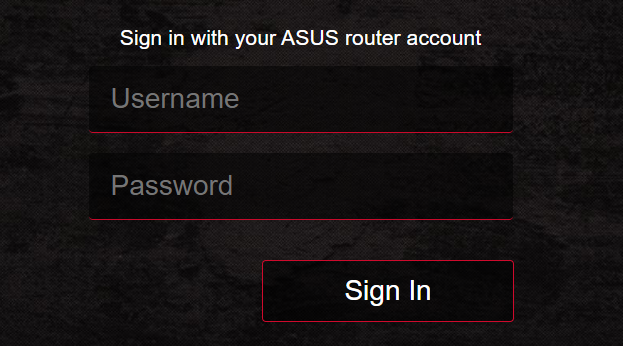
Note: If you forget the username and/or password, please restore the router to the factory default status and setup.
Please refer to [Wireless Router] How to reset the router to factory default setting? for how to restore the router to default status.
Step 3. Go to [VPN > [VPN Fusion]
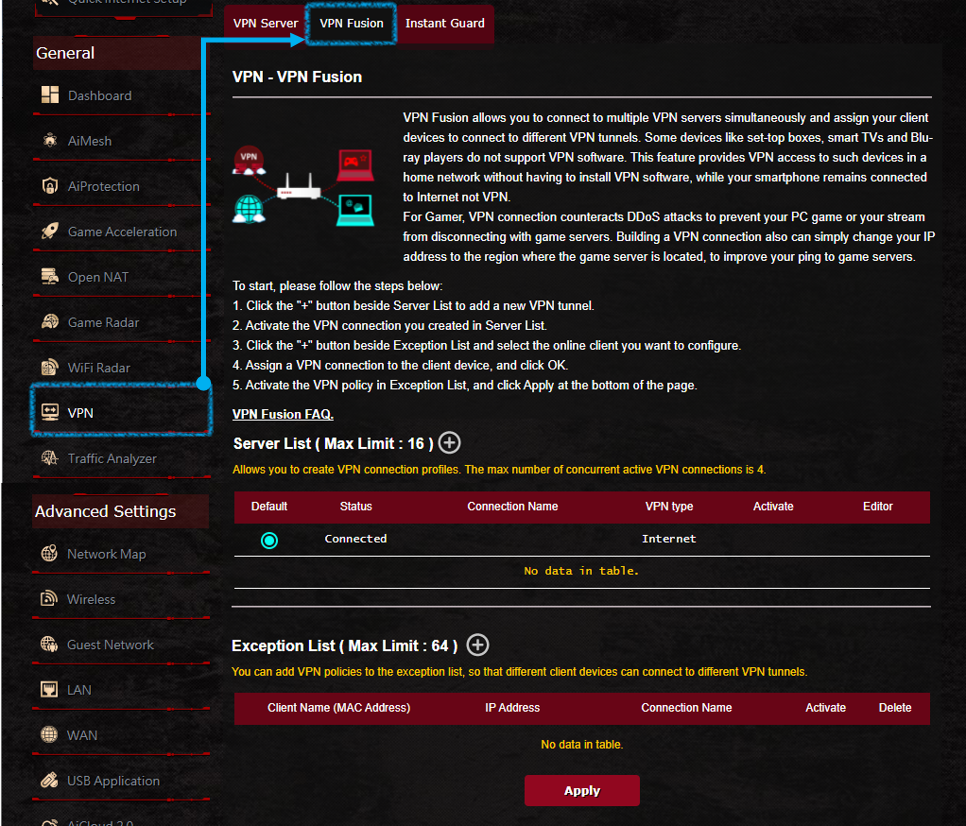
Step 4. Click the  button, create a VPN server list.

Step 5. Create a PPTP VPN/ Open VPN server profiles

For VPN Client settings, please refer to [VPN] How to set up VPN Client in ASUS Router (Web GUI)?
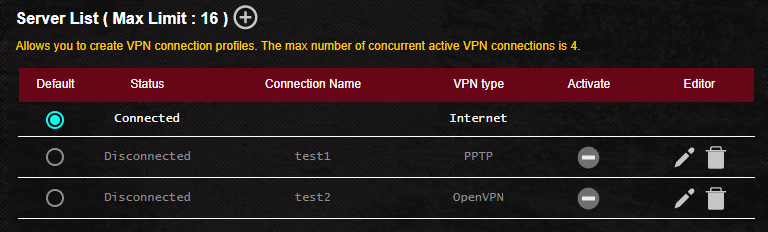
Step 6. PPTP VPN, Open VPN server profile, as shown below
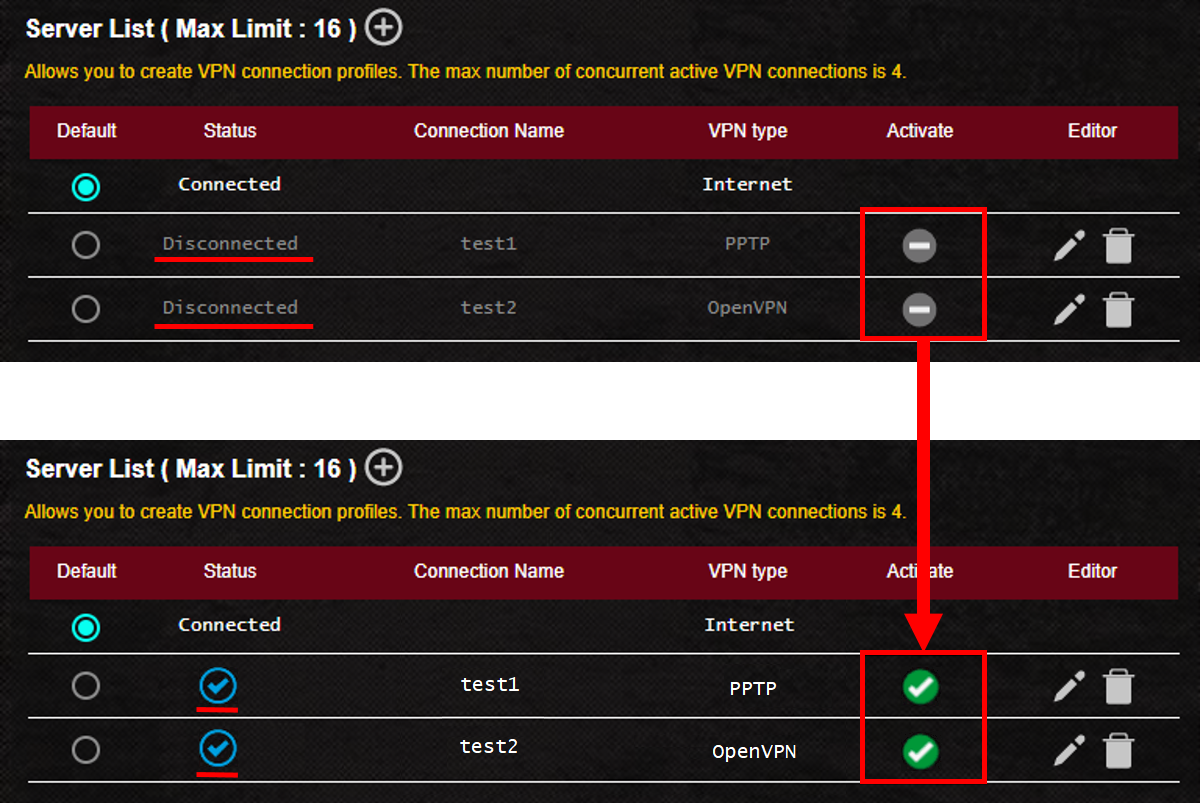
Step 7. Both VPN server profiles were selected to enable, and the PPTP VPN and Open VPN connection was successful.
The default is the Internet, and you can change the router's default connection to a different VPN server profile.
Check this for more instructions.
You can add VPN policies to the exception list, so that different client devices can connect to different VPN tunnels.
Step 1. Click the  button, create an Exception List.

Step 2. Click the button, Select the device name you want to assign.
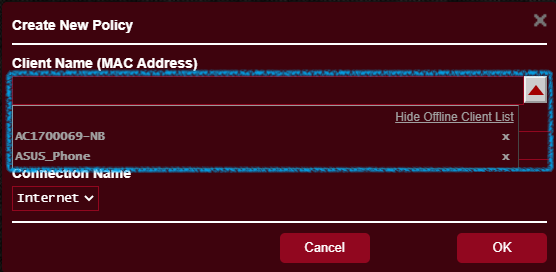
Step 3. Check the device name (MAC address) and the device's IP address.

Step 4. Select Connection Name, and click [OK].
Note: This connection name was created for your server list.
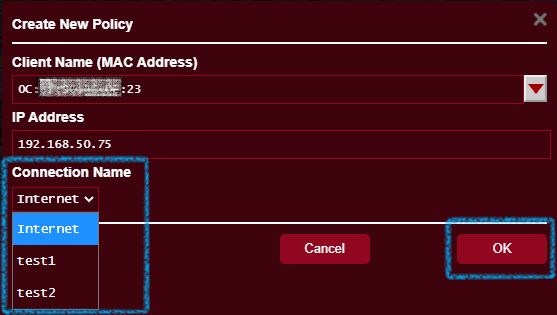
Step 5. After set up the exception list and then click [Activate] > [Apply] to save the settings.
Enable connection name: (test1) (example)
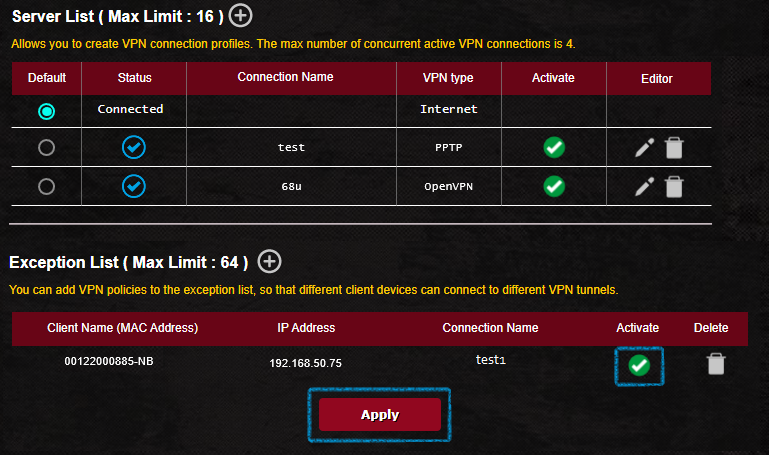
Check this for more instructions.
For China area usage
If you want to configure the VPN connecting to a VPN server outside of China for accessing Google service, Facebook or Line, please set the VPN connection as default rather than Internet in server list.
FAQ
1. Why is there no OpenVPN client option available in the latest firmware?
- The VPN Client is actually called VPN Fusion.
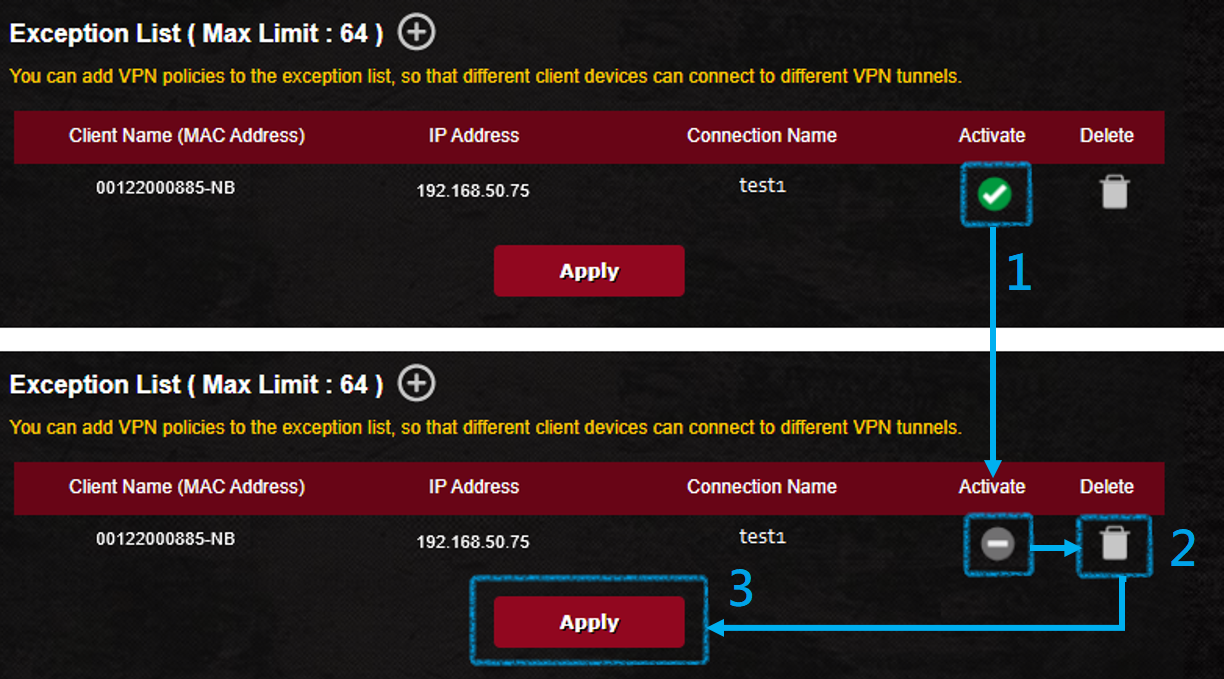
2. After create an exception list, can I edit the list content directly without deleting the rule?
- No, you can only remove VPN rules for this device from the exception list. Please deactivate the rule and then click [Delete] > [Apply] to save the settings.
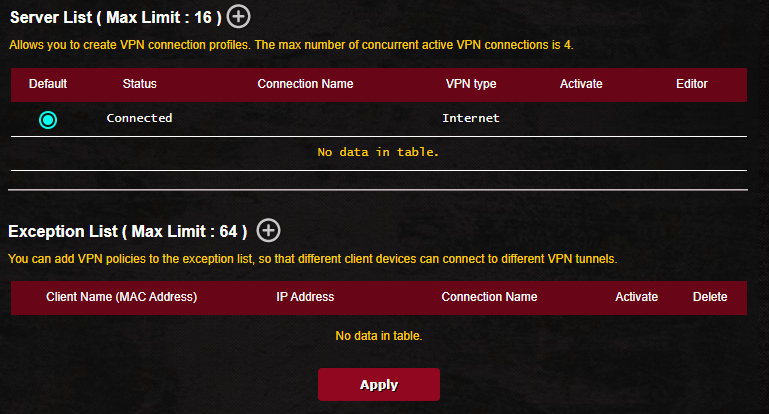
3. Server List introduction
- Default:The client device not in the exception list will connect to the default VPN tunnel. You can setting default VPN tunnel after the VPN profile is created. When the default VPN tunnel is disconnected or deactivate, the client device not in the exception list will connect to Internet not VPN.
- Status:Current Internet or VPN connection status.
- Connection Name:Your custom VPN server connection name.
- VPN type:Create a VPN type in the VPN server list.
- Activate:If you have created a VPN server profile but have not enabled it, it will be displayed as
 ,When clicked, it will displayed as
 ,this means that the VPN is enabled.
 - Editor:Click
 icon edit the VPN server profile, click
  icon delete the VPN server profile.
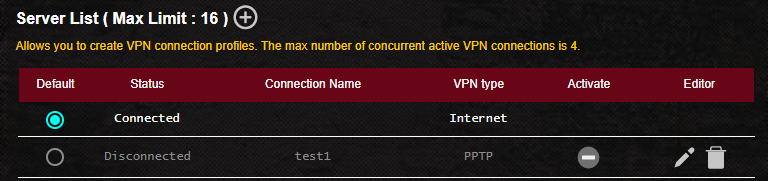
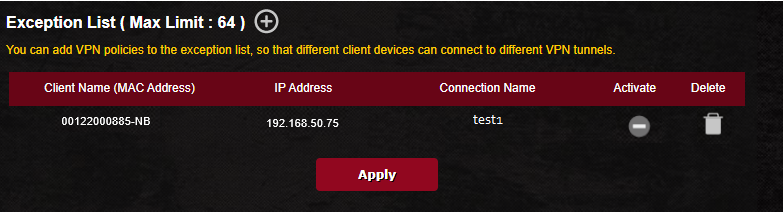
4. Exception list introduction
- Client Name (MAC Address): Client device connected to router, such as phone, computer, NB.
- IP Address:The IP address assigned to the client device by the router.
- Connection Name:Your custom VPN server connection name.
- Activate:If you have created an exception list but have not enabled it, it will be displayed as
 ,When clicked, it will displayed as
 , this means that the routing rules for the devices are enabled.
 - Delete:Click
 icon delete the rule.。
How to get the (Utility / Firmware)?
You can download the latest drivers, software, firmware and user manuals in the ASUS Download Center.
If you need more information about the ASUS Download Center, please refer this link.
