This widget could not be displayed.
This widget could not be displayed.
Turn on suggestions
Auto-suggest helps you quickly narrow down your search results by suggesting possible matches as you type.
Showing results for
- English
- Other Products
- FAQ
- [Windows 11/10] How to use Task Manager to check c...
Options
- Subscribe to RSS Feed
- Mark as New
- Mark as Read
- Bookmark
- Subscribe
- Printer Friendly Page
- Report Inappropriate Content

 FAQBot
Community Manager
Options
- Article History
- Subscribe to RSS Feed
- Mark as New
- Mark as Read
- Bookmark
- Subscribe
- Printer Friendly Page
- Report Inappropriate Content
on
01-29-2024
04:40 PM
- edited on
10-07-2025
03:33 AM
by
ZenBot
[Windows 11/10] How to use Task Manager to check computer performance
Applicable Products: Notebook, Desktop, All-in-One PC, Gaming Handheld, MiniPC, ASUS NUC
Task Manager is a tool to manage applications and processes in Microsoft Windows system. It allows user to check current processes and provides relevant information about computer performance.
If you experience that poor computer performance, over-heating, the fan keeps running or short battery life (the battery’s discharge rate will depend on the running applications in your computer), you can use Task Manager to check whether an application is using more of the CPU or Memory resources than expected.
Please go to the corresponding instruction based on the current Windows operating system on your device:
Windows 11 operating system
Use Task Manager to check applications with the occupied computer resource
- Right-click the [Start] icon
 on the taskbar①, then select [Task Manager]②.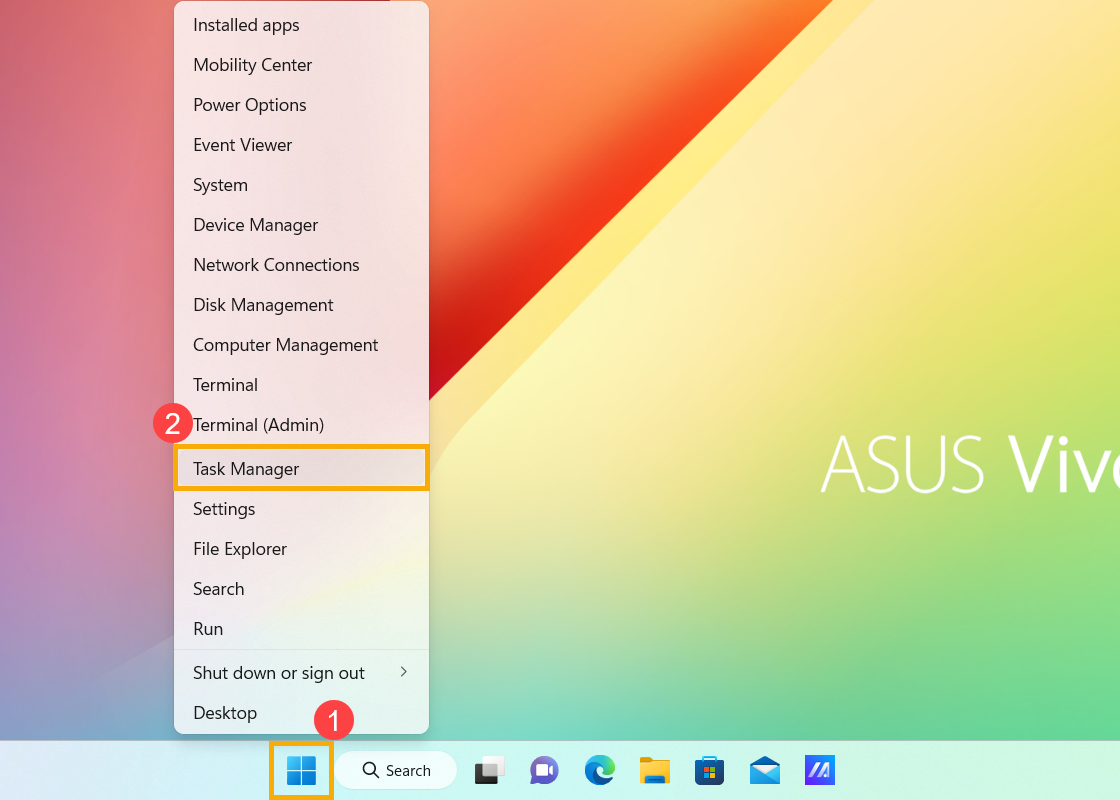
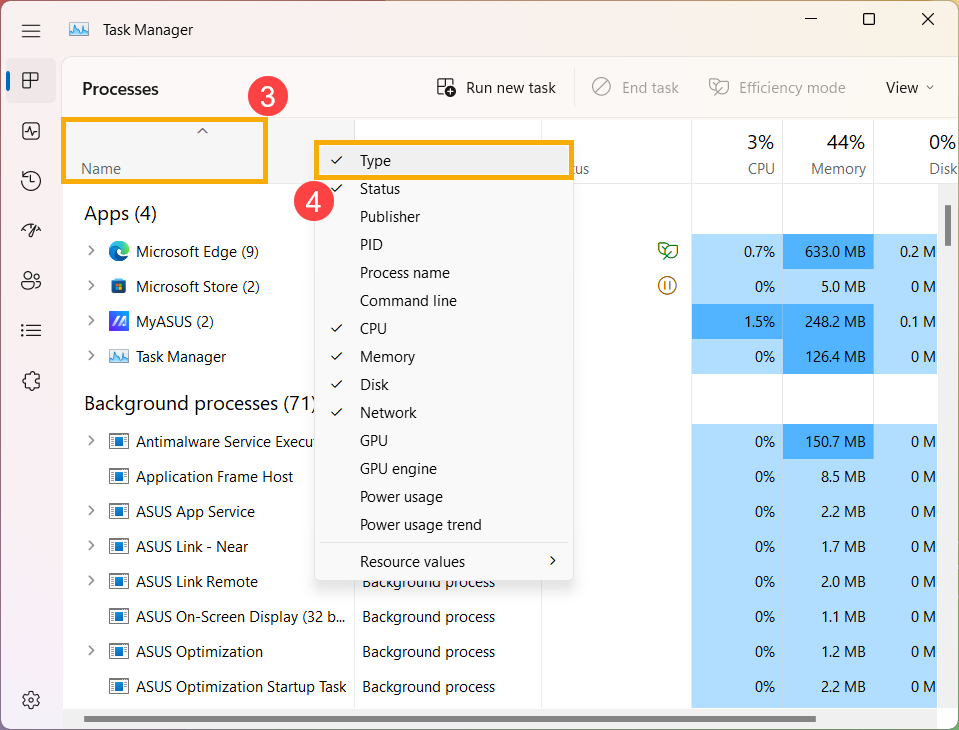
- In Task Manager, right-click on the Name column③, then select [Type]④ to see which type that each process belongs to.
- If you want to see how applications are affecting your CPU, please click [CPU]⑤ column. It will sort by the percentage of CPU capability used (largest to smallest) by each process after the down-arrow
 appeared.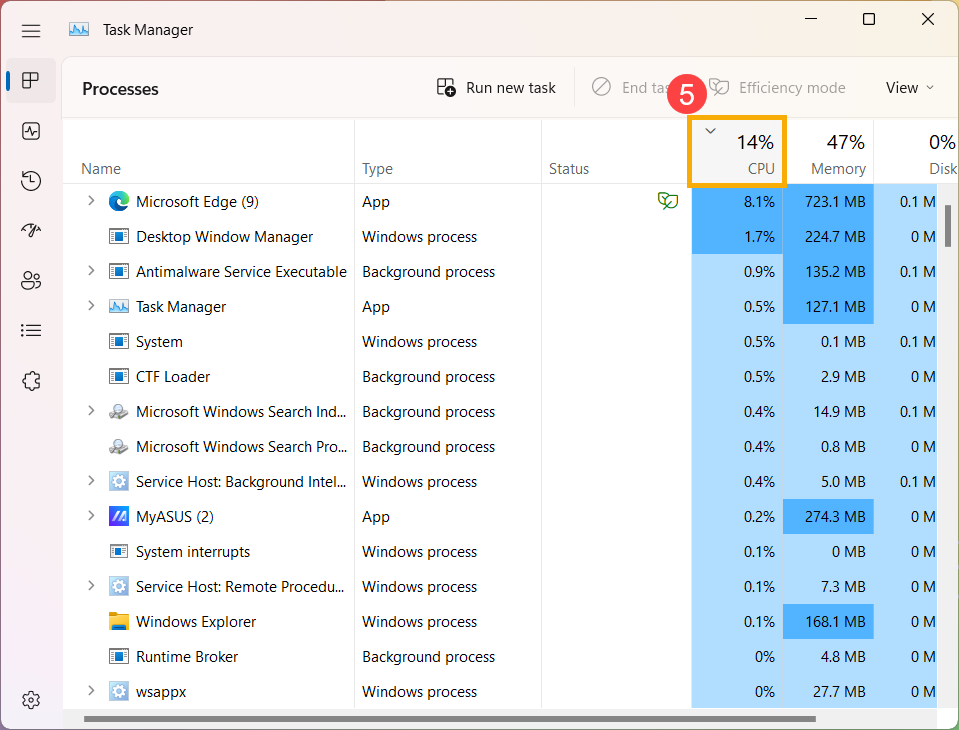
- If you want to see how applications are affecting your Memory, please click [Memory]⑥ column. It will sort by the percentage of Memory capability used (largest to smallest) by each process after the down-arrow
 appeared.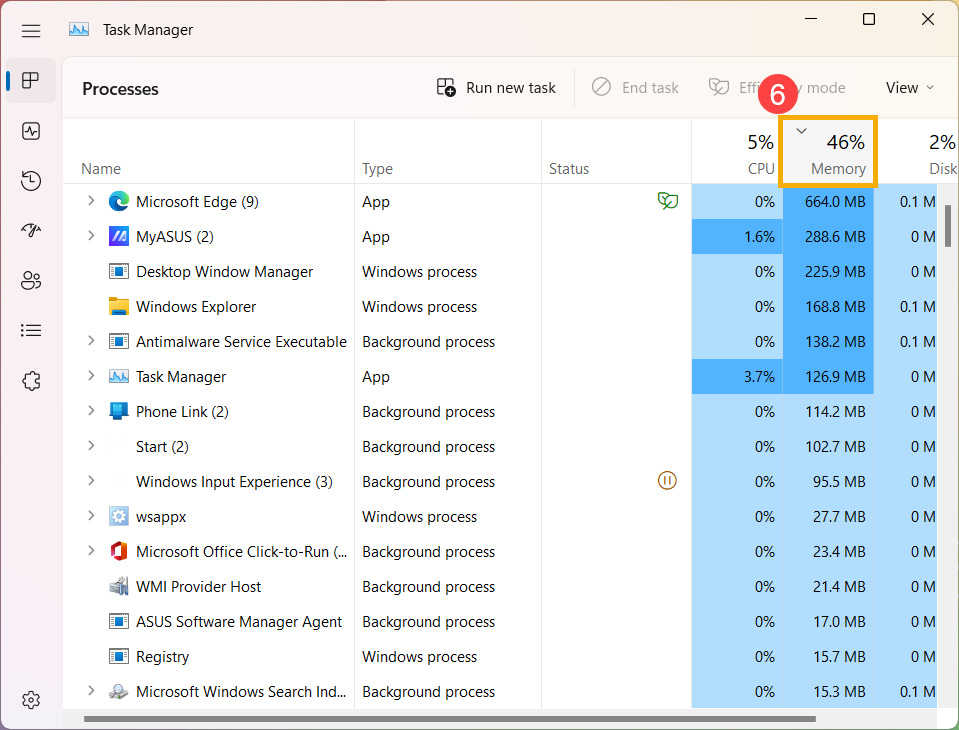
- After it sorts by the percentage of resources used by each process, you will see the occupied resources which belongs to applications type in your computer.
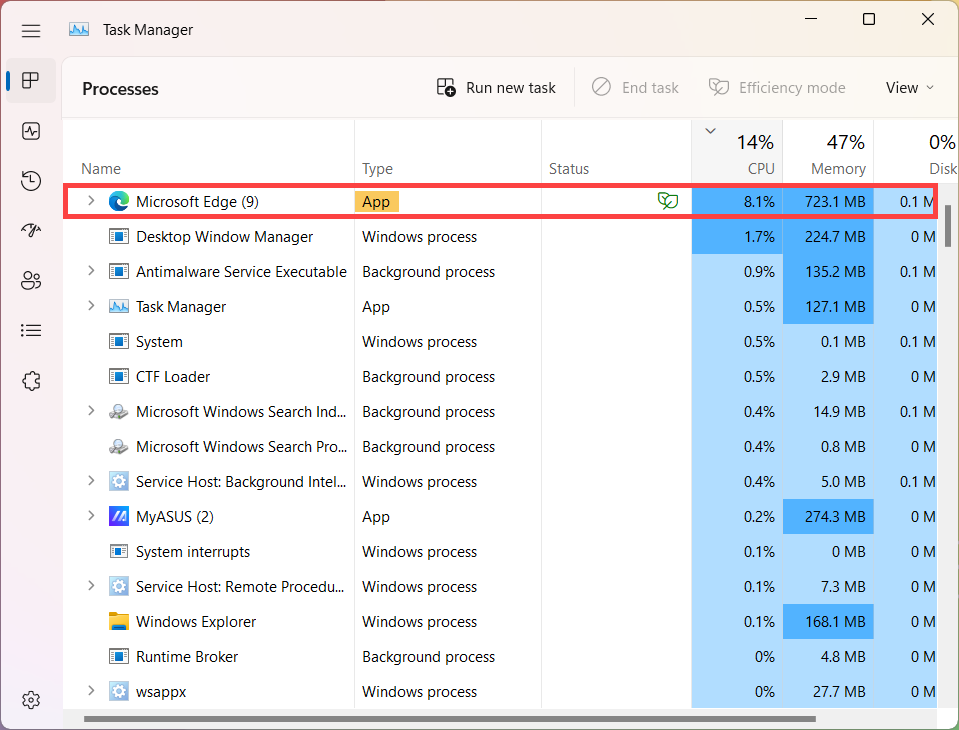
- If you would like to check the used status of other resources (such as Disk, Network, or GPU), please follow the above steps 3-6.
End any malfunctioning processes
While you observe some applications occupy a larger percentage of the resource, and you are not using them, if you want to end these processes, please try to normally close them first. (For example, open this application and click close.)
If it cannot be closed normally or the resource is still occupied in Task Manager after closing it, you can use Task Manager to force it to close.
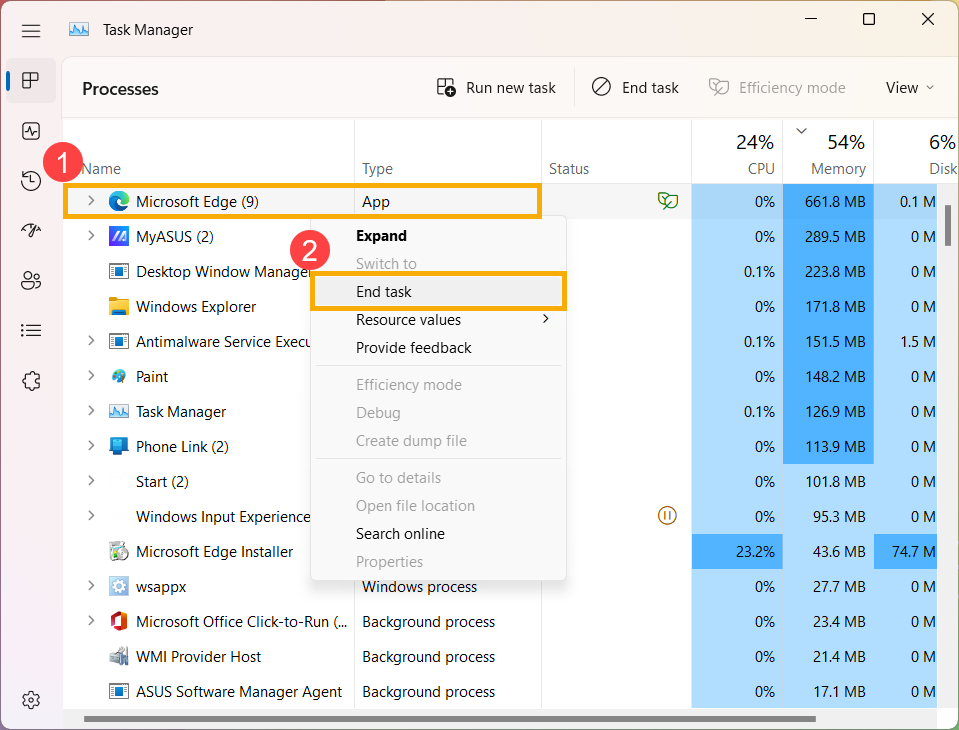
Right-click on the process①, then select [End task]②, this process will be forced to close.
Note: If the type is not “App” (such as Windows process), we don’t recommend that you force to close it to prevent any abnormal system operation.
Windows 10 operating system
Use Task Manager to check applications with the occupied computer resource
- Right-click on the anywhere of taskbar, then select [Task Manager]①.
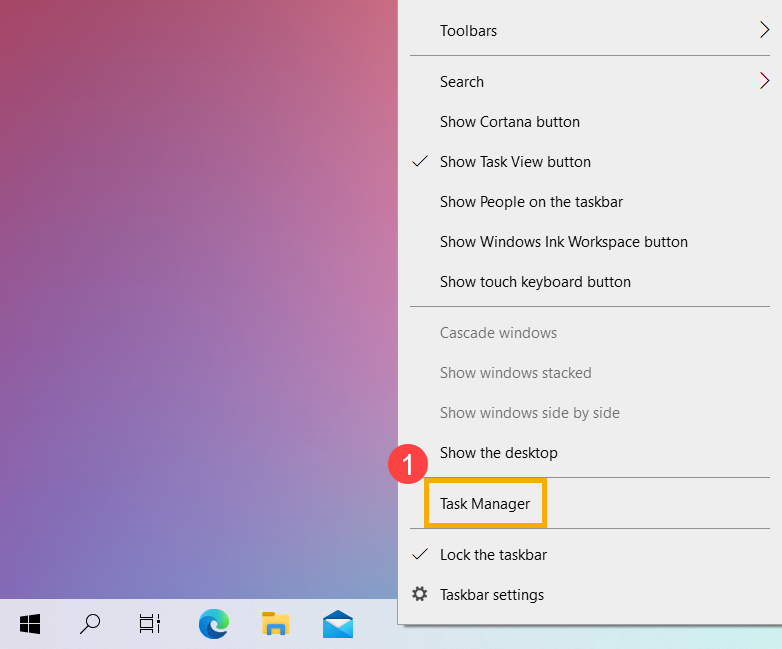
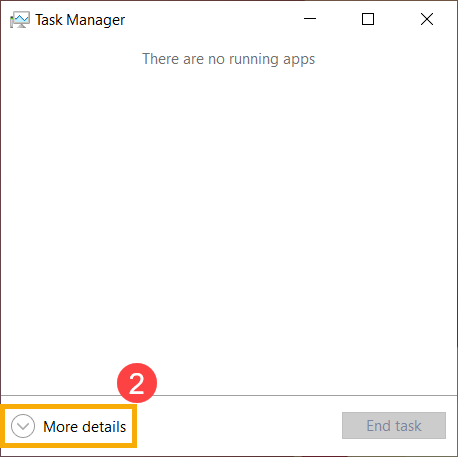
- If you see the following illustration, please click [More details]②.
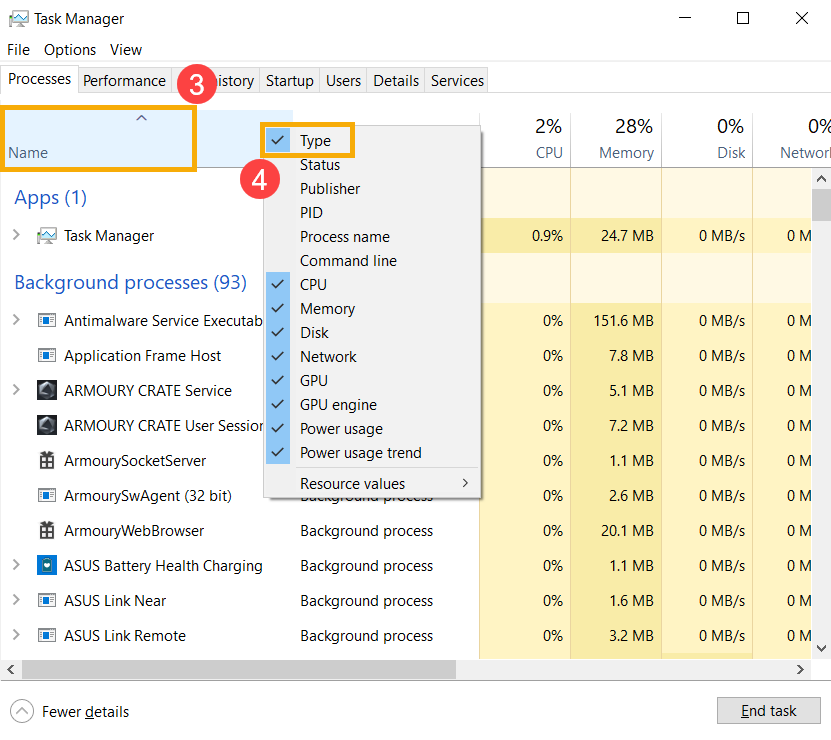
- In Task Manager, right-click on the Name column③, then select [Type]④ to see which type that each process belongs to.
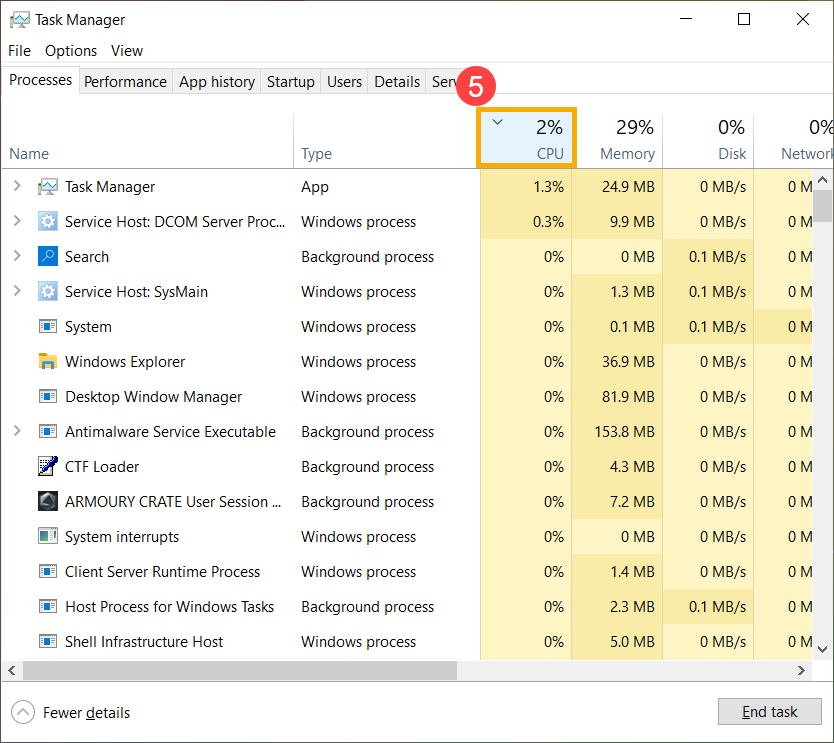
- If you want to see how applications are affecting your CPU, please click [CPU]⑤ column. It will sort by the percentage of CPU capability used (largest to smallest) by each process after the down-arrow appeared.
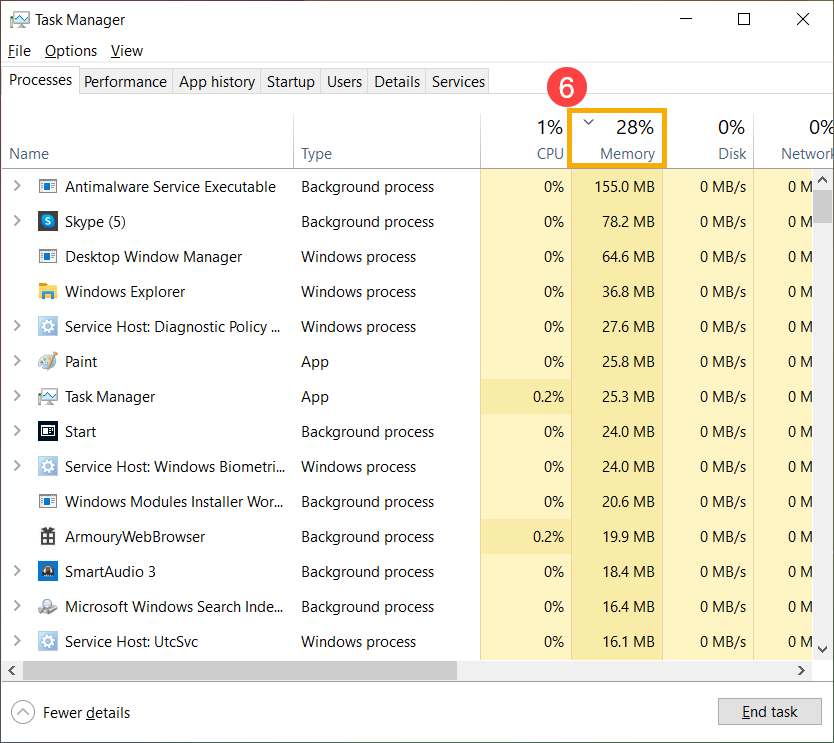
- If you want to see how applications are affecting your Memory, please click [Memory]⑥ column. It will sort by the percentage of Memory capability used (largest to smallest) by each process after the down-arrow appeared.
- After it sorts by the percentage of resources used by each process, you will see the occupied resources which belongs to applications type in your computer.
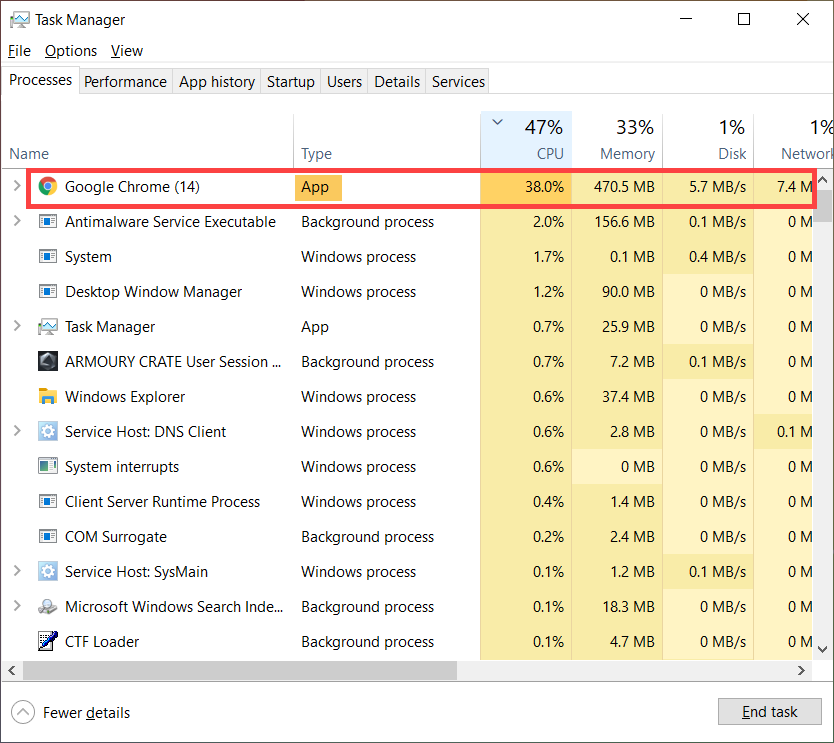
- If you would like to check the used status of other resources (such as Disk, Network, or GPU), please follow the above steps 3-6.
End any malfunctioning processes
While you observe some applications occupy a larger percentage of the resource, and you are not using them, if you want to end these processes, please try to normally close them first. (For example, open this application and click close.)
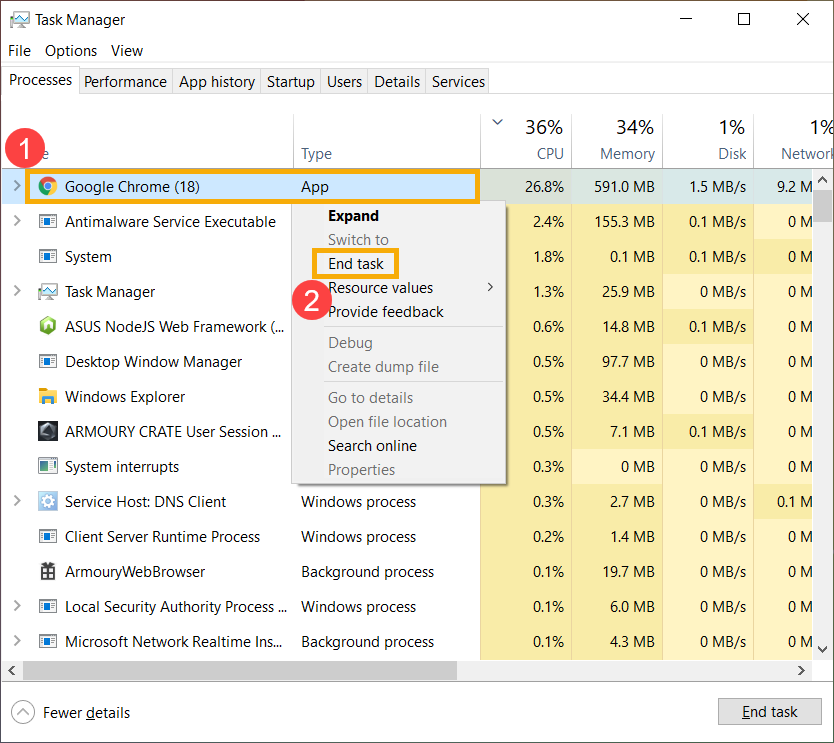
If it cannot be closed normally or the resource is still occupied in Task Manager after closing it, you can use Task Manager to force it to close.
Right-click on the process①, then select [End task]②, this process will be forced to close.
Note: If the type is not “App” (such as Windows process), we don’t recommend that you force to close it to prevent any abnormal system operation.