[Windows 11/10] How to Switch Between Tablet Mode and Desktop Mode
Tablet mode is a Windows feature that allows your device to transition between tablet mode and the traditional desktop interface. Optimizing the appearance and behavior of applications and the Windows shell based on physical size and user preferences, tablet mode offers features such as resizing Start across the entire screen for immersive experiences, closing apps by swiping down from the top edge, and adapting the taskbar for more tablet-friendly navigation in addition to a changed status bar, among others. For a more detailed introduction to tablet mode, please refer to Microsoft's official Windows documentation.
Note: Windows 11 has removed the manual toggle for tablet mode. When using convertible, flip, and detachable devices, the system will automatically switch to tablet mode when connecting/disconnecting the keyboard or rotating the screen.
Desktop Mode
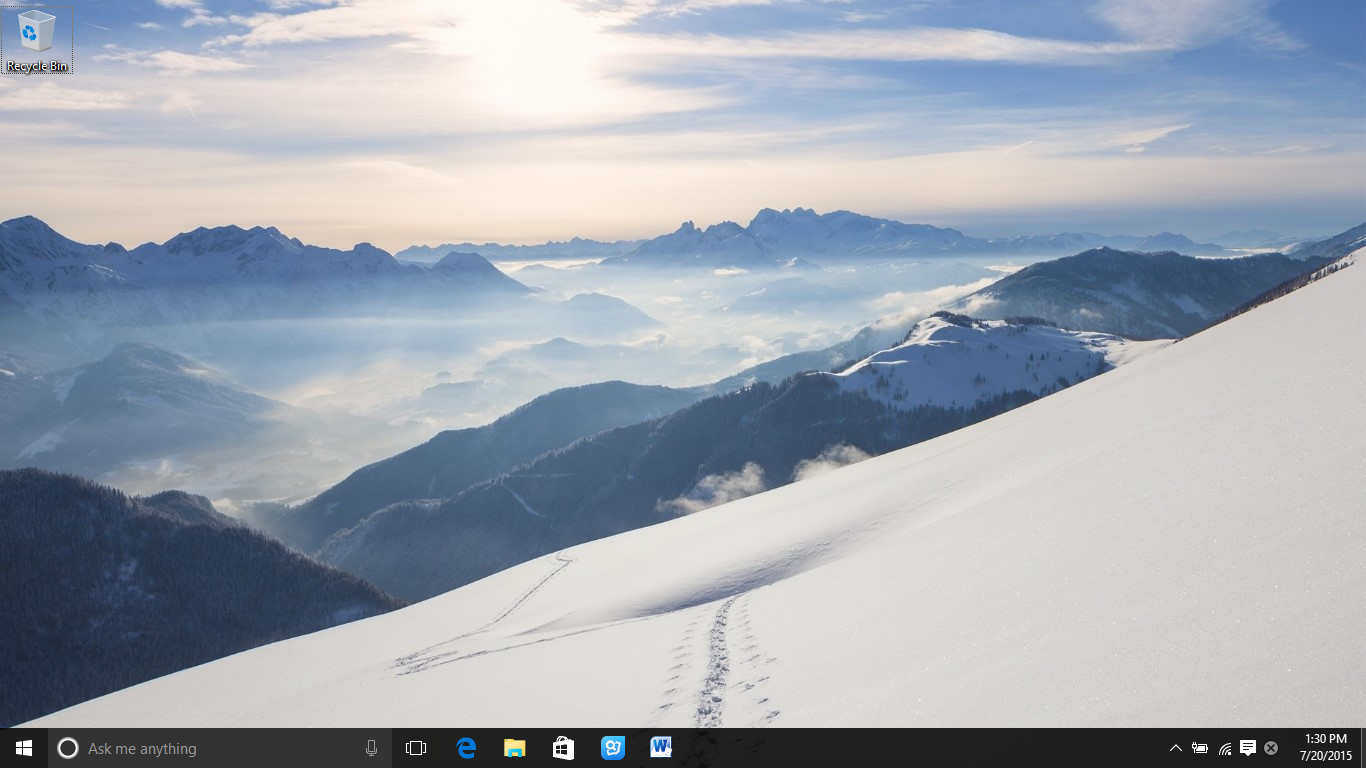
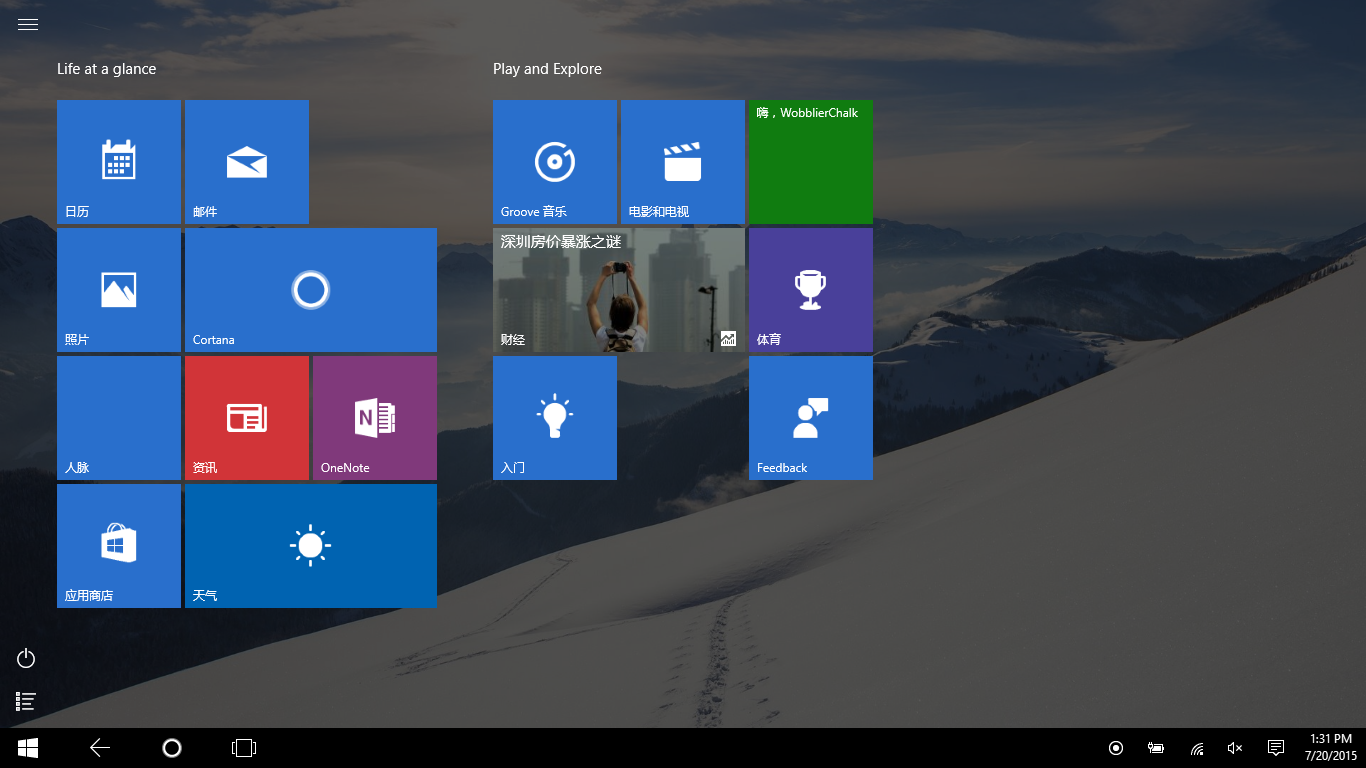
Table Mode
Manually Switching Tablet Mode on Windows 10 Devices
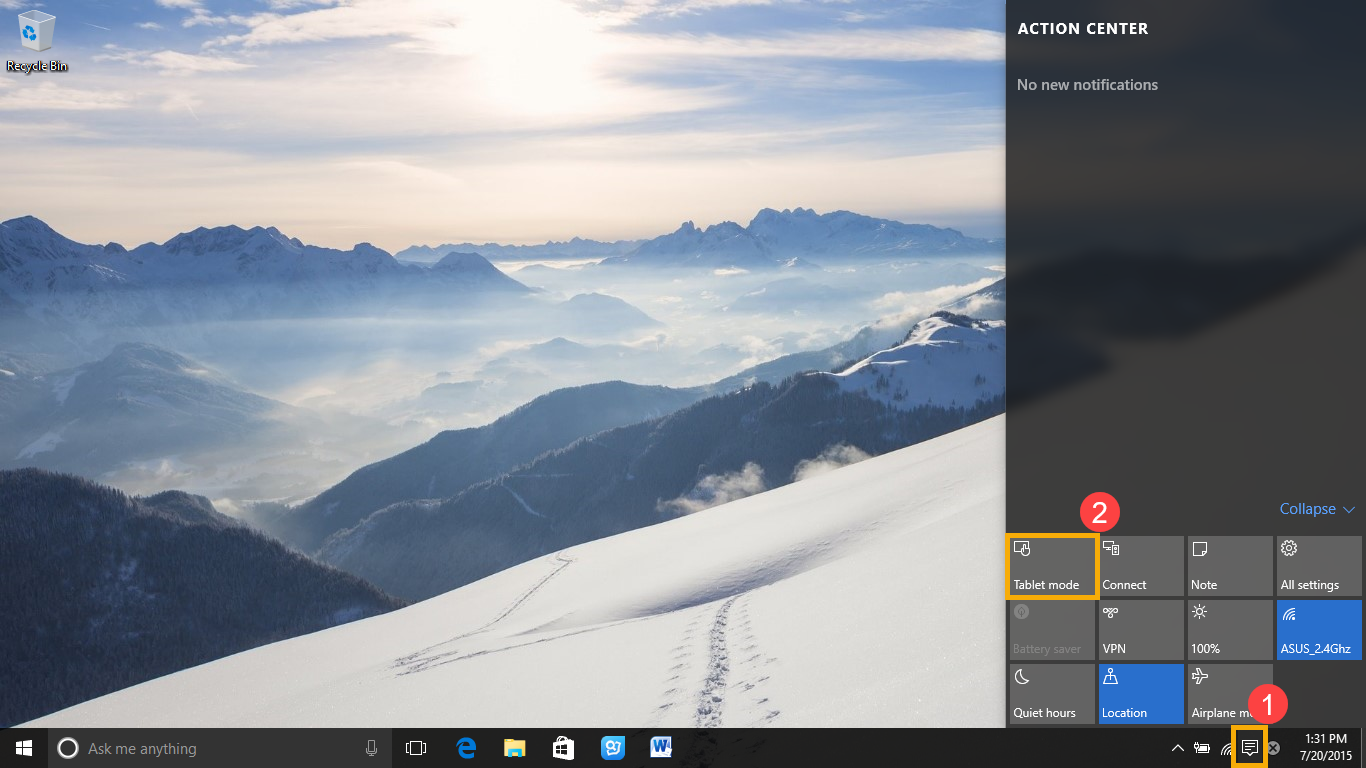
Method 1: Switching Tablet Mode via Action Center
Click on the Action Center icon in the lower right corner of the screen①, and then click on the Tablet mode icon② to switch between tablet mode and desktop mode.
Method 2: Switching Tablet Mode in Windows Settings
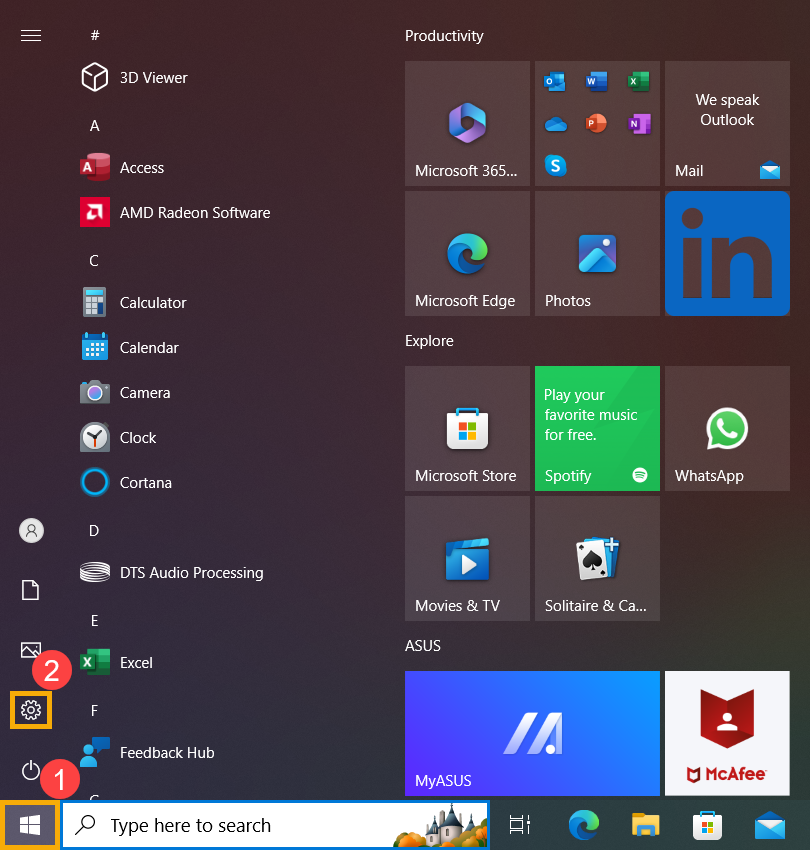
- Click on the [Start] icon
 on the taskbar①, and then click [Settings]
 ②.
②.
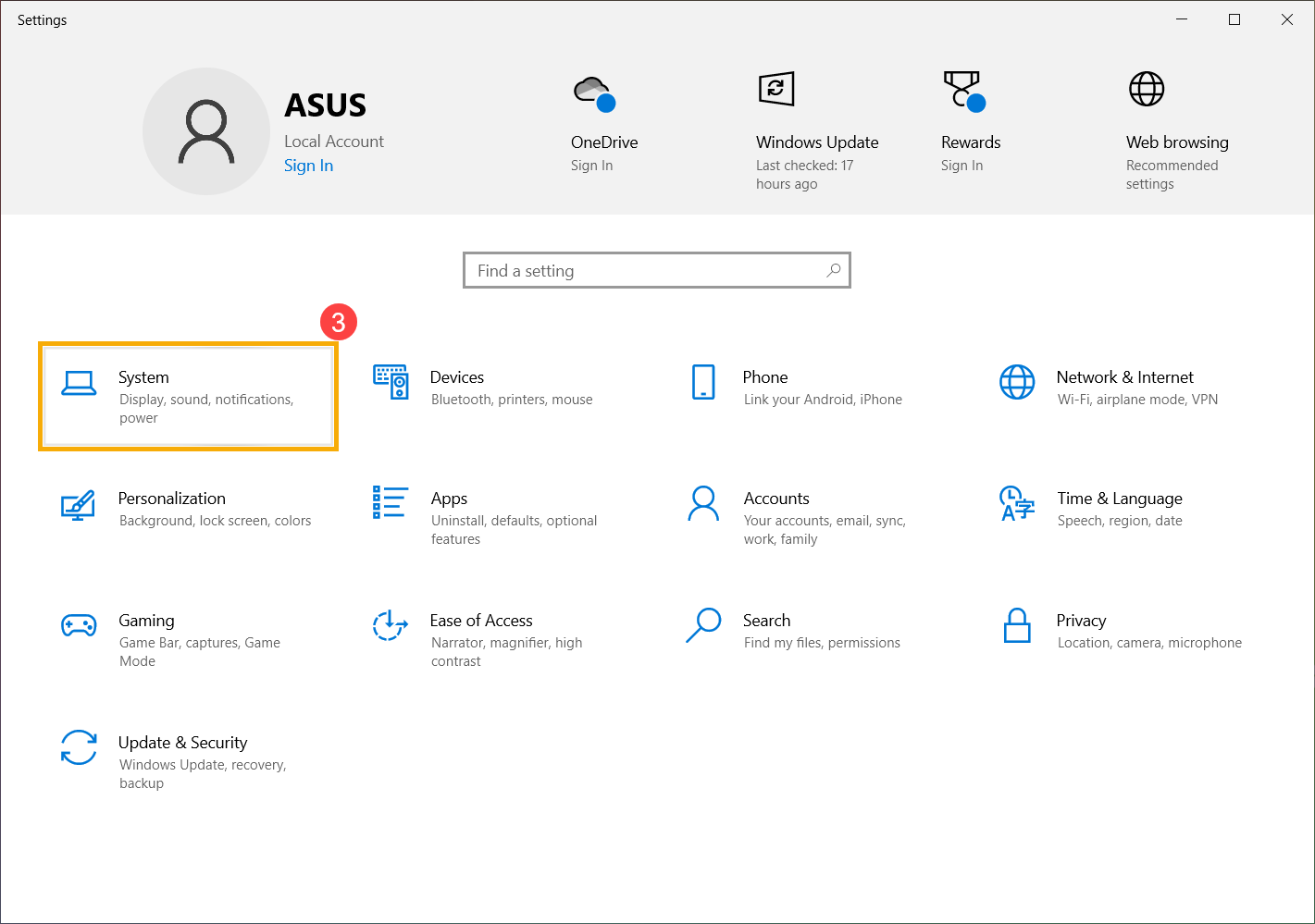
- In Settings, click on [System]③.
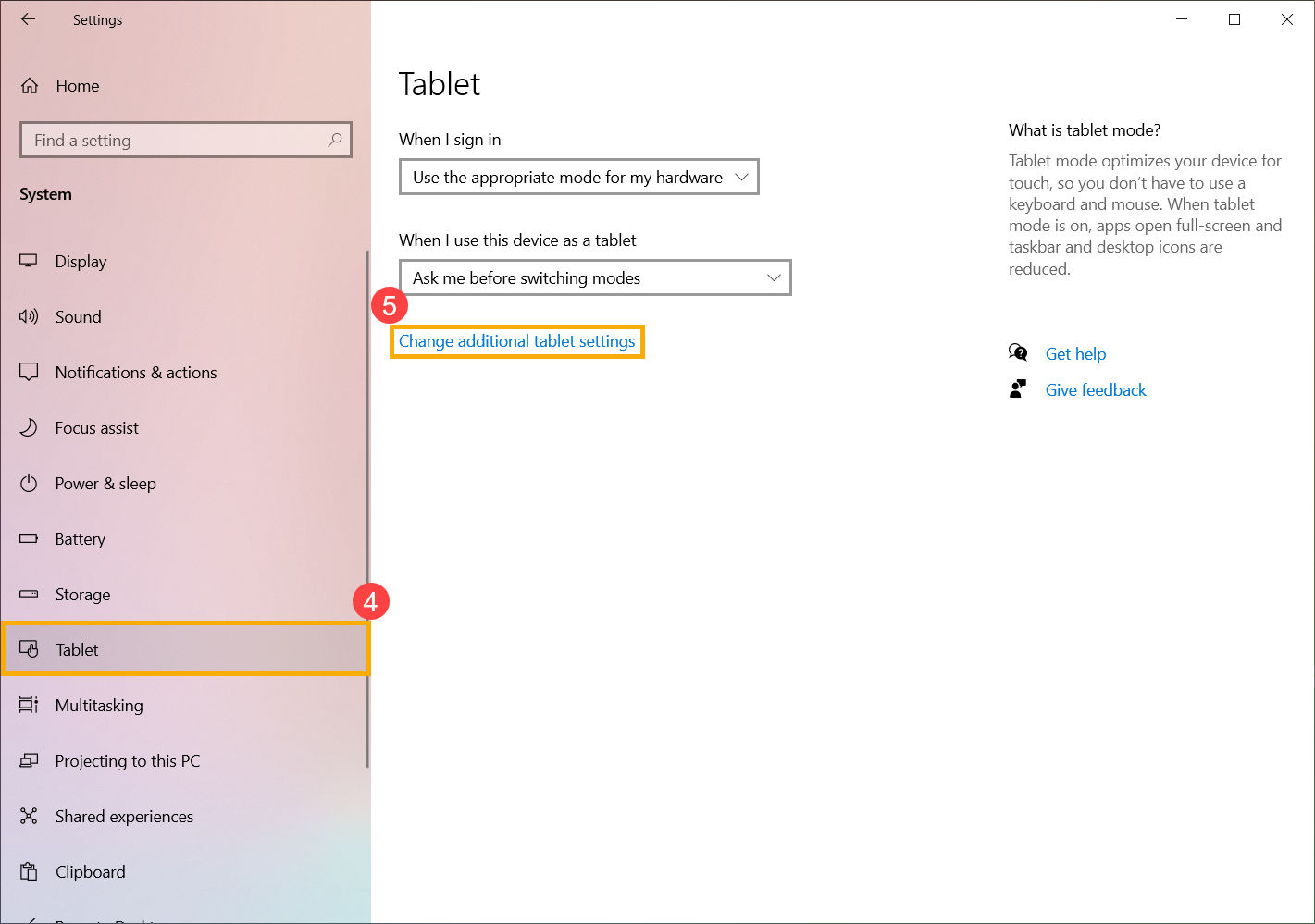
- In System settings, click on [Tablet]④, and then click [Change additional tablet settings]⑤.
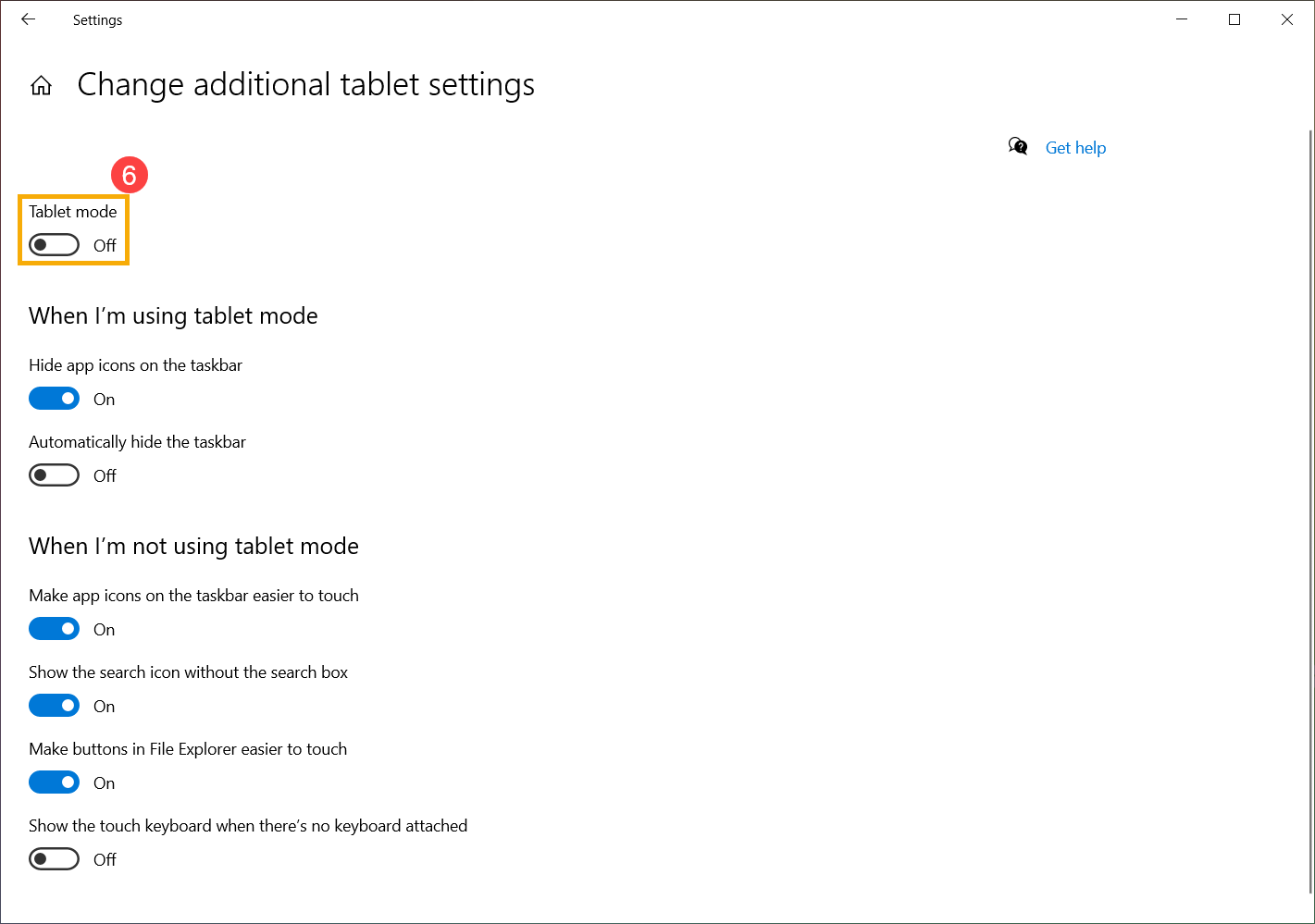
- Toggle the [Tablet mode] setting on or off⑥ to switch between tablet mode and desktop mode.