[Windows 11/10] Find your applications, files, and settings
Applicable Products: Notebook, Desktop, All-in-One PC, Gaming Handheld, MiniPC
This article introduces how to find your applications, files, and settings using the Search feature in Windows 11/10.
Please go to the corresponding instruction based on the current Windows operating system on your device:
Windows 11 operating system
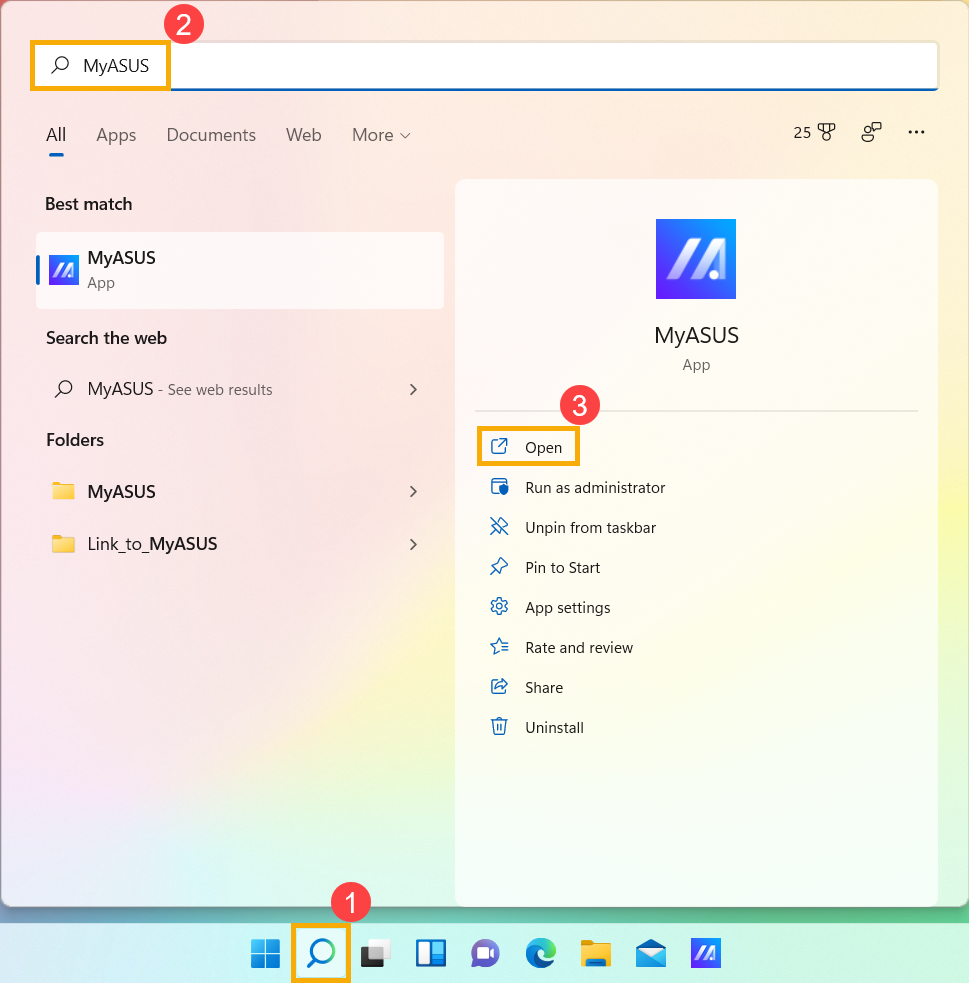
Click the [Search ] icon on the taskbar①, then type the name (or a keyword from it) into the search box②, you’ll see results under [Best match]③. Therefore, you can find the applications, files, or settings for quick access.
If there is no search bar icon on the taskbar, it might be hidden. You can refer to the following steps to show the search icon.

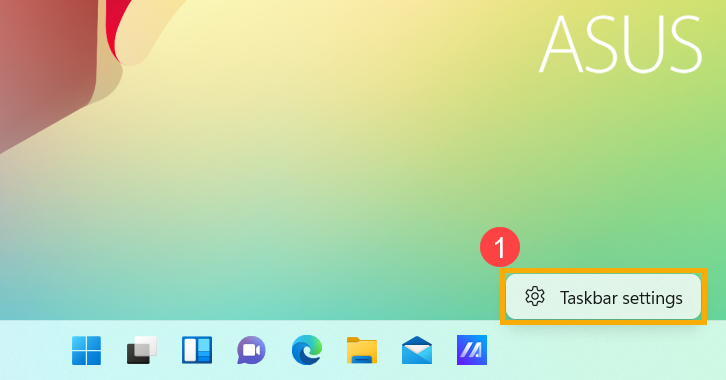
- Right-click on the anywhere of taskbar, then click [Taskbar settings]①.
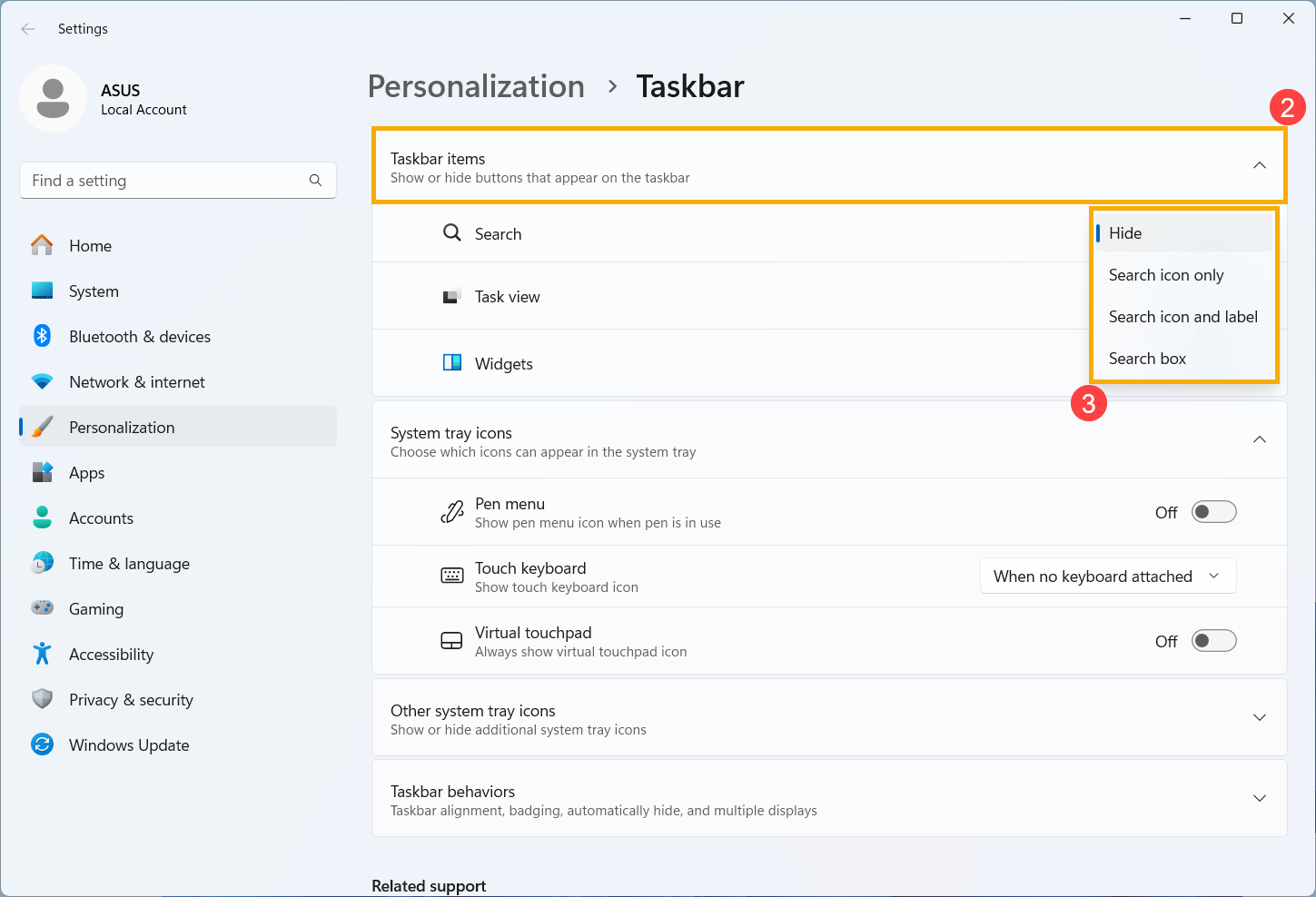
- Select [Taskbar items]② to expand the details, then choose the search button you want to display from the dropdown menu in the search field③.
Windows 10 operating system
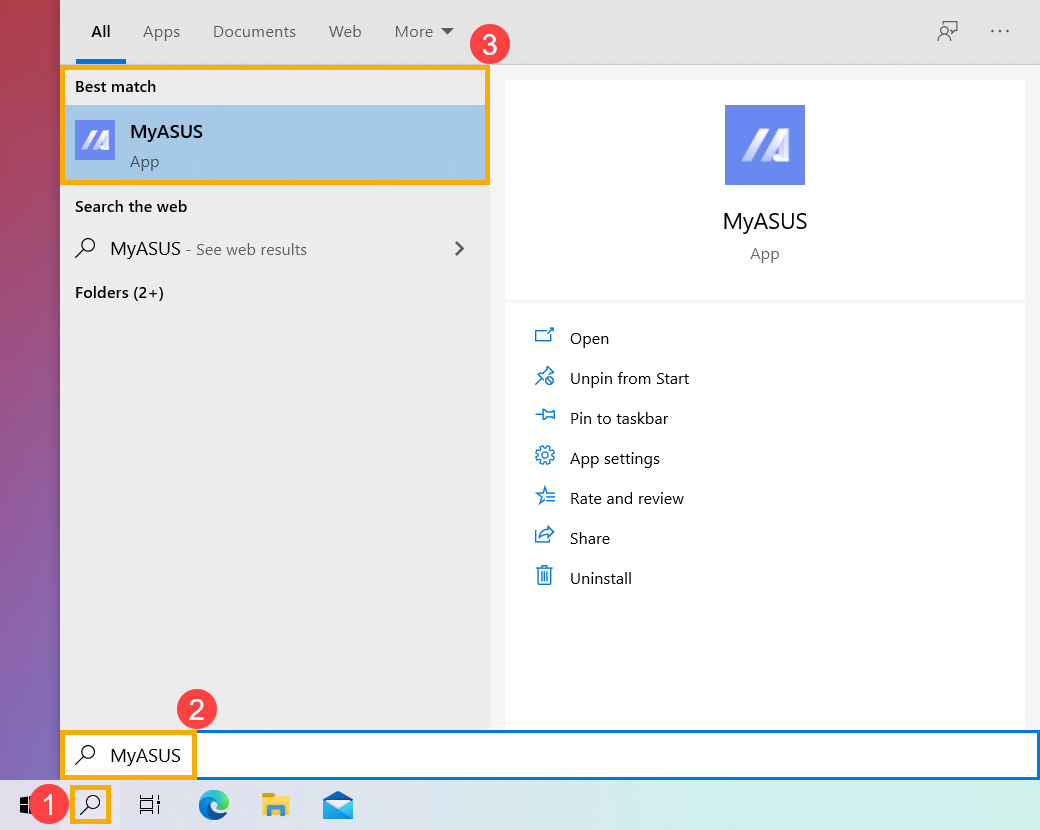
Click the [Search ] icon on the taskbar①, then type the name (or a keyword from it) into the search box②, you’ll see results under [Best match]③. Therefore, you can find the applications, files, or settings for quick access.
If there is no search bar icon on the taskbar, it might be hidden. You can refer to the following steps to show the search icon.

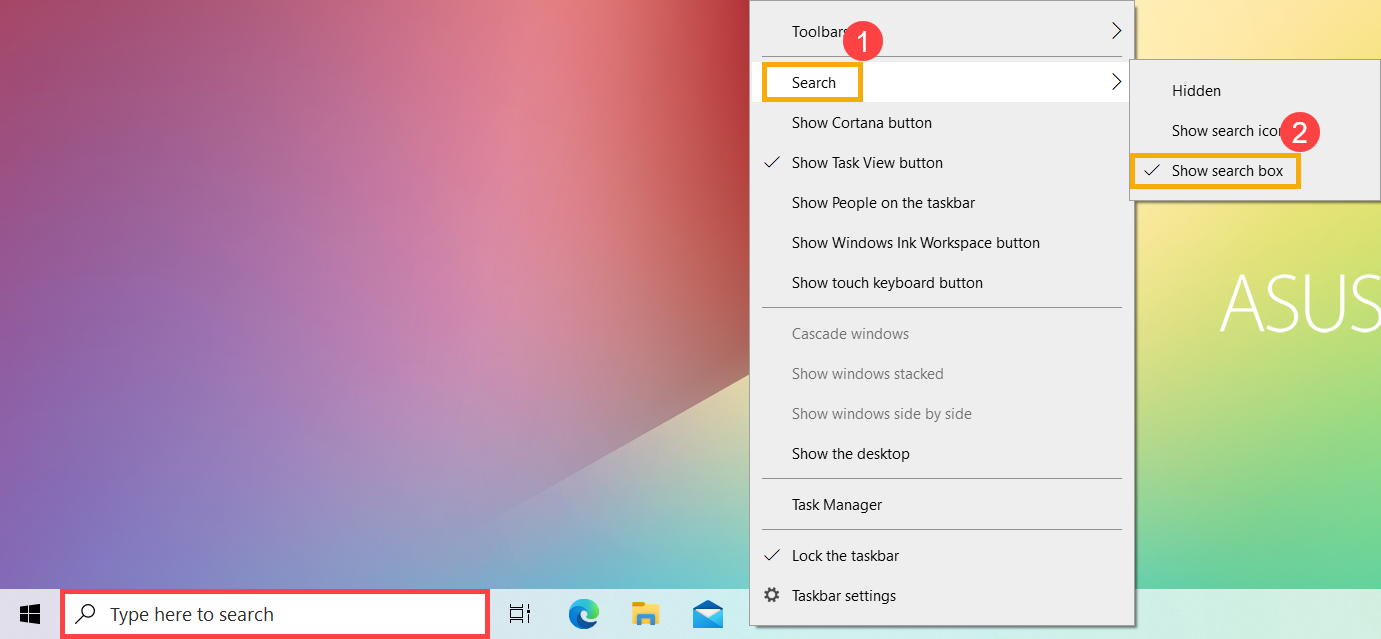
- Right-click on the anywhere of taskbar, then select [Search]① and [Show search icon]②.
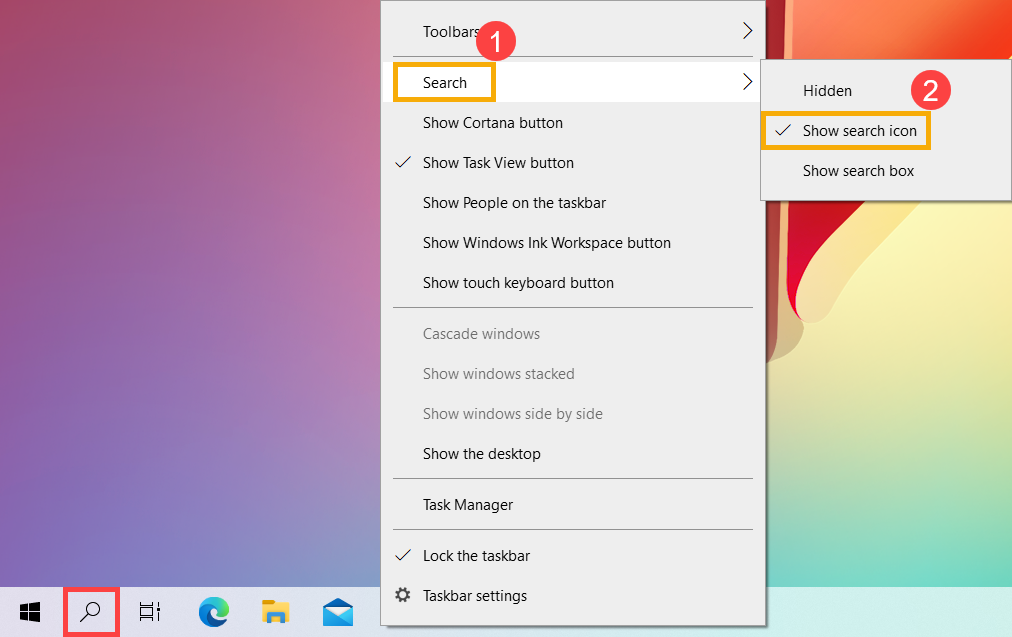
- You can also show the search box to directly type wording on the taskbar. Right-click on the anywhere of taskbar, then select [Search]① and [Show search box]②.