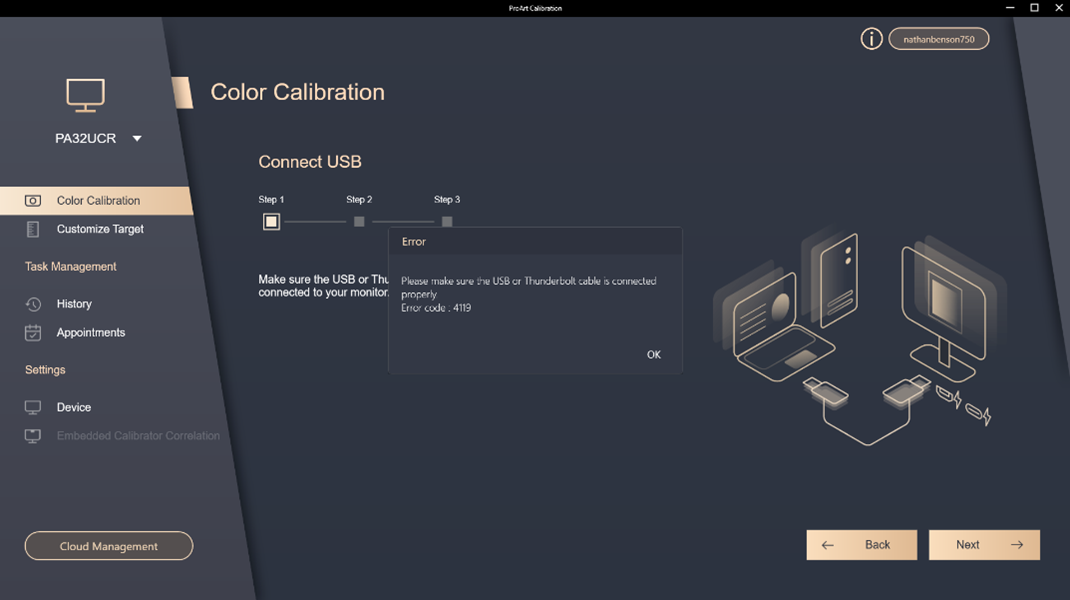
[ProArt Dipslay][Windows OS]Troubleshooting - If you encounter problems when using ProArt Calibration, please refer to the following troubleshooting steps
Troubleshooting - If you encounter problems when using ProArt Calibration, please refer to the following troubleshooting steps
1. Please restart the monitor using the power switch on the back of the monitor to confirm whether the problem is solved.
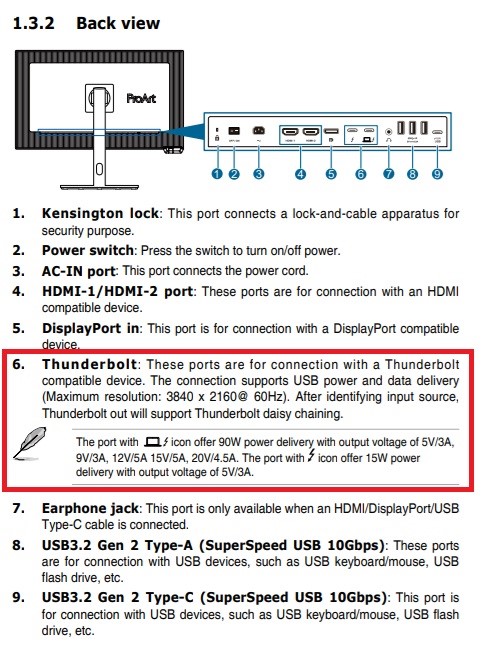
2. Please confirm that the USB-C/Thunderbolt port of the ProArt display is correctly inserted. The following uses PA32UCXR as an example. Please connect the PC to the upload connection port ○6 of PA32UCXR via a USB-C/Thunderbolt cable:
3. If you have another PC, please try to change another PC or connect to another USB port to see if the problem can be solved and confirm whether it is a USB Controller Driver problem.
4. Check if the firmware version and software version of your ProArt monitor are the latest. You can check it by going to the official website of the model -> Support -> Drivers and Utilities.
5. The system has installed other software that may affect the Monitor connection
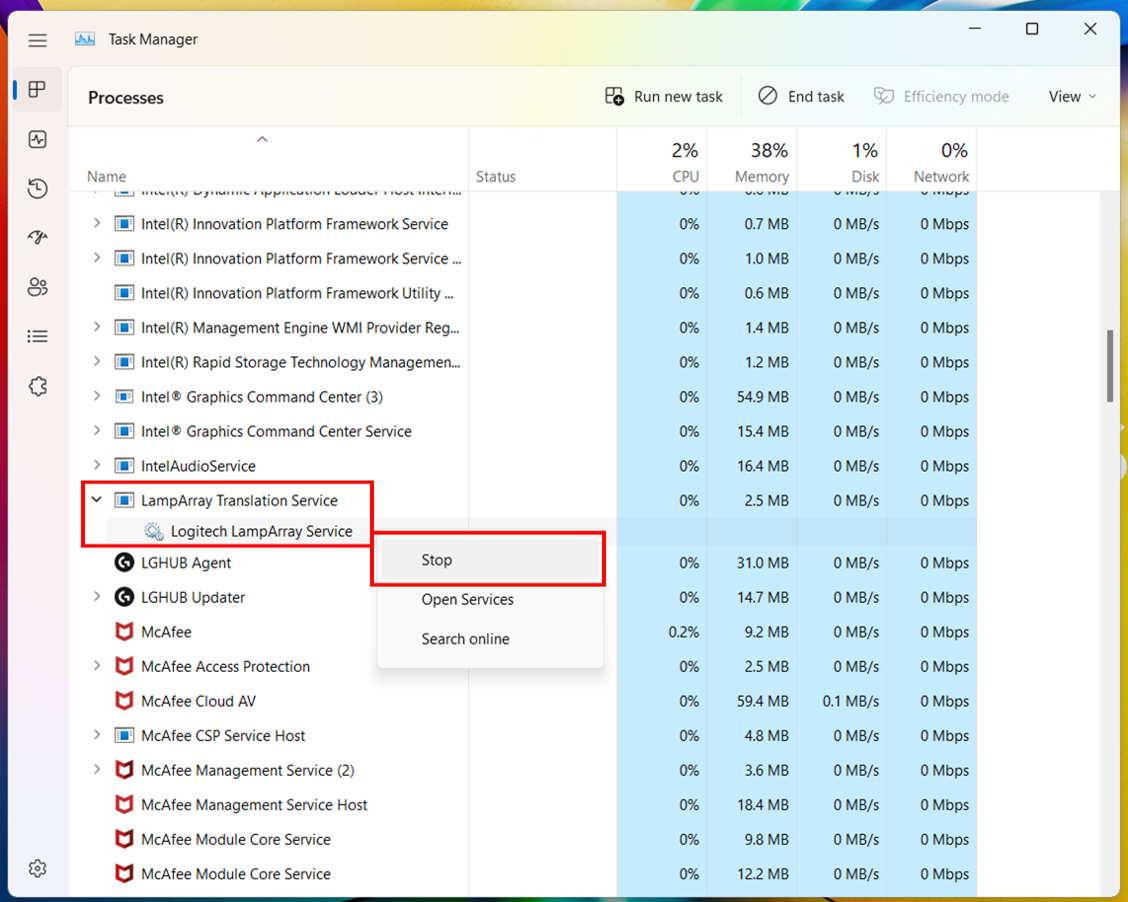
Ex: Previous users reported that Logitech LampArray Service would cause connection failures. It was later confirmed that this LampArray Service would affect the communication between the PC and the external USB device, causing ProArt Calibration to fail to work. The deactivation method is as follows:
6. If the problem still cannot be solved, please capture the log file via the following method and contact ASUS Customer Service Center to provide it to us for confirmation:
1. Copy your problem and provide a screenshot of the problem.
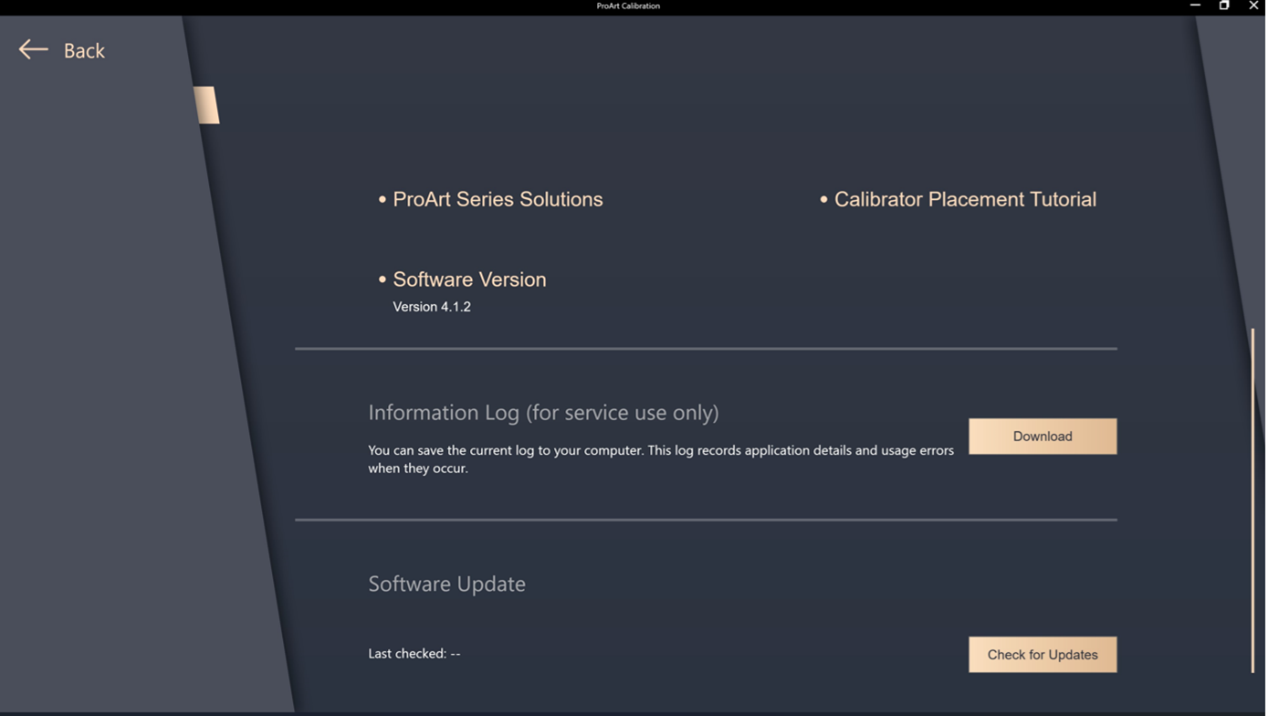
2. Use the ProArt Calibration Information Log download function to provide us with the log (click ProArt Calibration, then click [Download] to generate the log file.)
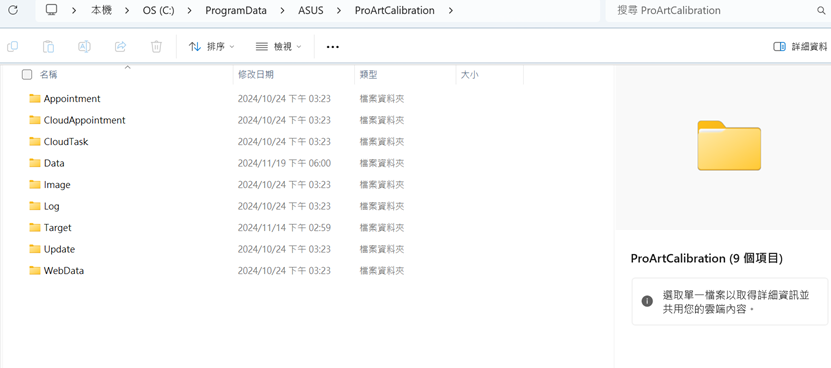
3. Go to the following path and provide us with the entire [AsusProArtCalibration] folder:
C:\ProgramData\ASUS\ProArtCalibration
The following screenshot shows the contents of the AsusProArtCalibration folder:


