This widget could not be displayed.
This widget could not be displayed.
Turn on suggestions
Auto-suggest helps you quickly narrow down your search results by suggesting possible matches as you type.
Showing results for
- English
- Other Products
- FAQ
- [NUC] Using Fast Boot in Visual BIOS
Options
- Subscribe to RSS Feed
- Mark as New
- Mark as Read
- Bookmark
- Subscribe
- Printer Friendly Page
- Report Inappropriate Content

 FAQBot
Community Manager
Options
- Article History
- Subscribe to RSS Feed
- Mark as New
- Mark as Read
- Bookmark
- Subscribe
- Printer Friendly Page
- Report Inappropriate Content
on
01-29-2024
06:50 PM
- edited on
10-07-2025
04:58 AM
by
ZenBot
[NUC] Using Fast Boot in Visual BIOS
Fast Boot is a feature in BIOS that reduces your computer boot time. If Fast Boot is enabled:
- Boot from Network, Optical, and Removable Devices are disabled.
- Video and USB devices (keyboard, mouse, drives) won't be available until the operating system loads.
Caution  | When Fast Boot is enabled, these problems can occur:
|
The steps to enable and recover Fast Boot depend on the version of the Visual BIOS on the NUC. See the table to find out which Visual BIOS is supported on your NUC.
| Fast Boot in Visual BIOS 3.x | Included with the following NUCs only:
|
| Fast Boot in Visual BIOS 2.x | Included with all other NUC models except first generation NUCs (listed below). |
| Fast Boot in Visual BIOS 1.x | Included with first generation NUCs:
|
Click or the topic for details:
Enable Fast Boot in Visual BIOS 3.x
- Press F2 during boot to enter the BIOS setup.
- Go to the Boot > Boot Priority tab.
- Enable the Fast Boot setting.
- Press F10 to save and exit.
Fast Boot recovery in Visual BIOS 3.x
If the previous boot failed during POST:
- Fast Boot is automatically disabled in the next boot and this message is displayed: The previous boot attempt failed. Would you like to restore Fast Boot on the next boot? (Y/N).
If the boot fails after POST:
- No message displays, and Fast Boot is still active.
Disable Fast Boot from the power button menu
You can use the power button to recover if you encounter Fast Boot problems. Access the power button menu with this sequence:
- Make sure the system is off, and not in Hibernate (S4) or Sleep (S3) mode.
- Press the power button and hold it down for three seconds. Then, release it before the 4-second shutdown override.
- The power button menu is displayed.
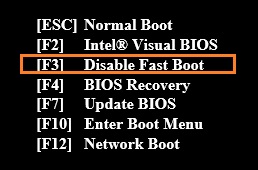
- Press F3 to disable Fast Boot. (This option appears in the menu only when Fast Boot is enabled.)
Enable Fast Boot in Visual BIOS 2.x
- Press F2 during boot to enter the BIOS setup.
- Go to the Advanced menu > Boot > Boot Configuration tab.
- Enable the Fast Boot setting.
- Press F10 to save and exit.
Fast Boot recovery in Visual BIOS 2.x
If the previous boot failed during POST:
- Fast Boot is automatically disabled in the next boot and this message is displayed: The previous boot attempt failed. Would you like to restore Fast Boot on the next boot? (Y/N).
If the boot fails after POST:
- No message displays, and Fast Boot is still active.
Disable Fast Boot from the power button menu
You can use the power button to recover if you encounter Fast Boot problems. Access the power button menu with this sequence:
- Make sure the system is off, and not in Hibernate (S4) or Sleep (S3) mode.
- Press the power button and hold it down for three seconds. Then, release it before the 4-second shutdown override.
- The power button menu is displayed.
- Press F3 to disable Fast Boot. (This option appears in the menu only when Fast Boot is enabled.)
Enable Fast Boot in Visual BIOS 1.x
- Press F2 during boot to enter the BIOS setup.
- Go to the Advanced menu -> Boot tab.
- Enable any, or all, of the three Fast Boot options:
- General Optimization
- USB Optimization
- Video Optimization
- Press F10 to Save and Exit.
| Setting | Description | ||
| General Optimization | If you enable General Optimization, the system boots faster because the following features are disabled:
| ||
| USB Optimization | If you enable USB Optimization, all USB devices will be unavailable until after the operating system boots but the system will boot faster. USB Optimization can't be enabled if a User Password or Hard Drive Password is installed.
| ||
| Video Optimization | If you enable Video Optimization, the BIOS displays text only and not a custom logo. However, the system boots faster. If disabled, the BIOS displays the logo and boots slower. This doesn't affect video capabilities after the operating system boots. |
Fast Boot recovery in Visual BIOS 1.x
The BIOS detects if previous boot was unsuccessful. When the computer is booted, if the previous boot failed during POST, Fast Boot is disabled and the following message displays:
The previous boot attempt failed. Would you like to restore Fast Boot on the next boot? (Y/N).
If the boot attempt fails after POST, no message displays, and Fast Boot is still active.
Power button recovery
The power button can be used to recover if you encounter Fast Boot problems.
- From a powered off state, press and hold the power button for about two seconds. Then, release it when you hear three short beeps.
- The BIOS follows a normal boot path, as if Fast Boot is disabled.
- If Fast Boot is enabled, the following message displays: Fast Boot failsafe trigger was detected. Would you like to restore Fast Boot on the next boot? (Y/N).
Maintenance mode
To enter Maintenance mode:
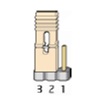
- Locate the BIOS configuration jumper. See the Technical Product Specification.
- Move the jumper from Pins 1-2 to Pins 2-3.
- Turn on the system. The system boots directly into the BIOS in Maintenance mode, where you can turn off Fast Boot if needed.
Note on A/C power loss
If Fast Boot is enabled and your system loses A/C power during the POST process:
- The computer will detect the A/C power loss on the next boot.
- This message displays: The previous boot attempt failed. Would you like to restore Fast Boot on the next boot? (Y/N).
| Related topic |
| Find technical specifications |
