on 01-29-202406:50 PM - edited on 10-07-202504:57 AM by ZenBot
[NUC] Use Embedded Multimedia Card (eMMC) Storage Device on NUCs.
Use the embedded MultiMedia Card (eMMC) in your NUC as the:
Main 32Gb storage device with Windows* OS preinstalled, or
Small 4GB storage option for small-footprint operating systems (OS), typically used for thin-client and light-embedded applications
To enable eMMC settings, update the NUC to the latest BIOS available.
Refer to these guidelines if you plan to install Linux* or other small-footprint OS on the eMMC storage device.
Make sure the Linux OS* supports the mmc_block kernel module, most modern distributions do.
The eMMC storage device is identified in the Linux environment as: /dev/mmcblk0.
Caution
As a flash-based storage device, excessive drive access, particularly write commands, reduces its useful life. WE strongly suggest you NOT create a swap partition on the eMMC device.
Stock releases, installing directly from a distribution ISO image:
OS size after installation must be small enough to fit as-is on the eMMC storage. For example, Linux Lite NUC Edition* or Debian, with low-footprint graphical environments.
The OS installer must allow package selection in order to reduce the footprint of the installed image.
Custom builds, preparing a custom image:
Stock OS releases, requiring more than the available storage, must be installed on another drive or system, then customized. The size must be reduced and confirmed to support the mmc_block kernel module. Then it can be installed onto the eMMC device.
Custom image builds, using Yocto Project or Android*, perform better on a separate build host, with higher processing performance, and larger storage.
Click on the topic for details:
Before beginning the Linux OS installation
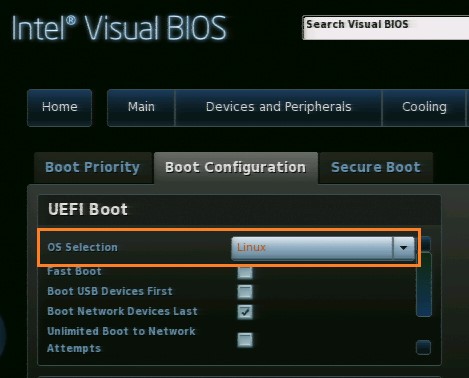
Before beginning the Linux OS installation, set the Visual BIOS as follows:
Press F2 during boot to enter Visual BIOS.
Go to Boot > Boot Configuration.
Set OS Selection to Linux. This option automatically enables the eMMC device.
Press F10 to save and exit.
Accessing the eMMC storage from Windows 8.x
The eMMC storage device might not be large enough for any Windows 8*, 8.1*, or 8 embedded installation. But, you can enable the device to be accessible for extra storage space.
Press F2 during boot to enter Visual BIOS.
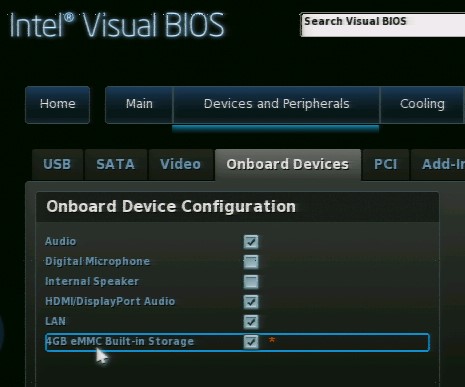
Go to Advanced > Devices and Peripherals > Onboard Devices.
Select Enable 4 GB eMMC Built-in Storage.
Press F10 to save and exit.
Accessing the eMMC storage from Windows 7*
Windows 7 doesn't include driver support for eMMC devices. If Windows 7 is selected in the BIOS, the eMMC device is grayed out and disabled.