[NUC] Setting Up Combined Display Resolution 5760x1080 for NUC Rugged Chassis Element CMCR1ABC
To take advantage of the multiple HDMI outputs of the NUC Rugged Chassis Element CMCR1ABC, when using either the NUC 11 Compute Element or the NUC 8 Compute Element, the below procedure needs to be performed, which will:
Update the SST (Single Stream Transport) device firmware (This update is required for NUC 11 Compute Element only)
The graphics driver
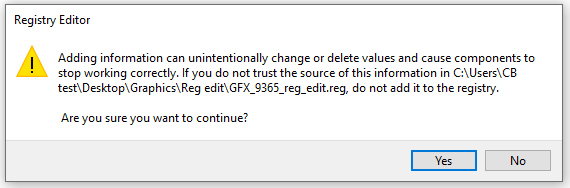
Edit the Windows® operating system registry. The registry edit is required to accommodate the graphics driver changes to support the combined display configuration.
Click on the topic for details:
NUC 11 Compute Element
Update the SST Device to firmware to version 5.06.1.
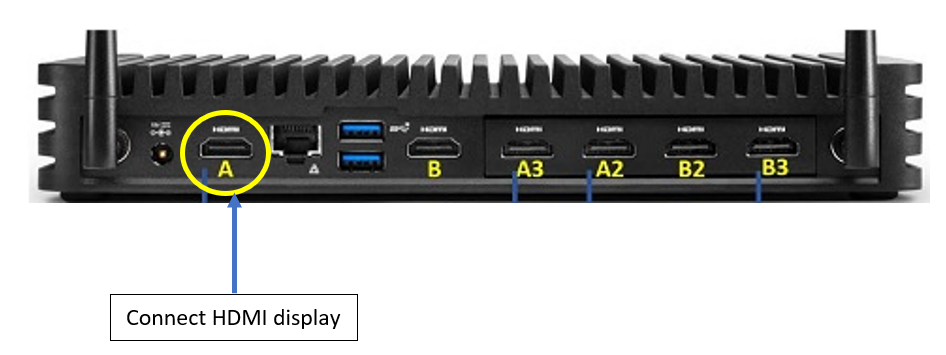
To update the SST device firmware (controls HDMI ports A, A2, and A3), connect a display to the system's HDMI port A. All other HDMI ports (B, A3, A2, B2, and B3) must be empty.
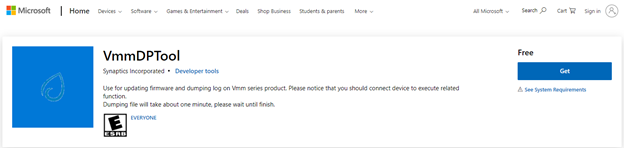
Search, download, and install the VMMDPTOOL from the Microsoft® store.
Download the below CMCR1ABC_SST_Firmware_Ver5.06.fullrom and extract the zip file to a local drive.
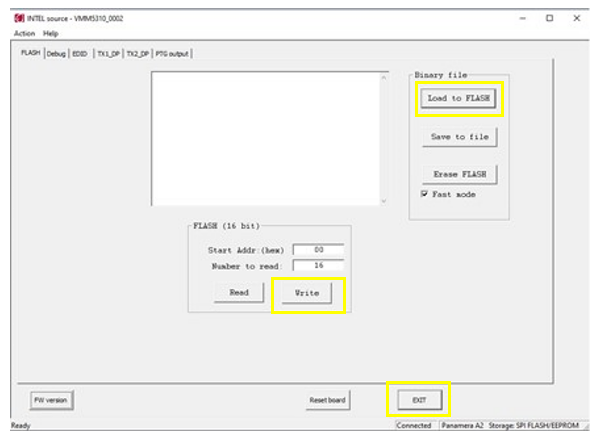
SelectLoad to Flash. Then select the HDMI_FW_CMCR1ABC_Ver5.06.fullrom firmware update file.
SelectWrite to start the firmware update.
The firmware will start the flashing process. SelectExit after the update is completed.
Disconnect the HDMI device from HDMI port A.
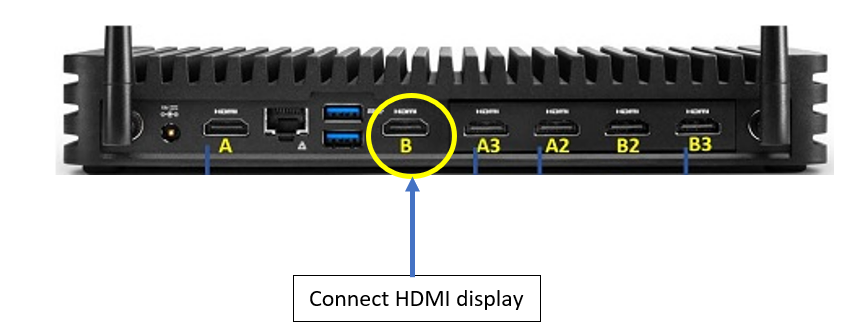
To update the SST device firmware controlling HDMI ports B, B2, and B3, connect a display to the system's HDMI port B. All other HDMI ports (A, A3, A2, B2, and B3) must be empty.
Repeat steps D through G.
Restart the NUC.
Download and Install the Graphics driver version 30.0.100.9921.
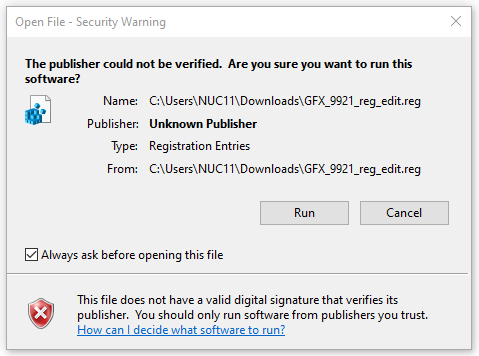
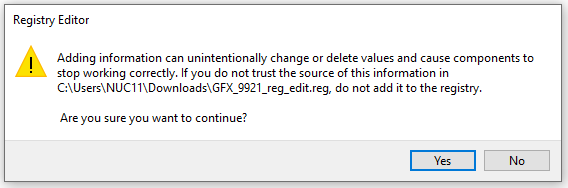
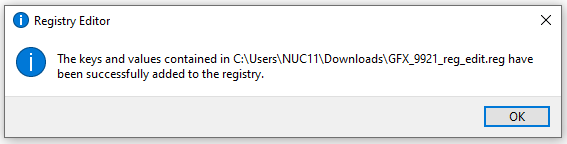
Download the below GFX_9921_reg_edit.reg and extract the zip file to a local drive.