on 01-29-202406:30 PM - edited on 10-07-202504:45 AM by ZenBot
[NUC] Multiple Display Configuration Options for NUC Kits NUC8i7INH and NUC8i5INH
This guide provides the most common multiple display configuration options.
NUC Kits NUC8i7INH and NUC8i5INH have the following:
One mini DisplayPort
One HDMI ports (2.0b-compliant)
See the Processor Graphics subsystem section of the Technical Product Specification document for your NUC for additional information, including:
Multi-stream transport daisy chaining
DisplayPort via Type C
Before You Begin
We recommend you first update your NUC to the latest BIOS and graphics driver, using Driver & Support Assistant.
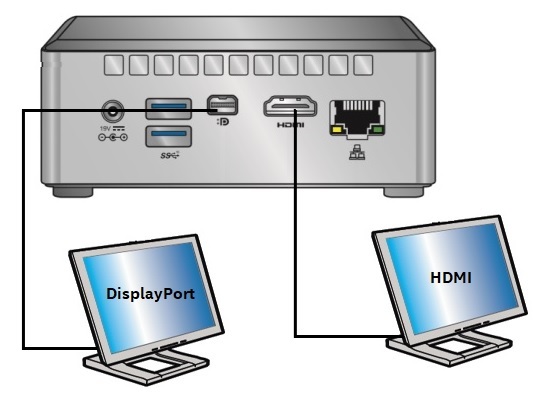
Two displays
Display
NUC port
TV/monitor port
Maximum supported resolution
1
HDMI
HDMI
4096x2160 at 60Hz
2
mini DisplayPort
DisplayPort
4096x2160 at 60Hz
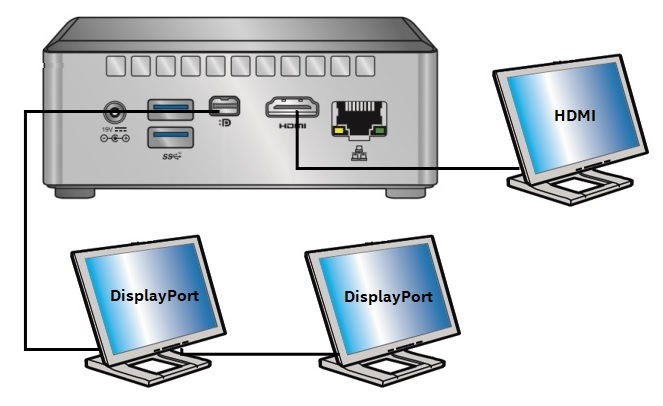
Three displays
Display
NUC port
TV/monitor port
Maximum supported resolution
1
HDMI
HDMI
4096x2160 at 60Hz
2
mini DIsplayPort
DisplayPort
4096x2160 at 30Hz
3
N/A
Daisy-chain: from DisplayPort OUT on first monitor to the DisplayPort IN on the second monitor
4096x2160 at 30Hz
Daisy-chaining describes the ability to connect multiple monitors using a single connection between each one. All displays and all cables must support the DisplayPort 1.2 specification.