on 01-29-202406:36 PM - edited on 10-07-202504:54 AM by ZenBot
[NUC] How to Switch Between Integrated Graphics and NVIDIA* Discrete Graphics Card in NUC NUC11PH
Resolution
Note
If you have an NUC11PH system, and the NVIDIA* control panel isn't present, download and install the latest NVIDIA* drivers.
In the latest Windows builds, the OS manages the Graphics Processor that will be used by applications as set in the Windows Graphics Settings. Settings currently defined in the NVIDIA Control Panel as defined below will be overridden.
Applications not listed in the Windows Graphics Settings list, are able to be managed in the NVIDIA Control Panel.
Windows Graphics Settings:
Click the Windows Start Menu
Type "graphics settings".
Under the Graphics performance preference section the graphics processor can be assigned to specific applications.
NVIDIA* Control Panel:
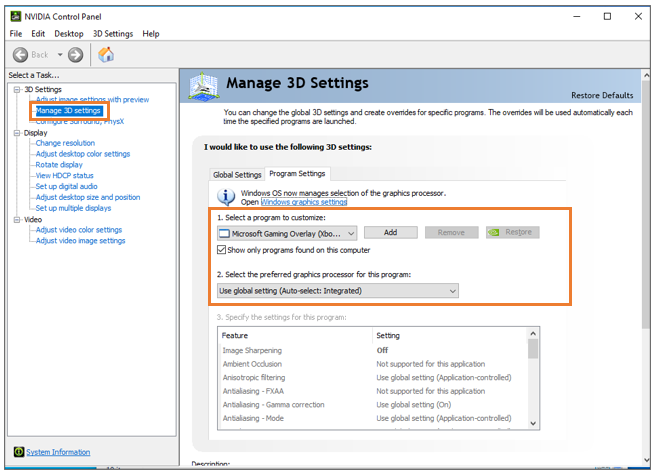
Open the NVIDIA* Control Panel.
Under 3D SettingsselectManage 3D Settings.
Click the Program Settings tab
Select the program you want to choose a graphics card for from the drop-down list.
Select the preferred graphics processor in the drop-down list. If you want to use the integrated graphics card, selectIntegrated Graphics.