This widget could not be displayed.
This widget could not be displayed.
Turn on suggestions
Auto-suggest helps you quickly narrow down your search results by suggesting possible matches as you type.
Showing results for
- English
- Other Products
- FAQ
- [Notebook] Troubleshooting - ScreenPad 2.0 problem...
Options
- Subscribe to RSS Feed
- Mark as New
- Mark as Read
- Bookmark
- Subscribe
- Printer Friendly Page
- Report Inappropriate Content

 FAQBot
Community Manager
Options
- Article History
- Subscribe to RSS Feed
- Mark as New
- Mark as Read
- Bookmark
- Subscribe
- Printer Friendly Page
- Report Inappropriate Content
on
01-29-2024
04:13 PM
- edited on
10-07-2025
04:00 AM
by
ZenBot
[Notebook] Troubleshooting - ScreenPad 2.0 problems when it is not working properly
If you had the OS re-installed, installed with an OS other than the preinstalled version, updated Windows, or due to any circumstances the ScreenPad 2.0 fails to work properly (such as ScreenPad not responding, error on the screen, function inside the ScreenPad not working, touch not working), please follow the steps below to re-install the ScreenPad 2.0. If you experience the ScreenPad display or user interface issues after the computer upgrades to Windows 11, version 22H2, please refer to here.
Note: Please download and install the necessary drivers and utility programs in the order shown below:
Model Supported: The article is only applicable to ASUS notebook equipped with ScreenPad 2.0. Please visit ASUS website and search for your product model. Click [Tech Specs] to check whether your model supports ScreenPad 2.0.
First of all, install the [Intel Graphic] Driver with version 25.20.100.6619 or above. Please go to Device Manager and check the driver version first.
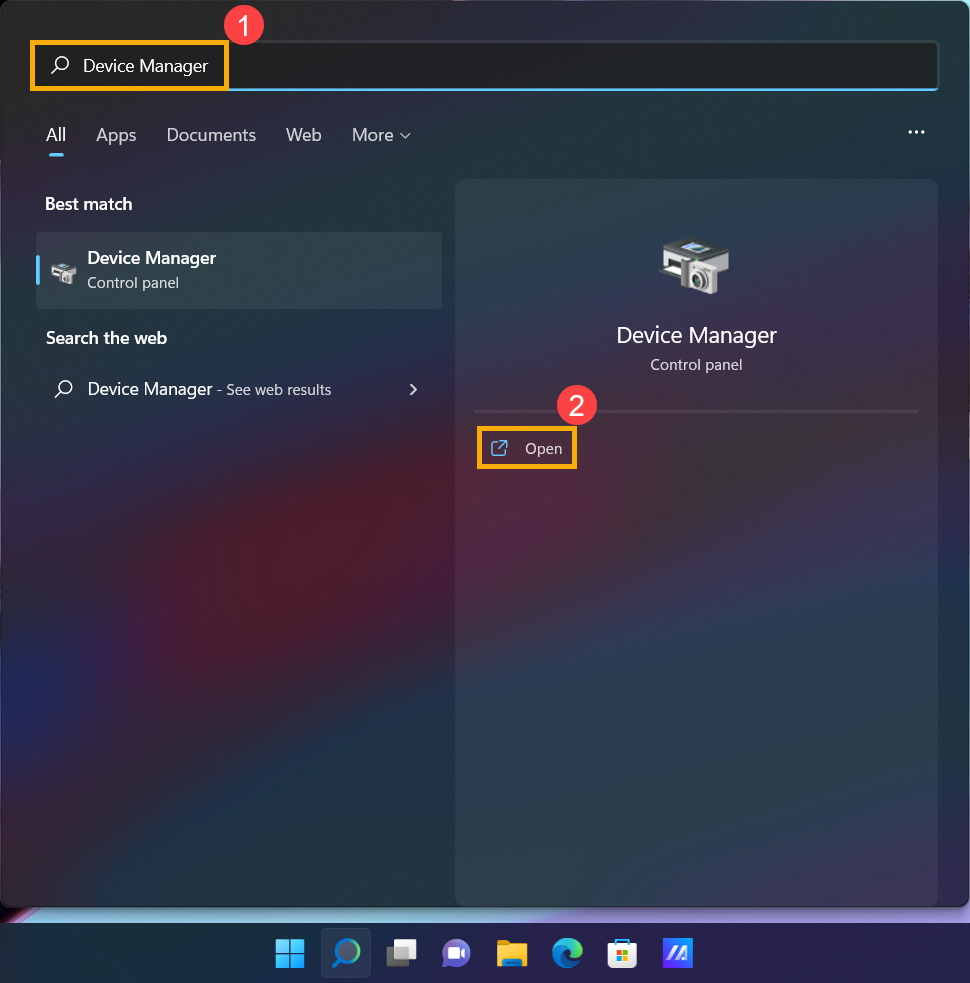
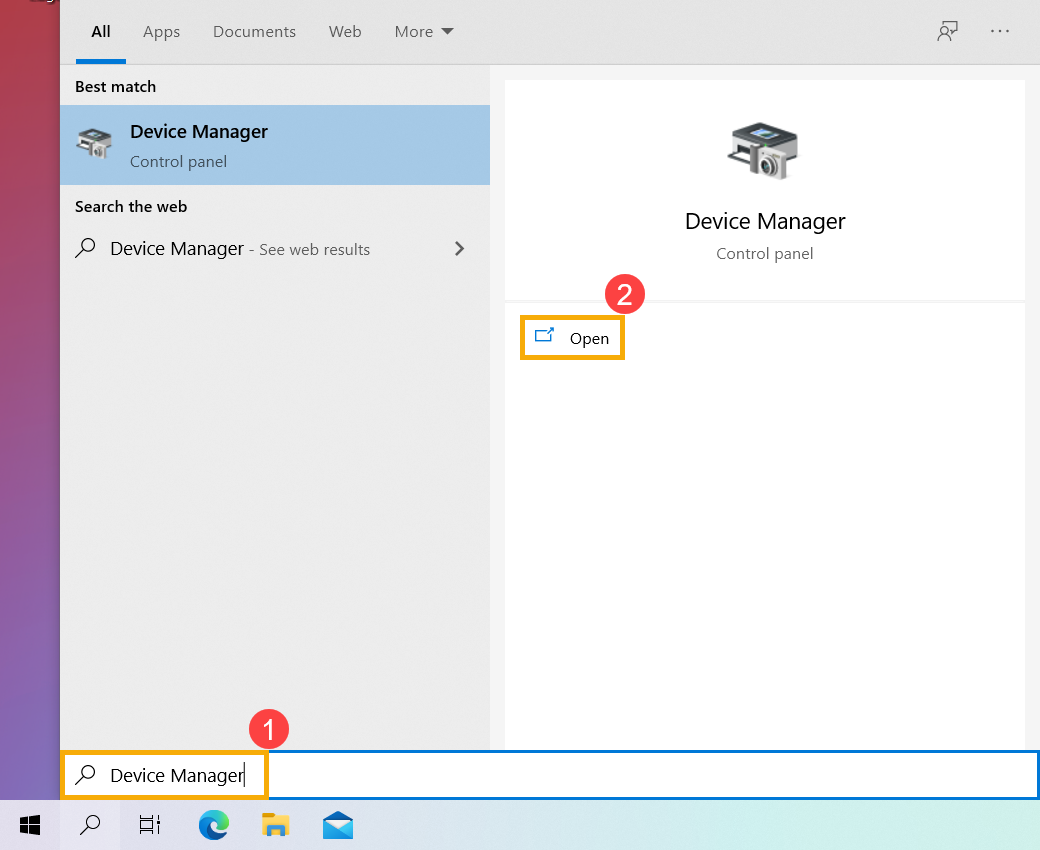
- Type and search [Device Manager] in the Windows search bar①, then click [Open]②. (The left-side search illustration below is in Windows 11, and the right-side is Windows 10.)
- In the Device Manager, find the [Display adapters] and right click on the [Intel UHD Graphics]③. On the drop-down menu, select [Properties]④.
Note: The device name may be different based on different models.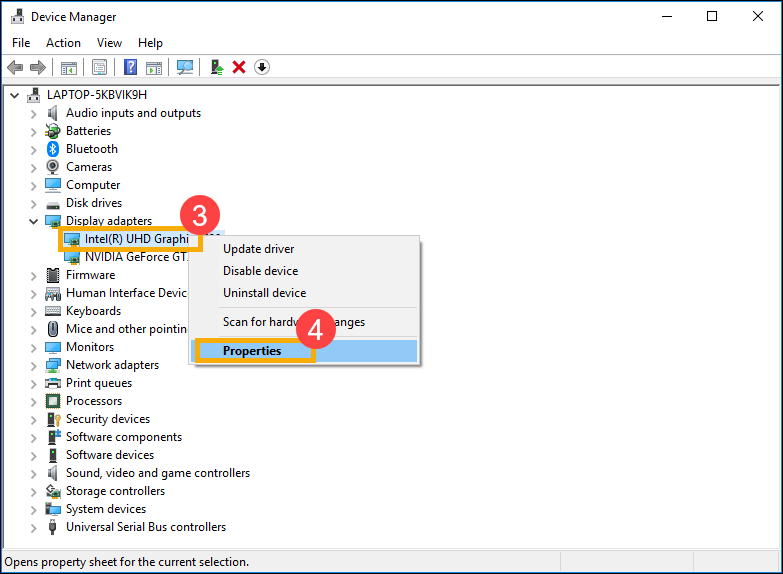
- Select [Driver] tab⑤, then check the [Driver Version]⑥.
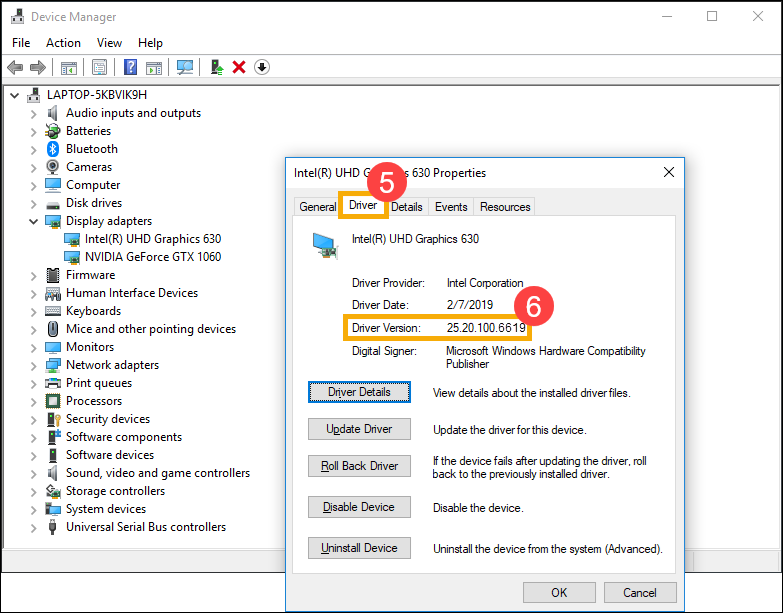
- If the driver version is higher than the version 25.20.100.6619, please go to the next chapter to download and install the necessary drivers and utility programs.
If the driver version is lower than the version 25.20.100.6619, please go back to the Device Manager and right click on the [Intel UHD Graphics]⑦, then select [Update driver]⑧.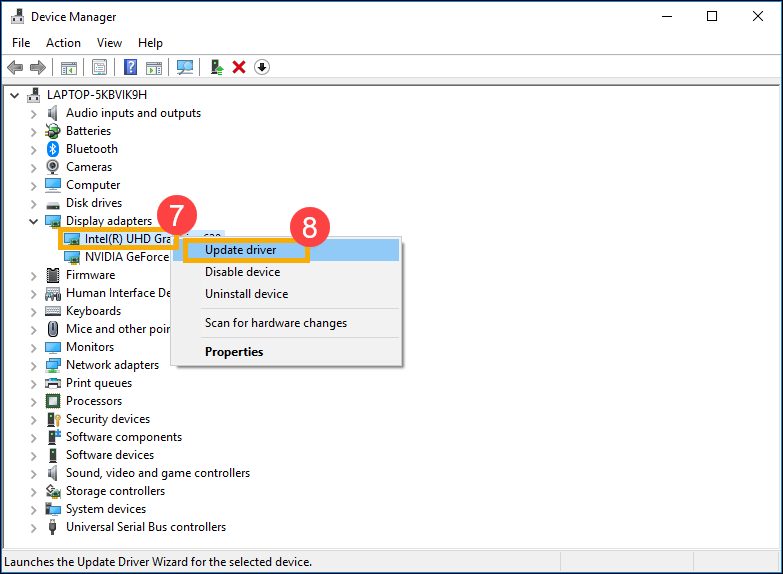
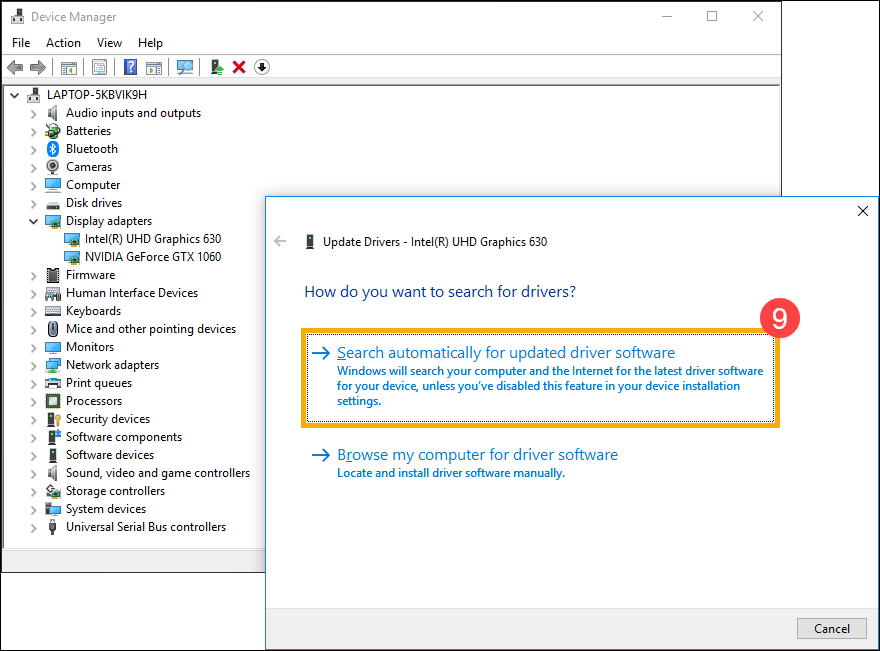
- Click on [Search automatically for updated driver software]⑨ to update drivers online.
Please go to the ASUS Support Site to download and install the necessary drivers and utility programs, here you can learn more about How to search and download drivers and utilities. (The following pictures are the current version as a reference, please download the latest version from the ASUS Support Site.)
Note: Please follow the below order to download and install the drivers and utilities program.
- Please download and install [Intel(R) Serial IO I2C driver] driver.
Note: If you cannot search for Intel(R) Serial IO I2C driver on the ASUS support site that is meant some models have been built-in I2C driver in Windows, so, you don't need to install it manually.
- Please download and install [ScreenXpert (Windows Store App)] utility program.
Note: You will go to the Microsoft Store to download and install this utility program after clicking the DOWNLOAD button.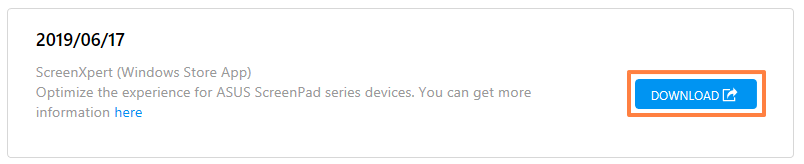
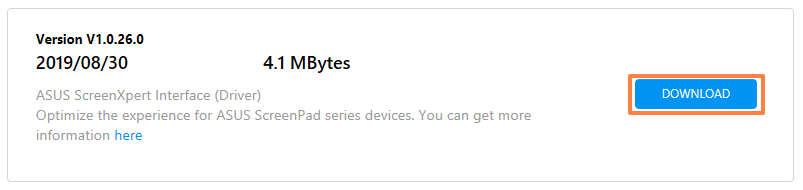
- Please download and install [ASUS ScreenXpert Interface (Driver)] driver.
- Please download and install [MyASUS (Windows Store App)] utility program.
Note: You will go to the Microsoft Store to download and install this utility program after clicking the DOWNLOAD button.
- Please download and install [ASUS System Control Interface V3 (Driver)] driver.

- Please download and install [ScreenPad2 Optimizer] correction program.
Note: This tool will be able to correct the ScreenPad 2.0 resolution, rotation, ScreenPad 2.0 abnormal display, and ScreenPad 2.0 cannot operate,in order to ensure the operation of ScreenPad 2.0.
Q1: Why the UI of 2nd panel is abnormal?
A1: Because of the behavior of Windows 11, version 22H2 changed, it caused 'Active signal mode' to be changed. If a user changes ScreenPad resolution, it will show a black screen on the ScreenPad. You can choose the following either to solve this issue.
- Update the ASUS ScreenXpert Interface driver to V.3.0.2.0 or the latest version, then reboot your computer.
- Download and excute ScreenPad Optimizer to V1.2.3.0 or the latest version.
Q2: Why the UI of ScreenXpert App Switcher and Microsoft Snap layouts overlapping?
A2: When a user drags the application window, it will show Snap layouts from the top of the screen. This is Microsoft Windows 11, version 22H2 new feature. The pop-up UI will overlap with ScreenXpert App Switcher.
You could turn off snap layouts function form Windows Settings > System > Multitasking > Snap window and uncheck 「Show snap layouts when I drag a window to the top of my screen」.
Q3: Why the Start menu will show up together when I swipe up from the ScreenPad bottom to call the n...
A3: ASUS change the ScreenXpert swiping up gesture to clicking an arrow icon for showing the navigation bar. Please update ScreenXpert App to V3.0.7.0 or the latest version, then get a better experience.
If your problem is not resolved with the above solution and information, please contact ASUS customer service center for further support.
