This widget could not be displayed.
This widget could not be displayed.
Turn on suggestions
Auto-suggest helps you quickly narrow down your search results by suggesting possible matches as you type.
Showing results for
- English
- Other Products
- FAQ
- [Graphics Card] PCIE Interface Operation Mode (Spe...
Options
- Subscribe to RSS Feed
- Mark as New
- Mark as Read
- Bookmark
- Subscribe
- Printer Friendly Page
- Report Inappropriate Content

 FAQBot
Community Manager
Options
- Article History
- Subscribe to RSS Feed
- Mark as New
- Mark as Read
- Bookmark
- Subscribe
- Printer Friendly Page
- Report Inappropriate Content
on
10-04-2025
11:00 AM
- edited on
10-07-2025
03:31 AM
by
ZenBot
[Graphics Card] PCIE Interface Operation Mode (Speed) Confirmation
The operation mode (speed) of the PCIE interface of a graphics card depends mainly on the number of lanes and the version of PCIE
PCIE comes in different numbers of lanes, such as x1, x4, x8, and x16. The higher the number of lanes, the higher the bandwidth.
There are also several versions of PCIE, including PCIE 1.0, 2.0, 3.0, 4.0, and 5.0, each of which offers a higher bandwidth per channel. They can also be referred to as PCIE generations, for example, PCIE 5.0 can be referred to as “PCIE Fifth Generation” or “PCIE Gen5”.
Table of Contents:
I. How to confirm the lanes number and version of current operating mode of the graphics card PCIE i...
II. Q&A
Q1: How to check the number of lanes for the graphics card PCIE interface operation mode in motherboard BIOS?
Q2: Why my graphics card shows PCIE x8 4.0 instead of PCIE x16 5.0 in the software?
I. How to confirm the lanes number and version of current operating mode of the graphics card PCIE i...
(Example: Motherboard: TUF GAMING Z790-PLUS D4, Graphics Card: TUF-RTX5090-O32G-GAMING)
1. You can download and install ASUS GPU Tweak III software. For details on how to download, install and open the software, please refer to
FAQ:[Graphic Card] ASUS GPU Tweak III Introduction
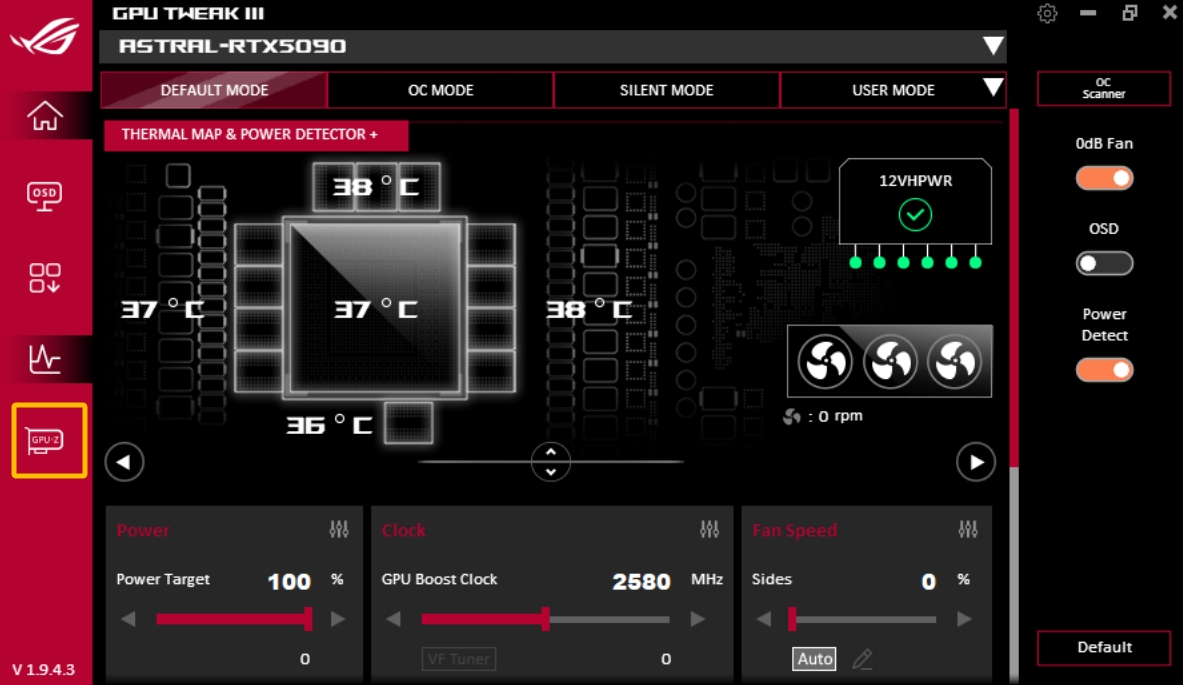
2. Enter GPU Tweak III and click the [GPU-Z] page as shown below:
II.Q&A
Q1: How to check the number of lanes for the graphics card PCIE interface operation mode in motherboard BIOS?
A1. After turning on the computer, immediately press the “delete” or “F2” key on the keyboard to enter the BIOS [EZ Mode] as shown in the following figure: 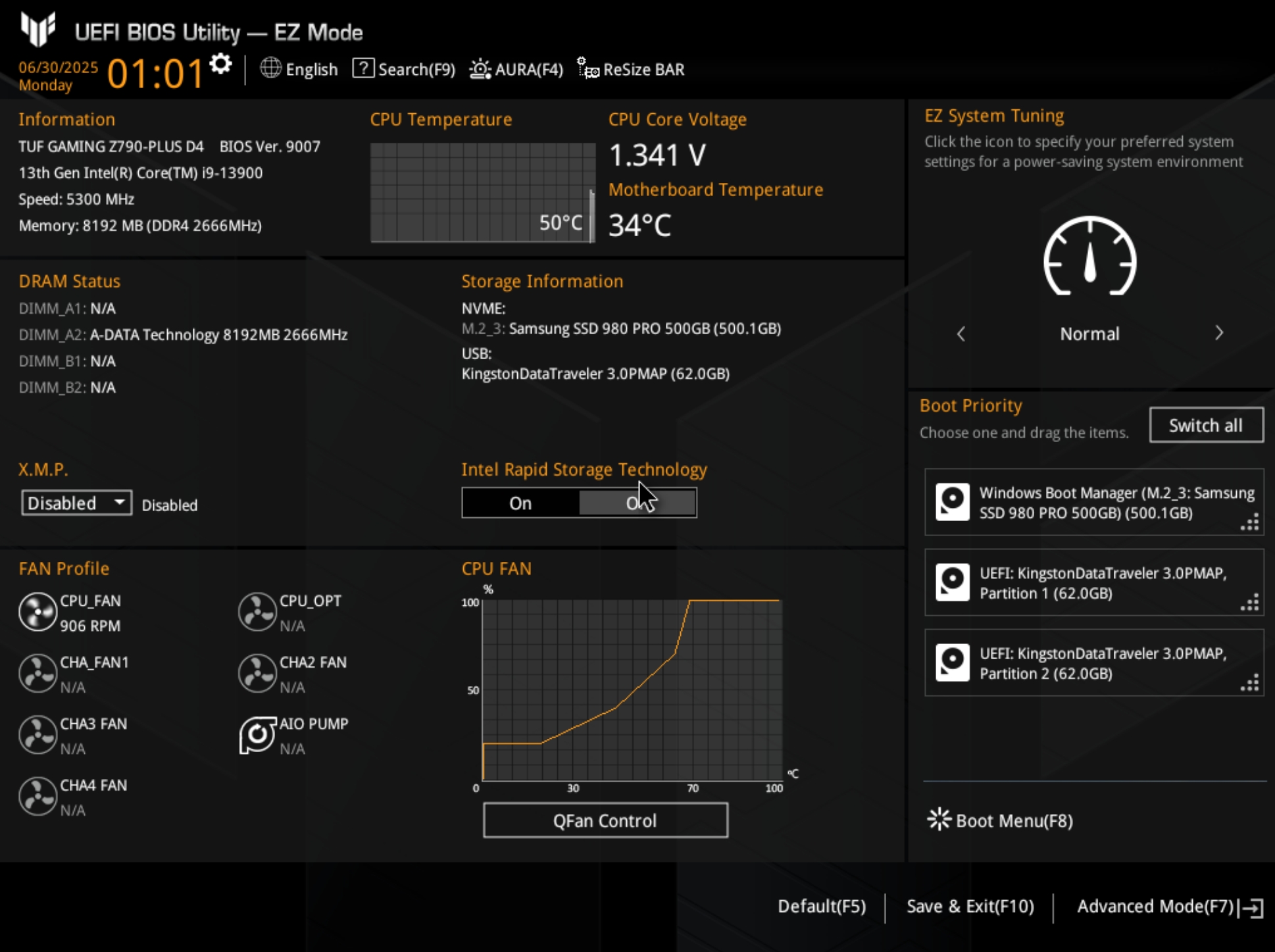
2. Press the F7 key on the keyboard, enter [Advanced], and click [System Agent(SA) Configuration], as shown in the following figure: 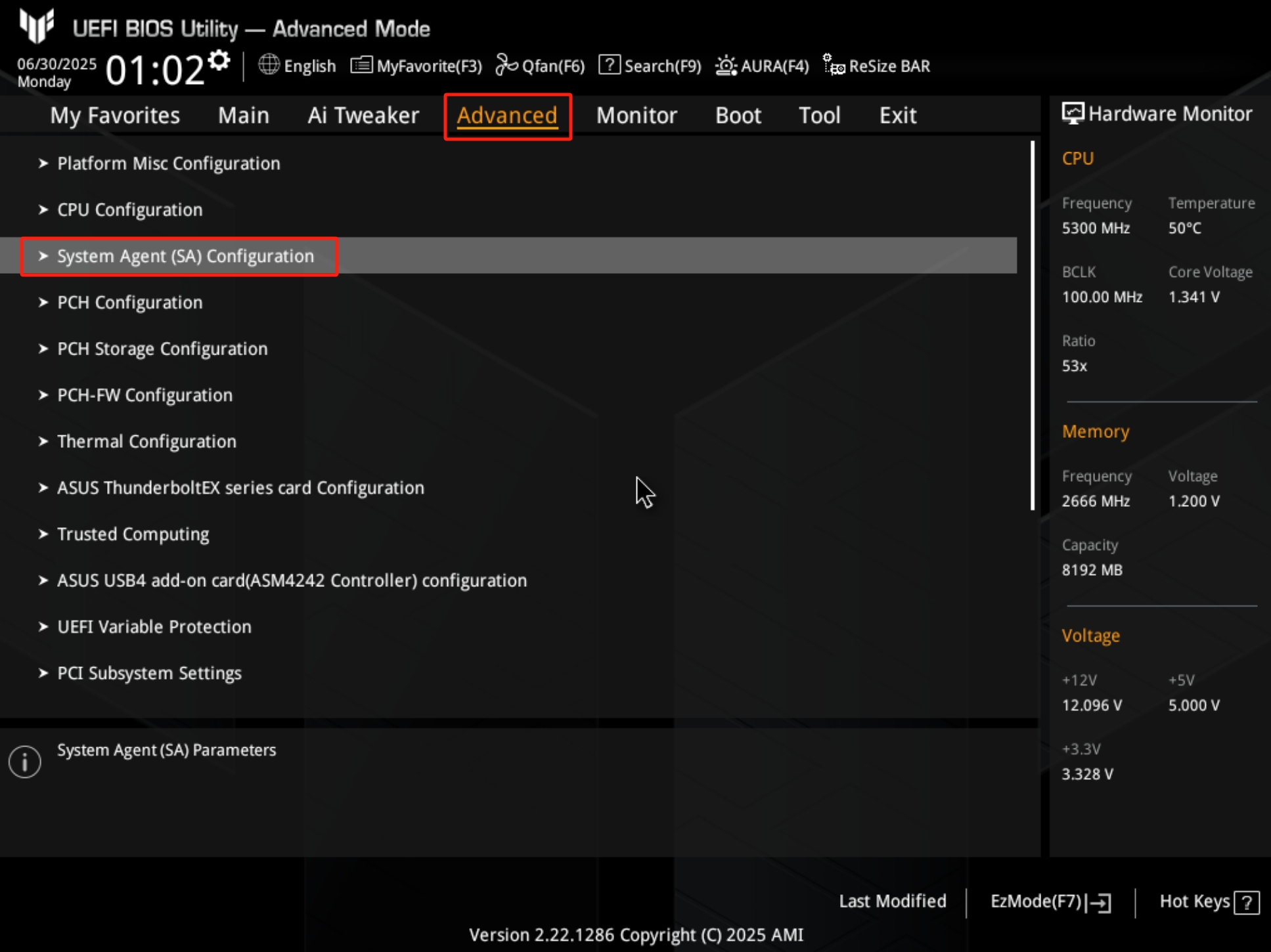
3. Click[PCI Express Configuration], as shown in the following figure: 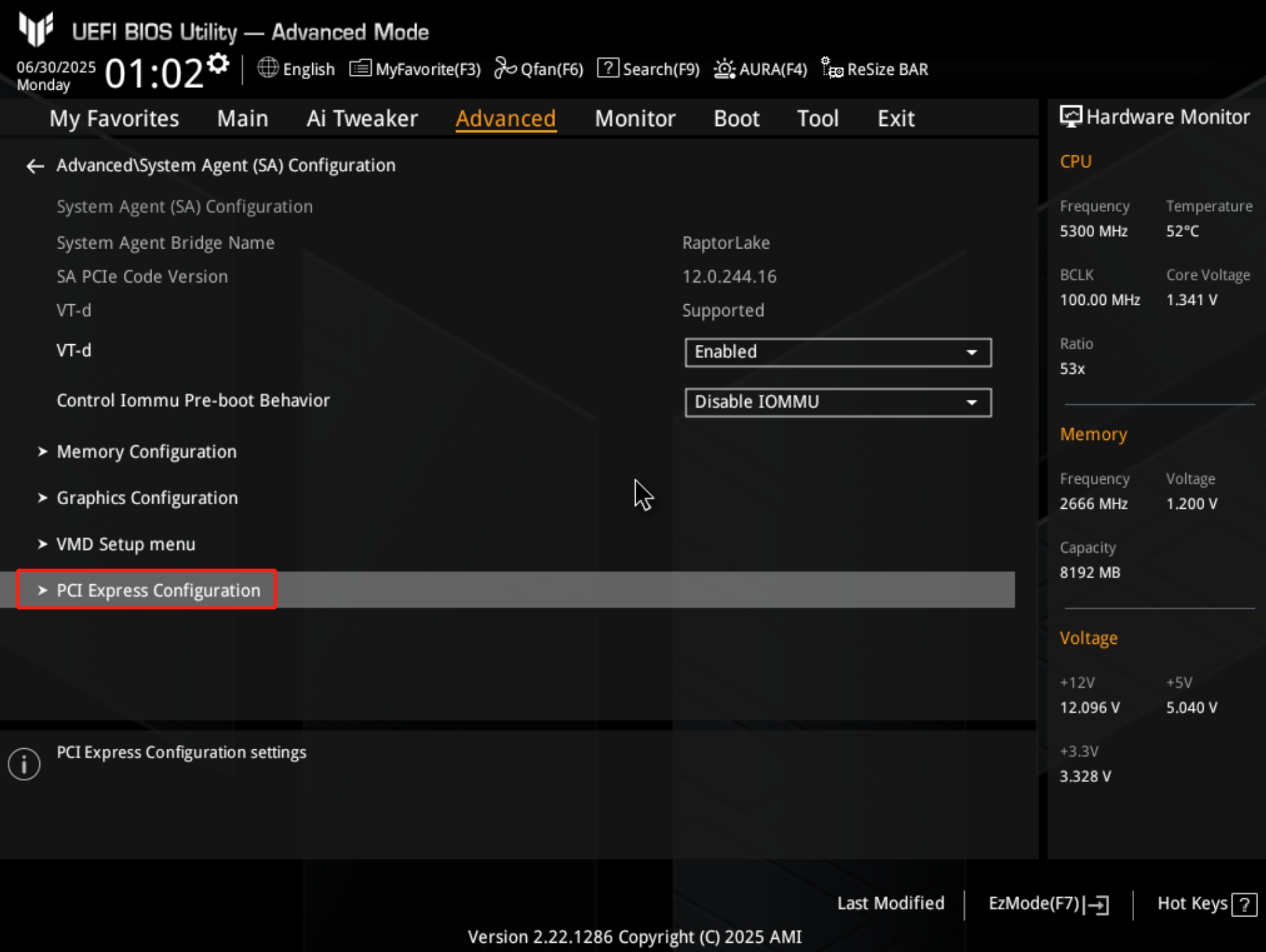
4. Confirm that the current operating mode lanes count of the graphics card's PCIE interface is x16, as shown in the following figure: 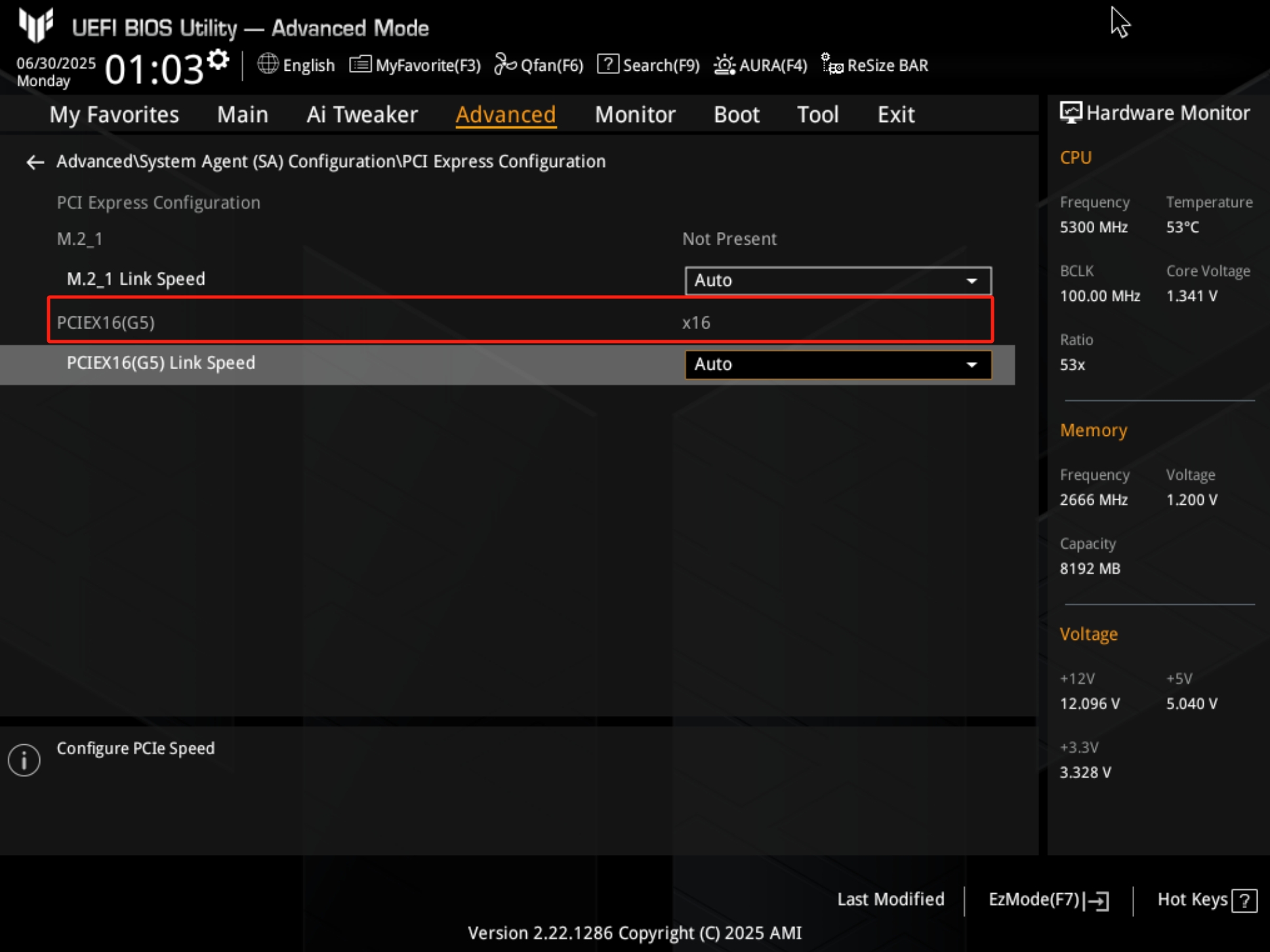
Q2: Why my graphics card shows PCIE x8 4.0 instead of PCIE x16 5.0 in the software?
A2: The actual operation mode of the graphics card depends on the highest common specifications and lanes allocation of both the motherboard and the graphics card, which can be investigated in the following ways:
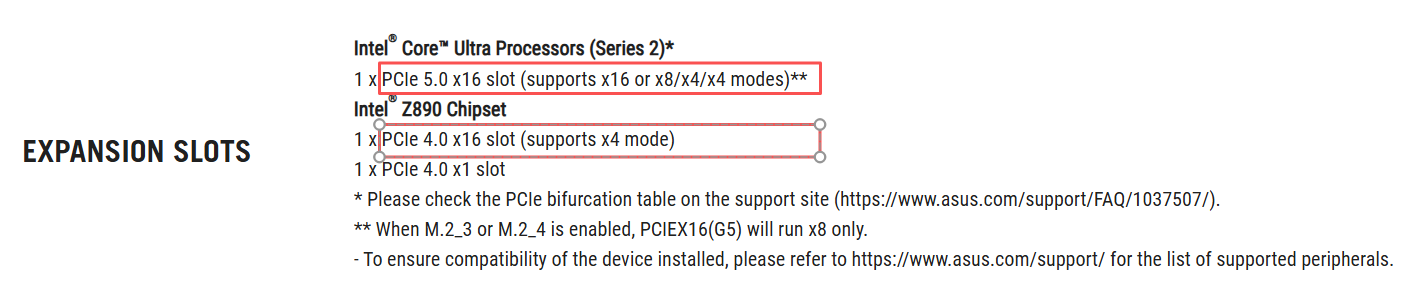
1. Check the specifications of the PCIE expansion slot on the motherboard on the official website or the user manual to confirm the specifications of the PCIE expansion slot installed, refer to the following diagram (the following example is ROG MAXIMUS Z890 HERO):
a. The PCIe specification for the Intel CPU connection is PCIe 5.0 x16 slot.
b. The PCIe specification for Intel Z890 Chipset connection is PCIe 4.0 x16 slot.
2. Check the user manual of the motherboard to confirm whether the PCIE
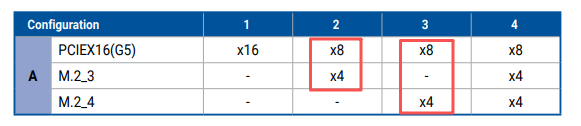
expansion slot you installed shares the bandwidth with the M.2 storage device, refer to the following diagram (the following is an example of ROG MAXIMUS Z890 HERO).
When M.2_3 or M.2_4 is connected to an M.2 SSD, PCIEX16(G5) only operates at x8.
3. Confirm the PCIE specification of the graphics card.
a. Currently, most of the graphics cards have a PCIE specification of x16, while some series have a specification of x8, such as the RTX3050, RTX4060, and RTX4060TI series.
b. You can check the PCIE specification on the product specification page of the official website of the graphics card, for example, the specification of DUAL-RTX4060-O8G-EVO is PCIE 4.0.

4. Check BIOS settings of the motherboard. Follow the above steps to enter the
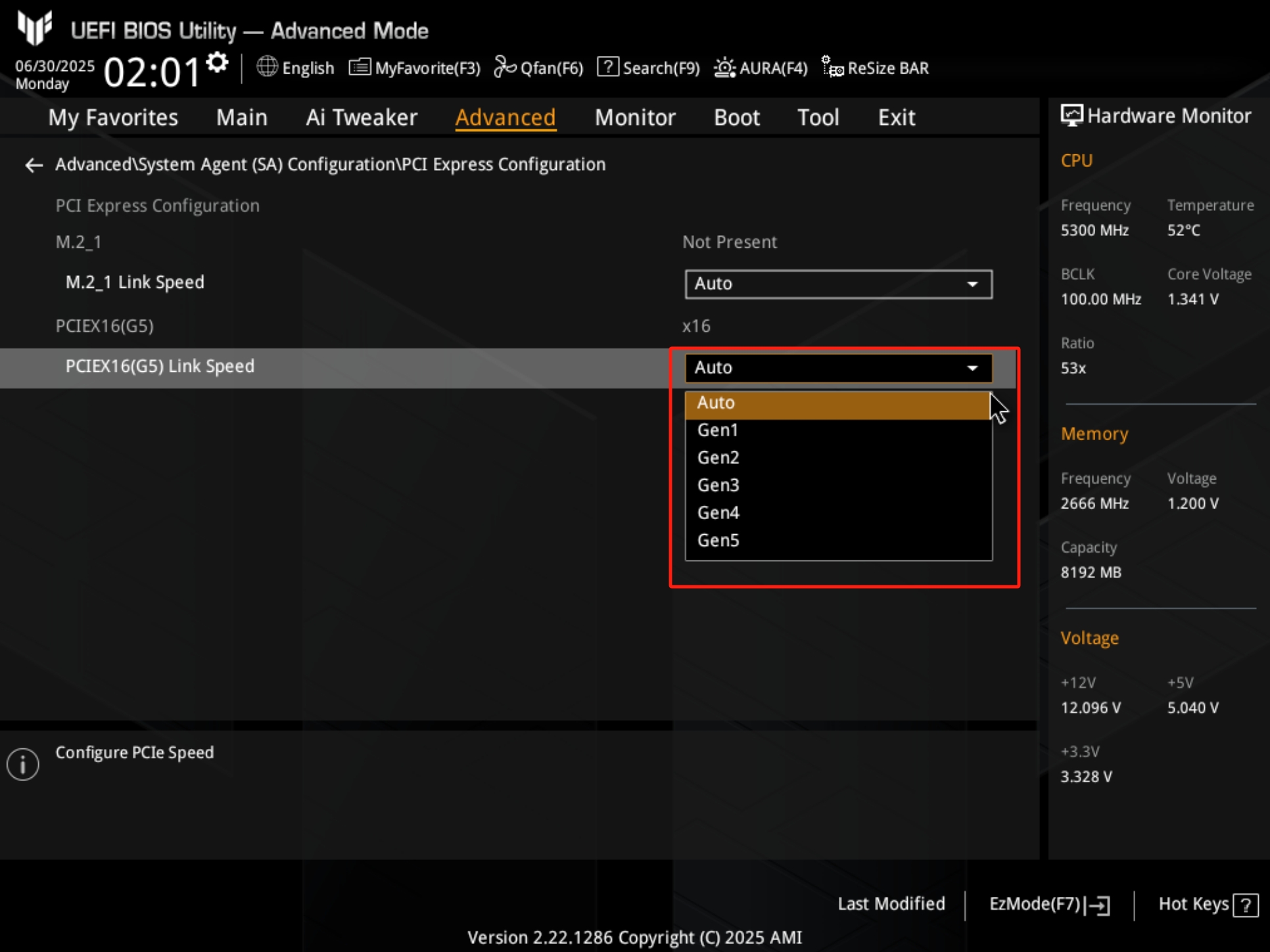
BIOS Advance\PCIE Express Configuration page, and check the PCIE slot generation speed setting in the [PCIEX16(G5) Link Speed] option.
If you have previously set a lower PCIE generation speed, such as GEN3, you can choose to set it to Auto or the highest generation speed that the graphics card's PCIE specification can support, as shown in the following figure:
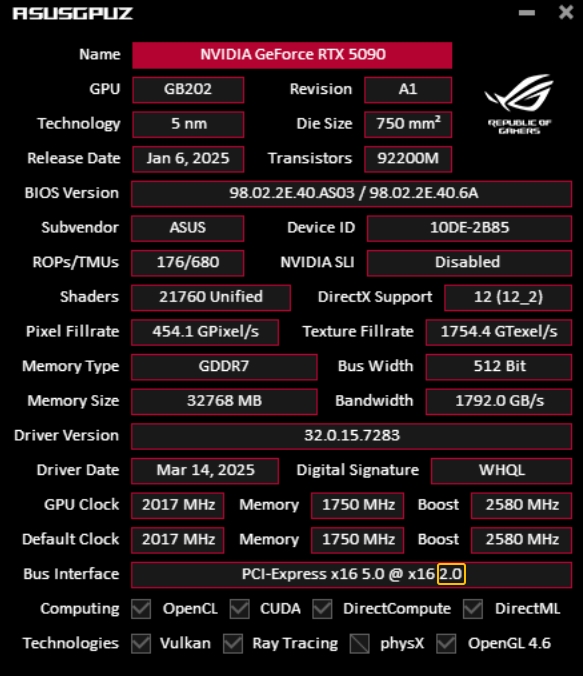
5. Follow the above steps to open the GPU Tweak III software and click on GPU-Z. The x16 2.0 at the end of the [Bus Interface] field @ indicates that the graphics card is currently operating in x16 2.0 mode. As shown in the following picture:
This may also be a normal phenomenon due to the low load of the graphics card and the energy saving of the motherboard and graphics card. The graphics card can be automatically upgraded to 5.0 if it is loaded, e.g. for gaming.
6. Try to update the latest version of the driver of the graphics card on the official website.
7. Check if the graphics card has poor contact with the motherboard PCIE slot or if there is dust in the motherboard slot.
7.1 Re-insert and re-plug the graphics card to ensure that it is fully inserted into the motherboard PCIE slot.
7.2 Check the PCIE slot of the motherboard and the gold finger of the graphics card for dust or damage, dirt or oxidization may affect the connection, clean it if necessary.
