This widget could not be displayed.
This widget could not be displayed.
Turn on suggestions
Auto-suggest helps you quickly narrow down your search results by suggesting possible matches as you type.
Showing results for
- English
- Other Products
- FAQ
- [Chromebook] Troubleshooting - How to fix Display ...
Options
- Subscribe to RSS Feed
- Mark as New
- Mark as Read
- Bookmark
- Subscribe
- Printer Friendly Page
- Report Inappropriate Content

 FAQBot
Community Manager
Options
- Article History
- Subscribe to RSS Feed
- Mark as New
- Mark as Read
- Bookmark
- Subscribe
- Printer Friendly Page
- Report Inappropriate Content
on
01-29-2024
04:27 PM
- edited on
10-07-2025
05:33 AM
by
ZenBot
[Chromebook] Troubleshooting - How to fix Display issues with the built-in screen (primary display) of a Chromebook
If you encounter problems with the built-in screen of your Chromebook, such as abnormal display, screen flickering, or inability to display content, the following are some simple steps to help you solve display issues with your Chromebook screen.
Table of Contents:
- Screen display too dark or too bright
- Screen color display too white or too yellow
- Image display too large or too small
- Screen display orientation is incorrect
- Other display problems
Screen display too dark or too bright
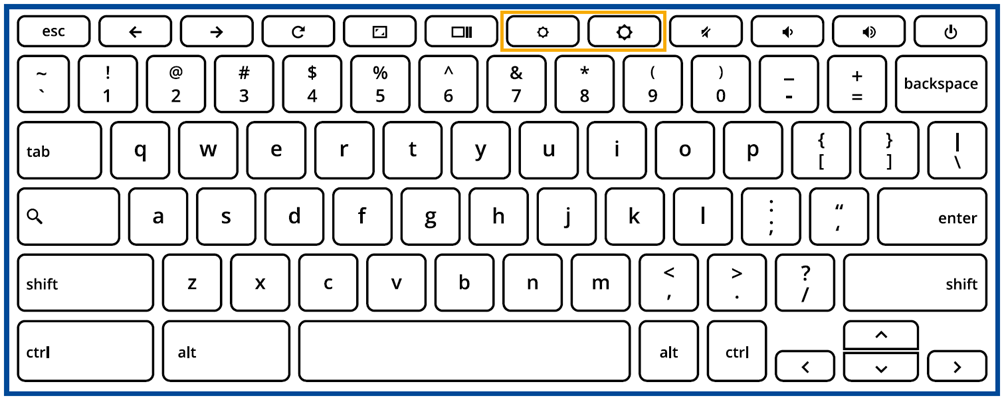
If your Chromebook screen is too dark or too bright, you may think that there is a problem with the screen. You can try adjusting the screen brightness by pressing the shortcut keys on the top of the keyboard.
Note: The shortcut keys for certain models may be different. Please refer to the user manual for each model. If you are not sure how to find your Chromebook user manual, please refer to this article: How to search and download user manuals.
To increase screen brightness: Press the brightness up key  | Maximum screen brightness
|
To decrease screen brightness: Press the brightness down key  | When the brightness is adjusted to the minimum, the Chromebook screen will turn off. |

Screen color display too white or too yellow
If the color of your Chromebook screen is too white (cool tone) or too yellow (warm tone), it may be due to the "Night Light" feature being enabled. The Night Light feature can adjust the screen color temperature, making it easier for you to read or view the screen in dimly lit environments. You can also set the time for Night Light to be turned on. If you want to adjust the Night Light feature, please follow these steps:
- Click the [Status bar]① in the lower right corner of the screen, then click [Settings]
 ②.
②. 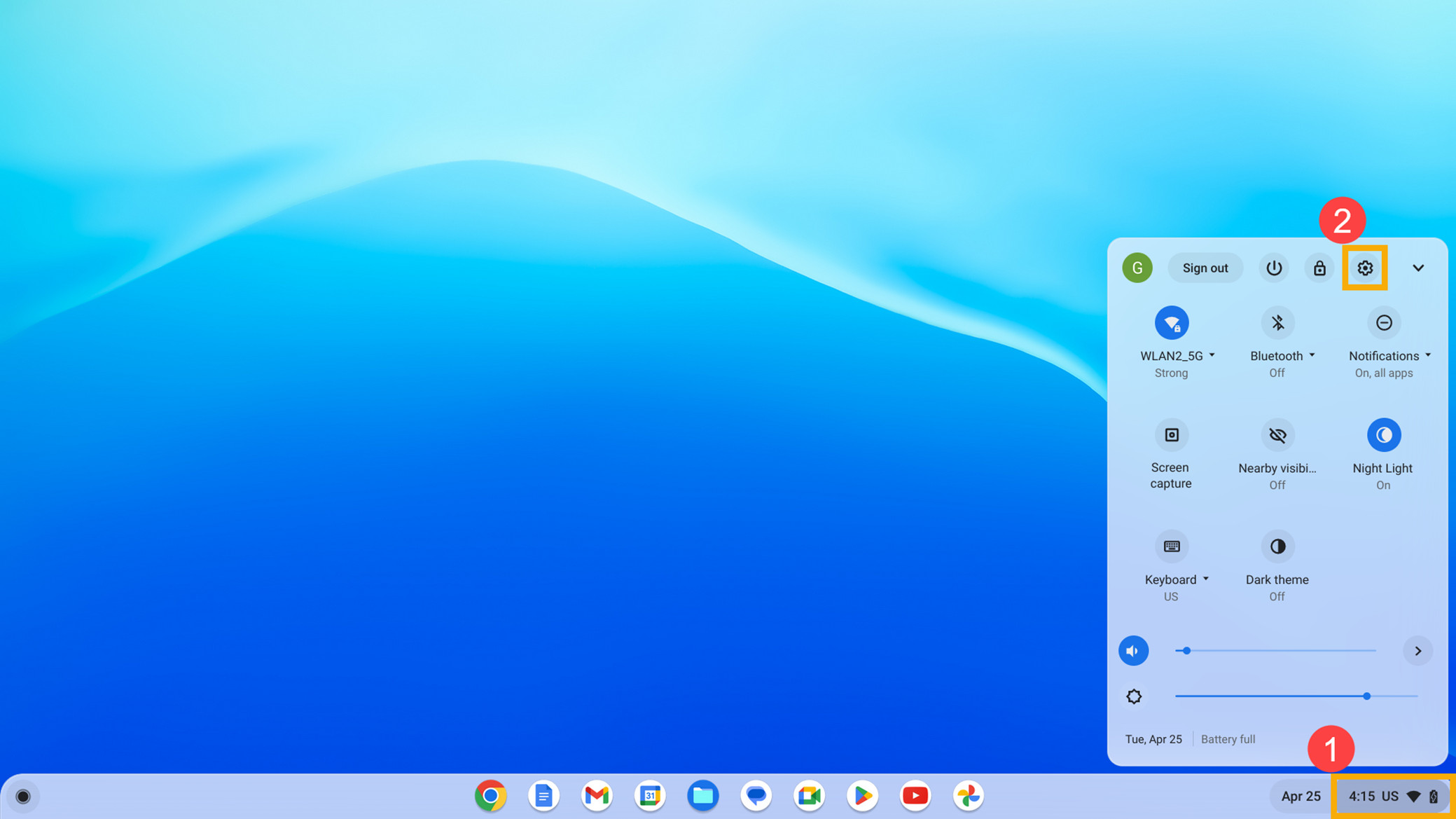
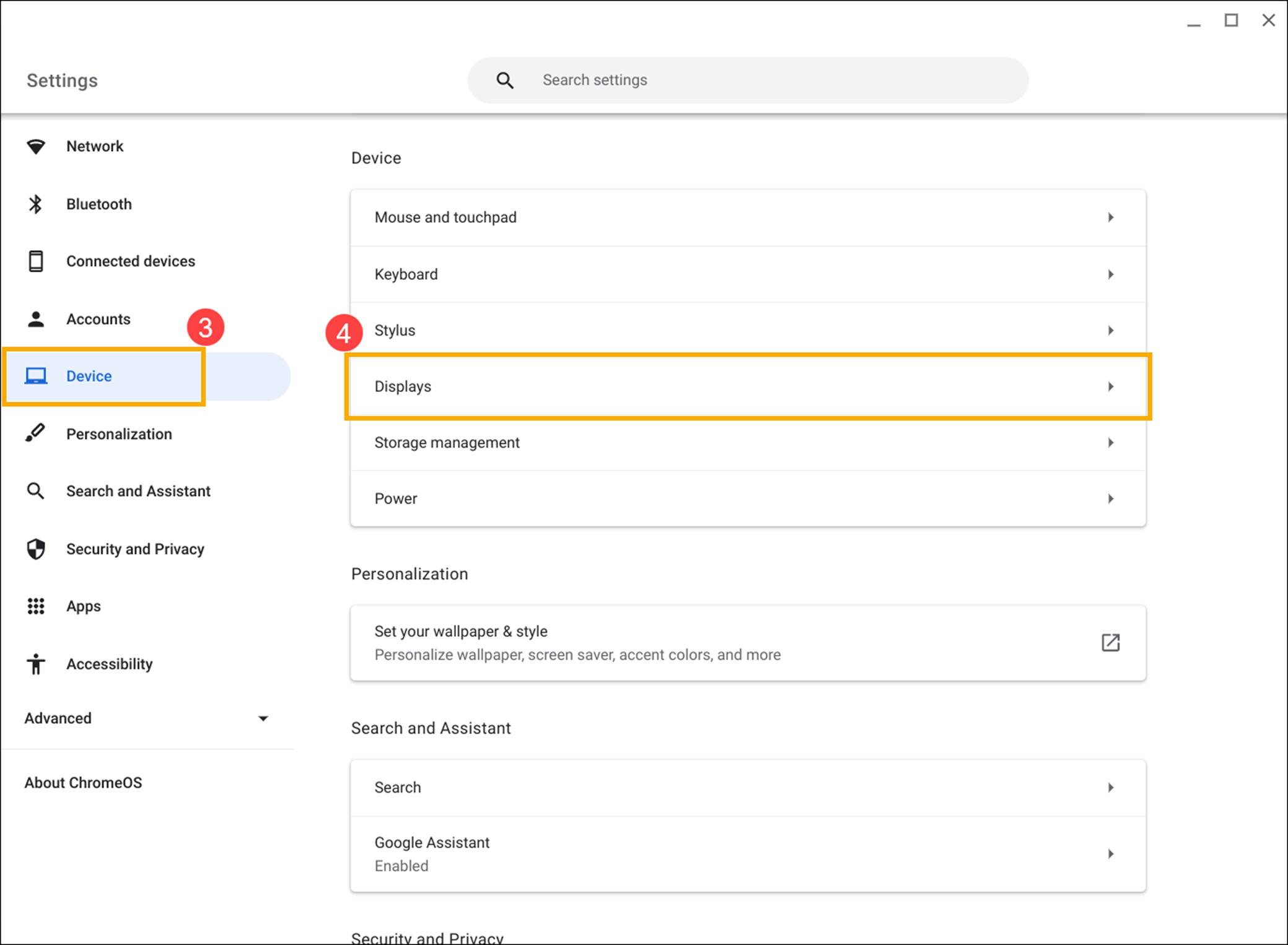
- Click [Device]③, then click [Displays]④.
- After toggling on the Night Light switch⑤, you can drag the slider to adjust the desired Color temperature⑥.
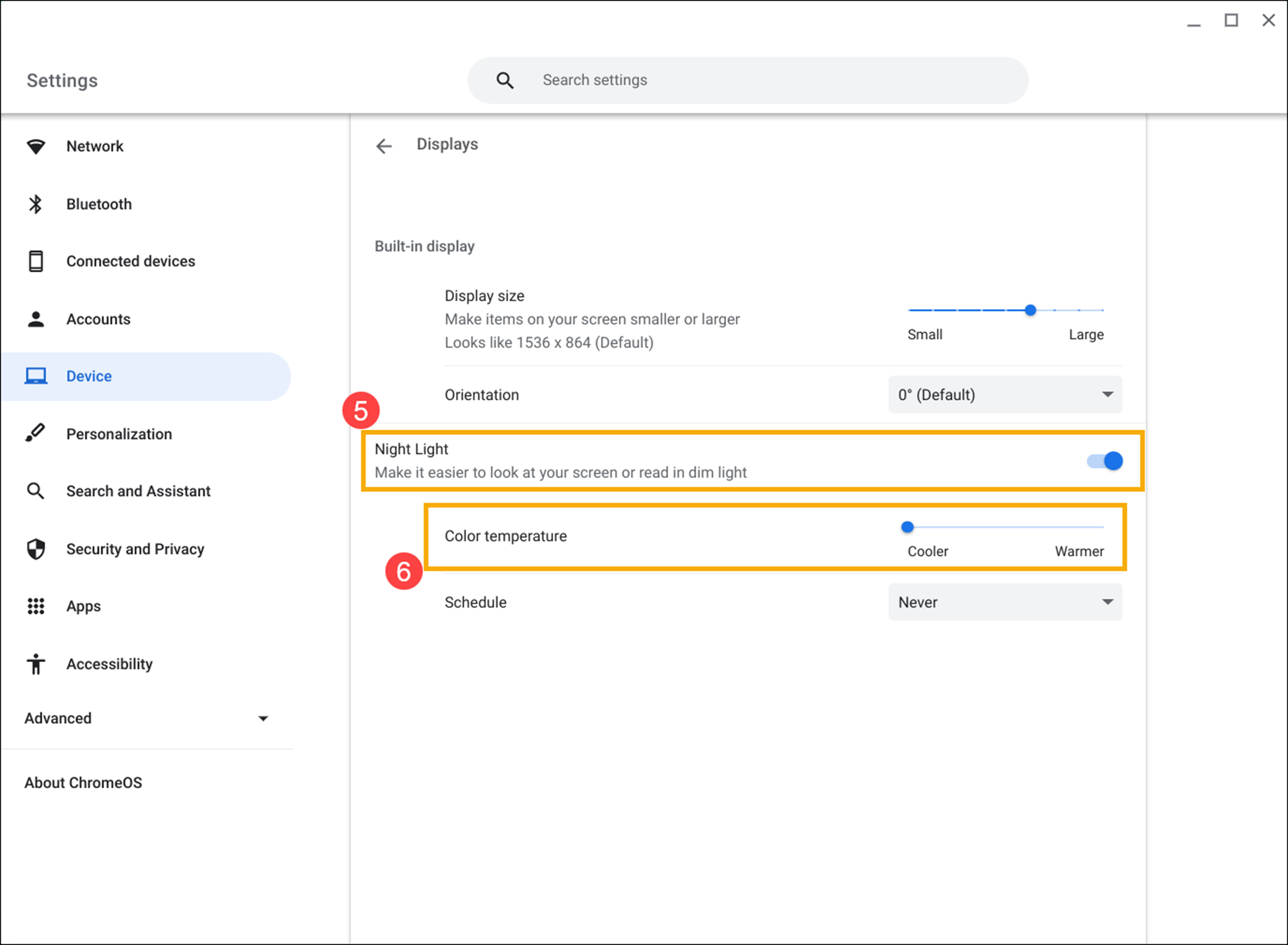
- Click the drop-down menu from the Schedule field⑦ to adjust the time when the Night Light feature should be turned on.
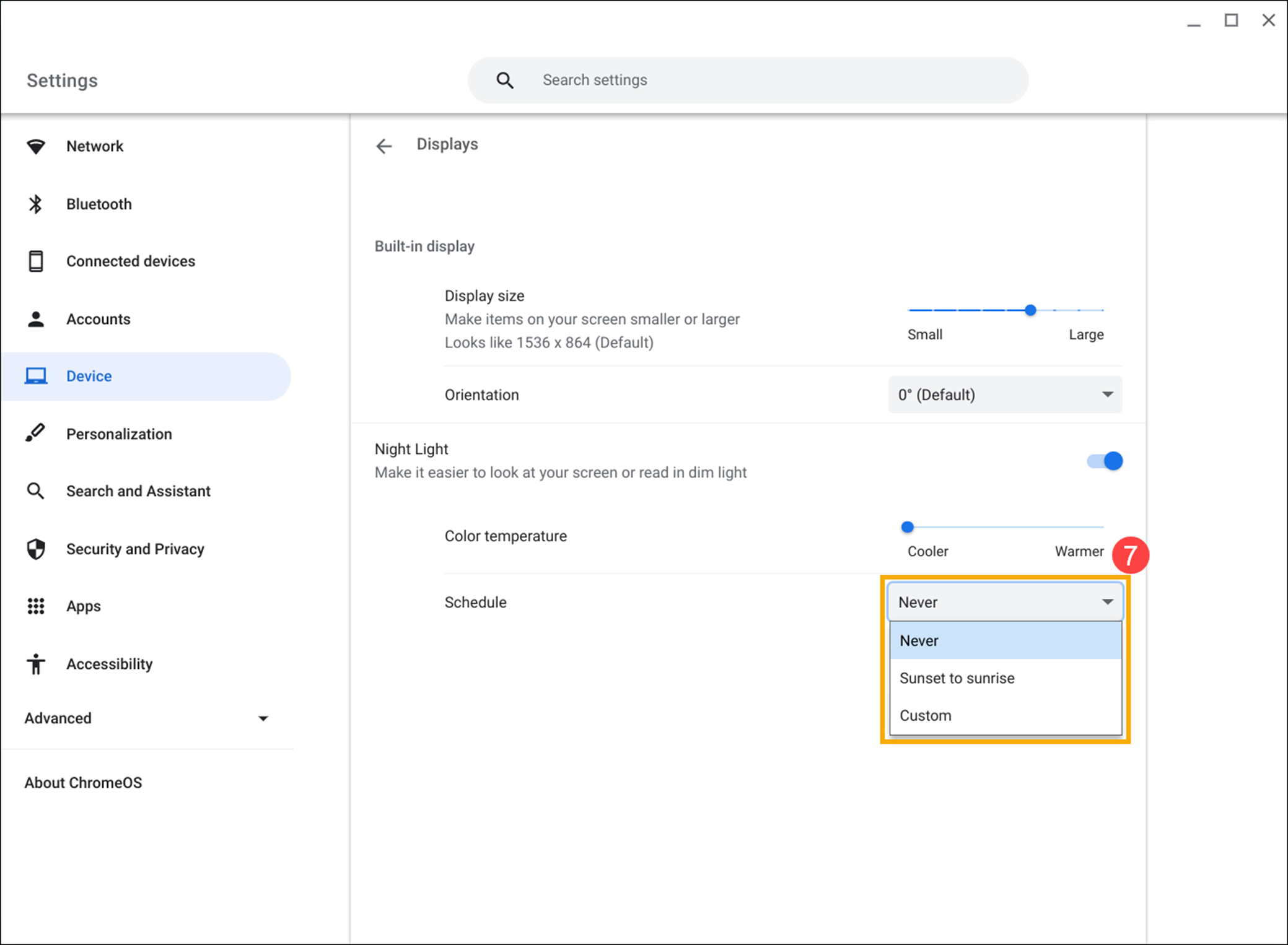
Image display too large or too small
If your Chromebook screen displays images that are too large or too small, you can adjust the resolution for the best display effect. Please follow these steps:
- Click the [Status bar]① in the lower right corner of the screen, then click [Settings]②.
- Click [Device]③, then click [Displays]④.
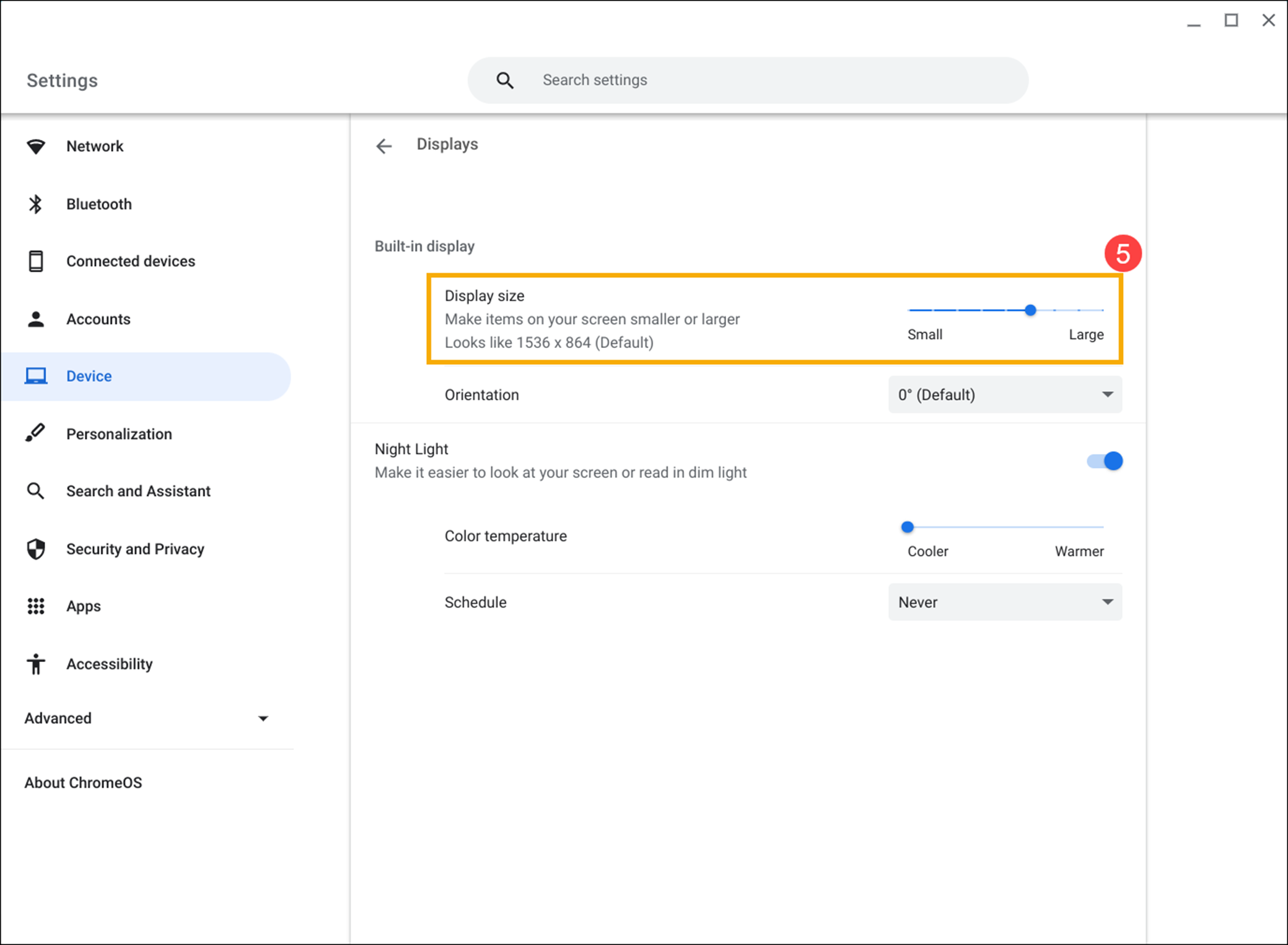
- In the Display size field, you can drag the slider to adjust the resolution and shrink or enlarge the items on the screen⑤.
Screen display orientation is incorrect
If the screen display orientation of your Chromebook is incorrect, or you need to change the orientation, please follow these steps:
- Click the [Status bar]① in the lower right corner of the screen, then click [Settings]②.
- Click [Device]③, then click [Displays]④.
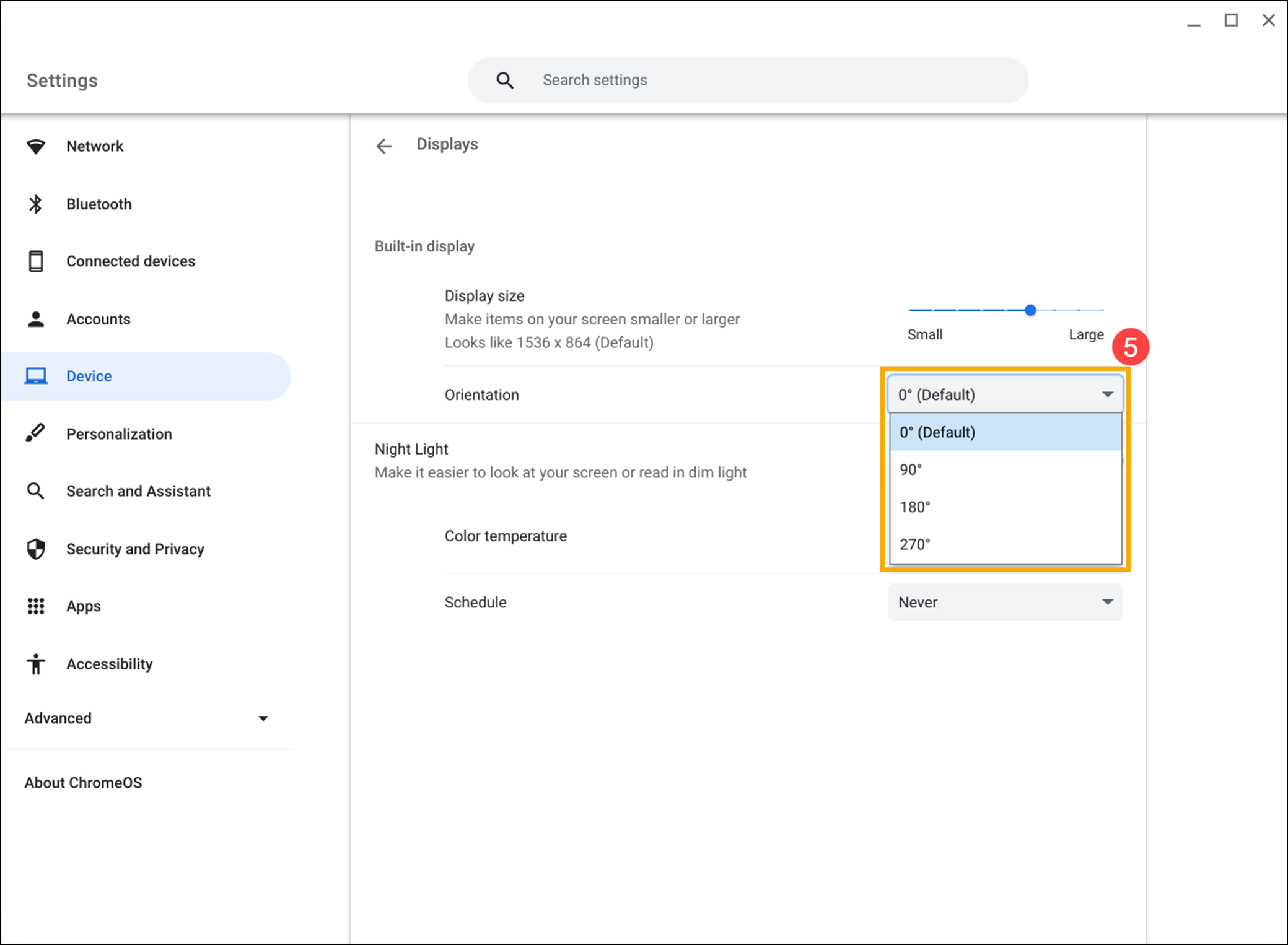
- In the Orientation section, you can select the desired orientation from the drop-down menu⑤.
If you have other problems with your screen display, please try the following steps:
- Make sure there is no dust or dirt on the screen. If you do not clean the screen regularly, it may accumulate dust or dirt over time and lead to work defective. If you need to clean the screen, please refer to this article: How to clean your laptop.
- Restart your Chromebook. Do so by pressing and holding the [Power button]
 until the device shuts down and then turning it back on.
 - Update Chrome OS. Ensure that your Chromebook has installed the latest version of Chrome OS. If you want to check for available updates, please refer to this article: Updating your Chromebook’s operating system.
- Perform a hard reset on your Chromebook hardware. Here you can learn more about How to reset your Chromebook hardware.
- If the above troubleshooting steps have been completed but the issue persists, perform a reset or recovery of your Chromebook.
Reset (Powerwash) your Chromebook to factory settings. - Recovery Chromebook operating system.
If your problem persists after following the instructions above, please contact the ASUS customer service center for further information.
