This widget could not be displayed.
This widget could not be displayed.
Turn on suggestions
Auto-suggest helps you quickly narrow down your search results by suggesting possible matches as you type.
Showing results for
- English
- Other Products
- FAQ
- [Chromebook] Troubleshooting - How to fix “Aw, Sna...
Options
- Subscribe to RSS Feed
- Mark as New
- Mark as Read
- Bookmark
- Subscribe
- Printer Friendly Page
- Report Inappropriate Content

 FAQBot
Community Manager
Options
- Article History
- Subscribe to RSS Feed
- Mark as New
- Mark as Read
- Bookmark
- Subscribe
- Printer Friendly Page
- Report Inappropriate Content
on
01-29-2024
05:48 PM
- edited on
10-07-2025
05:33 AM
by
ZenBot
[Chromebook] Troubleshooting - How to fix “Aw, Snap!” page crashes and other page loading errors
If you're getting the "Aw, Snap" error or another error code instead of a webpage, Google Chrome is having problems loading. You might also see the page loading slowly or not opening at all.
If you receive a page loading error, you can begin by reloading the page. Usually, you can reload the page to fix the error. Please click the [Reload] icon at the top left of browser. If the problem persists, please follow the steps below in order.
Check your internet connection
Make sure your computer's connected to Wi-Fi or a wired network.
Try reloading the tab with the error.
Clear your cache
Chrome might have information stored that's stopping the page from loading.
Open the page in an Incognito window
- Open the Google Chrome browser.
- Click the [More] icon
 at the top right①, then select [New Incognito window]②.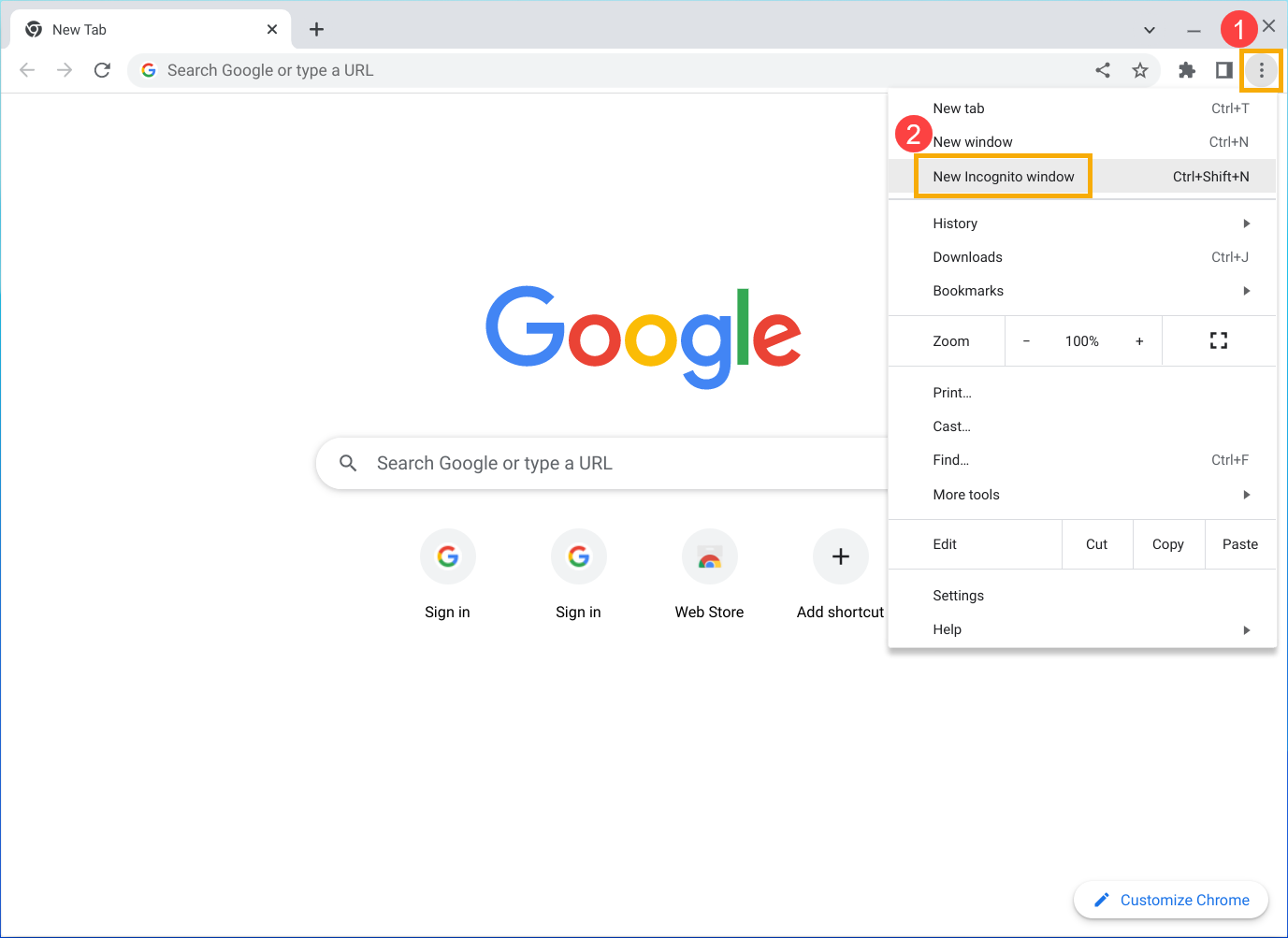
- In the Incognito window, try opening the page. If it opens, follow the steps below to clear your cache and cookies.
Clear your cache and cookie
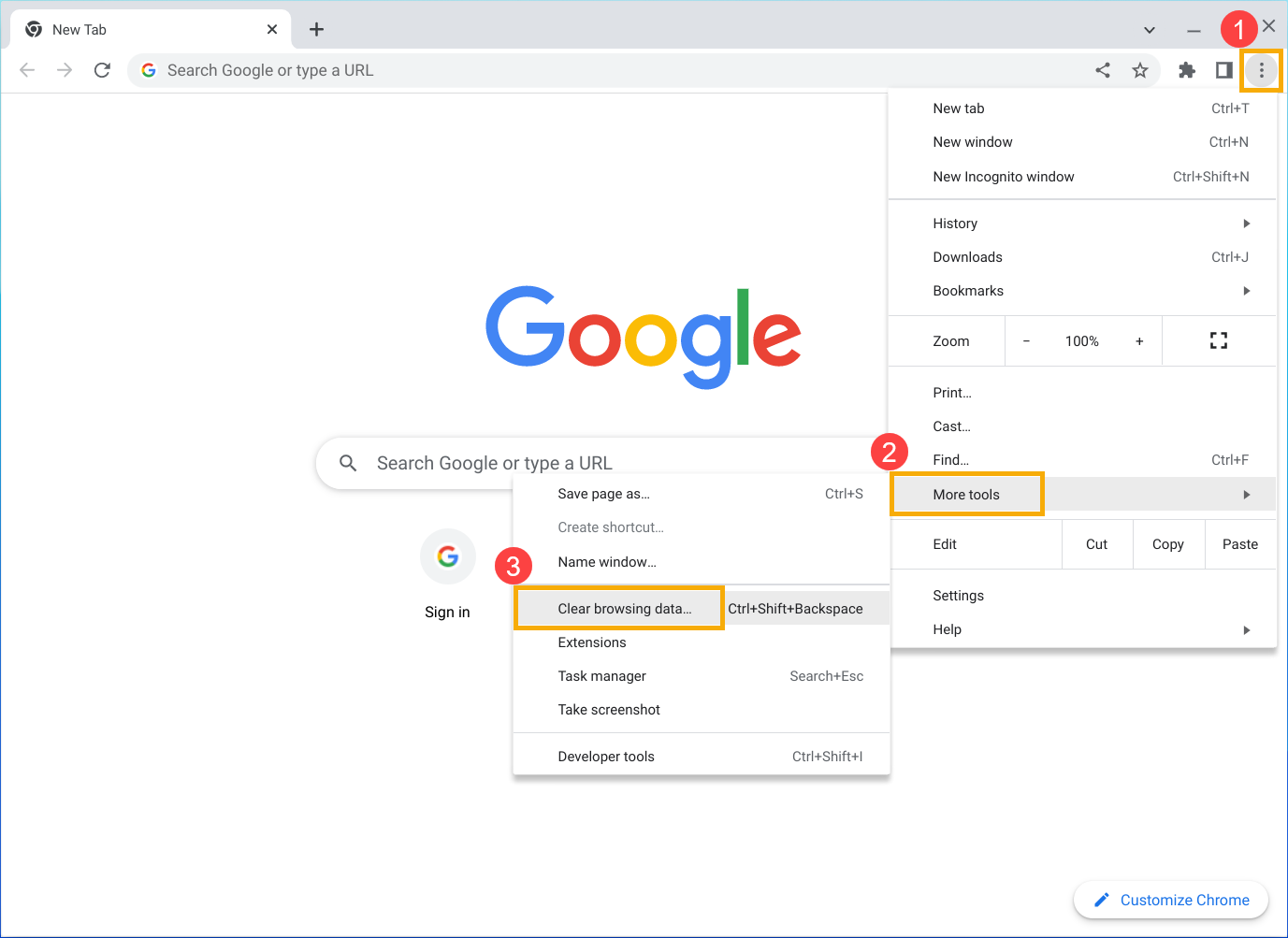
- Click the [More] icon at the top right①, select [More tools]② and then select [Clear browsing data]③.
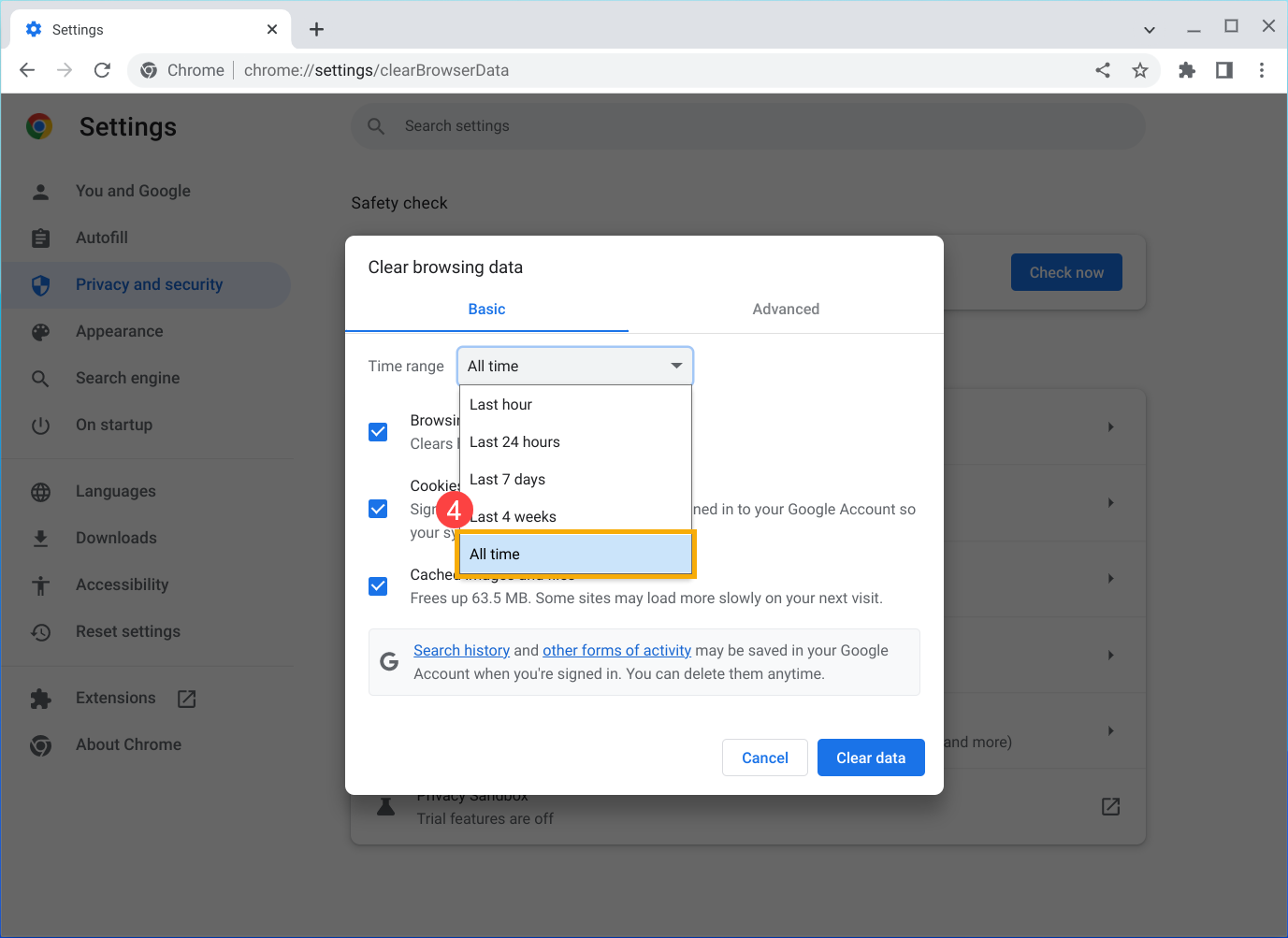
- On the Time range drop-down menu, select [All time]④.
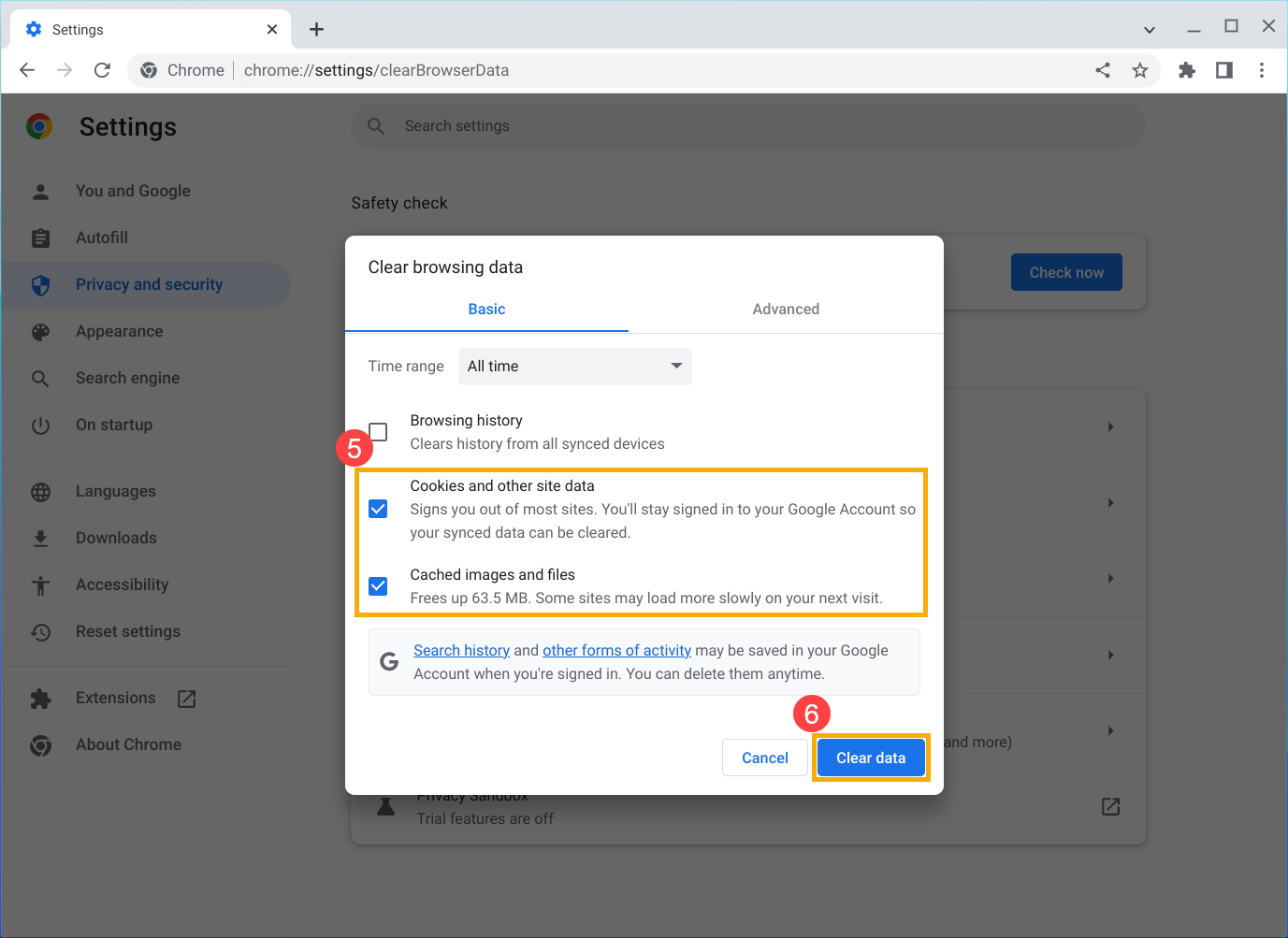
- Check the box to [Cookie and other site data] and [Cached images and files]⑤, then select [Clear data]⑥.
- After completing to clear, try reloading the tab with the error.
Close other tabs, extensions, and apps
Your device may have run out of memory, and can't load the site while also running your apps, extensions, and programs.
- Free up memory
- Close every tab except for the one that’s showing the error message.
- Quit other apps or programs that are running, and pause any app or file downloads.
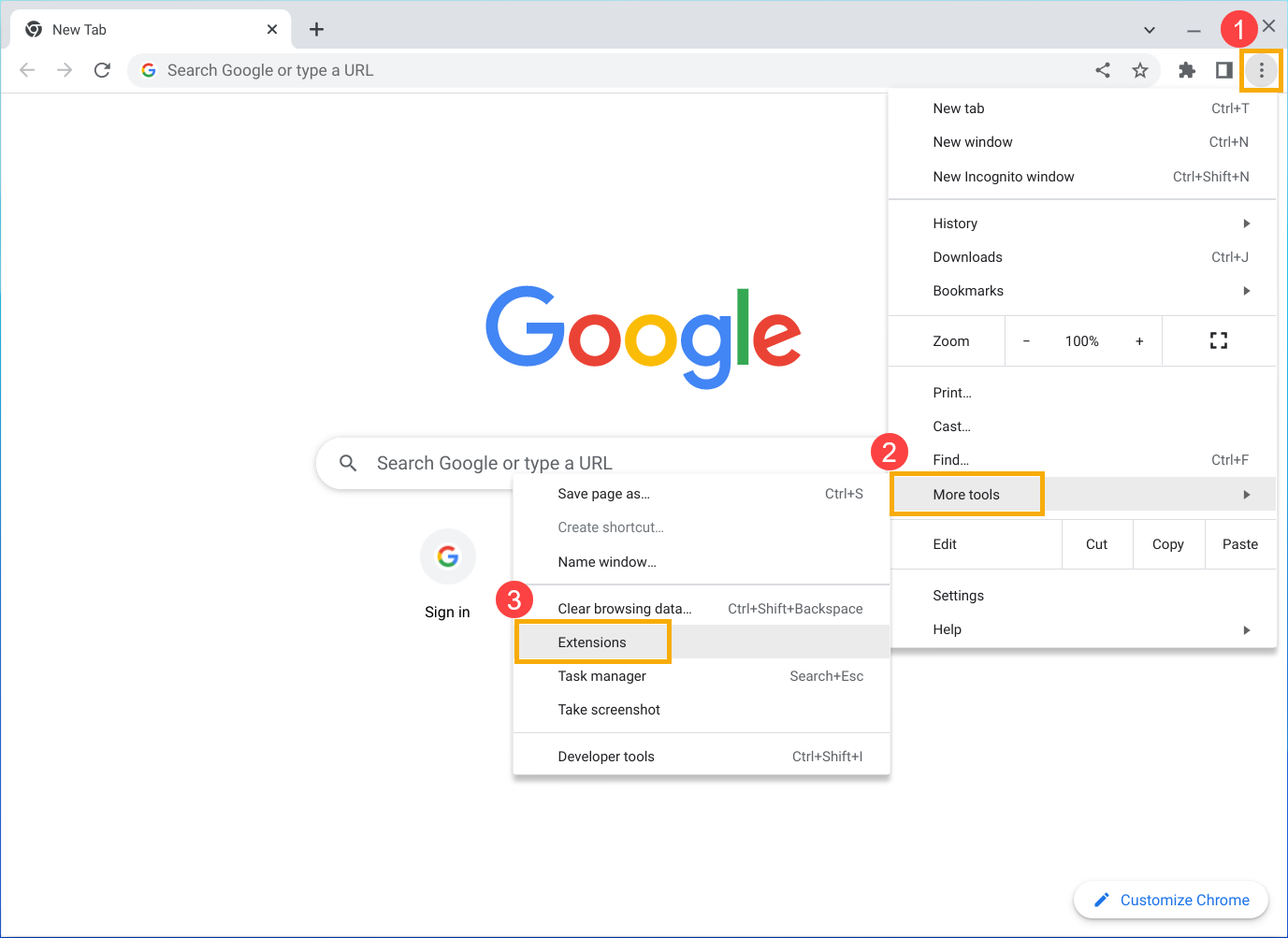
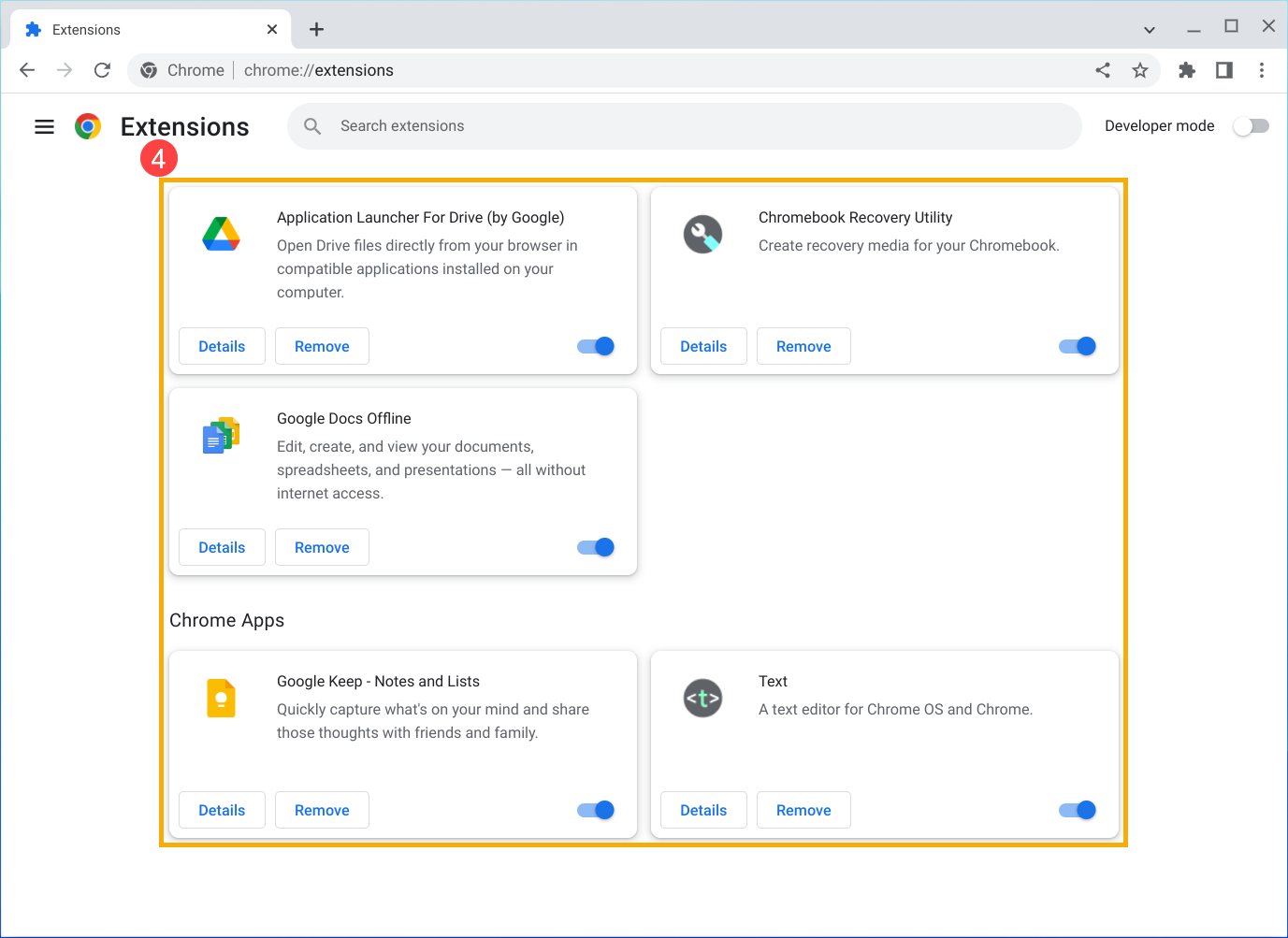
- Uninstall unnecessary extensions from the Google Chrome browser. Click the [More] icon at the top right①, select [More tools]② and then select [Extensions]③. On extensions you don't use, click [Remove]④.
- Try reloading the tab with the error.
Restart your computer
Programs or apps sometimes stop a page from loading.
- Restart your Chromebook.
- Try loading the page again.
Update Google Chrome browser
- Open Google Chrome browser.
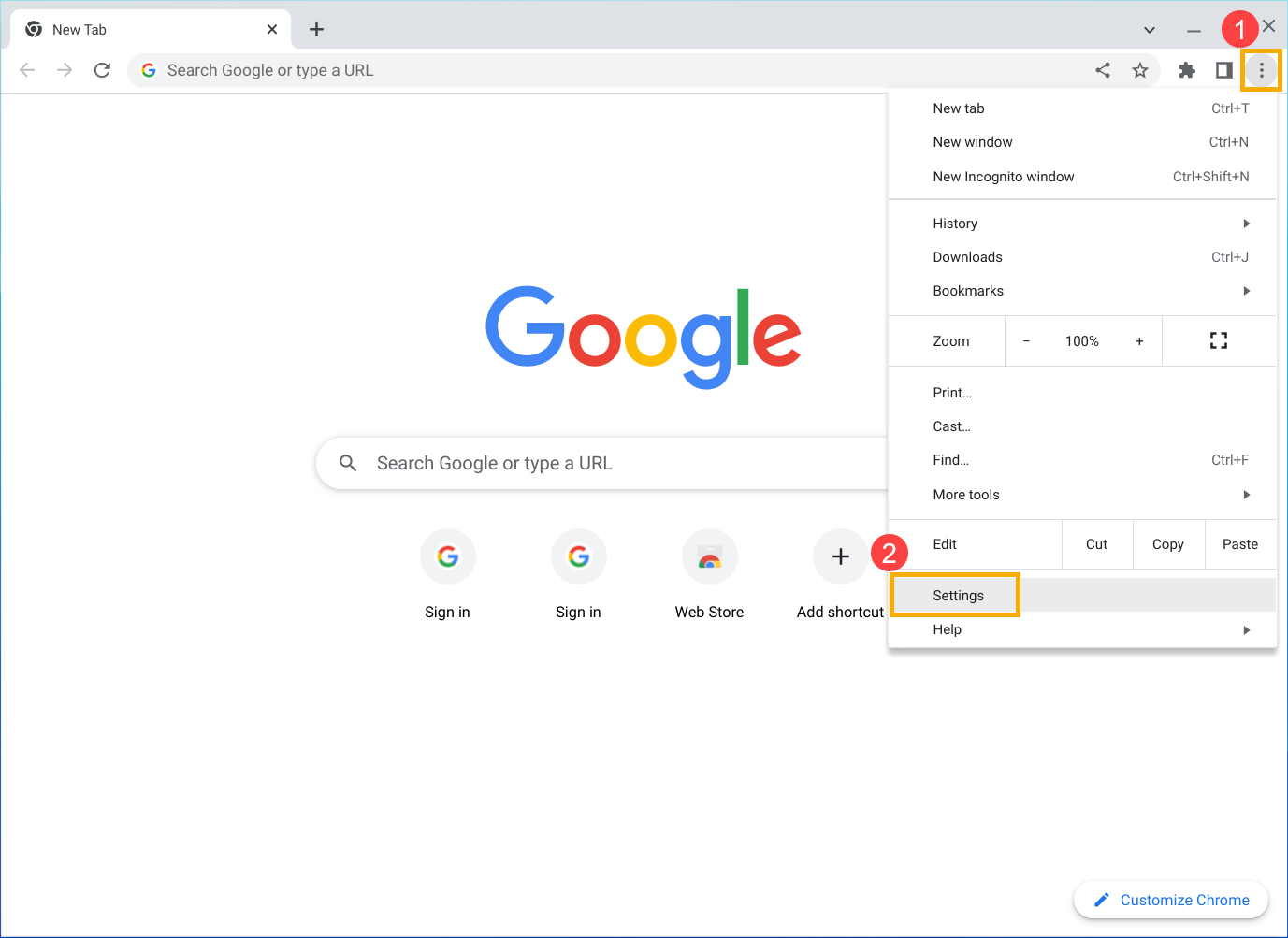
- Click the [More] icon at the top right①, then select [Settings]②.
- Select [About Chrome] on the left menu③.
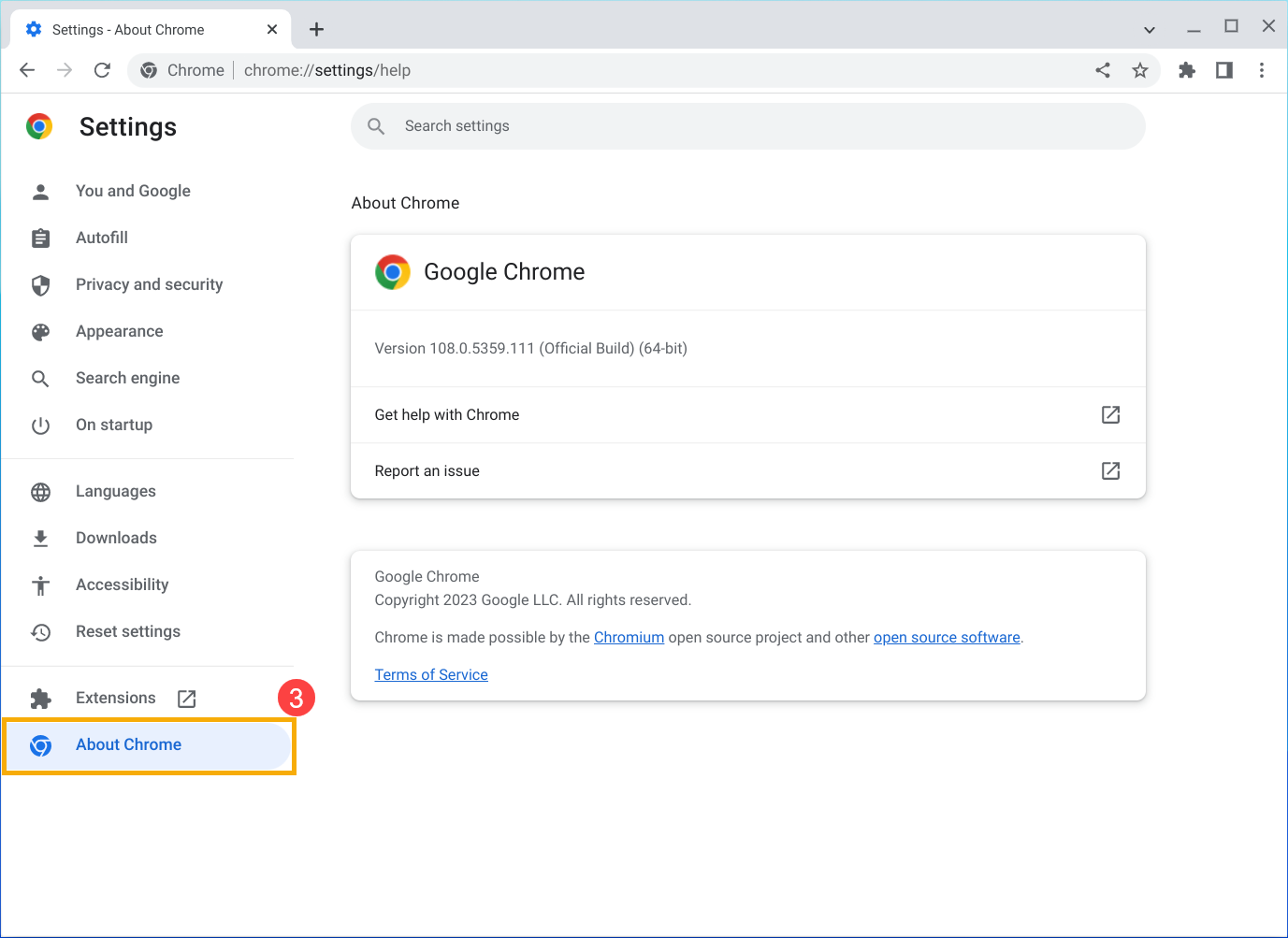
- Chrome will check if there's an update available. You might have to wait a few seconds to see it.
- If there's an update, you'll see an option to click Relaunch. After relaunching, try reloading the tab with the error.
- If there are no instructions, your version of Chrome is up-to-date.
Get extra help
- If other sites open normally but one site is crashing, that site might be causing the problem:
- If you try to reload the site and it doesn't open, let Google know by clicking Send feedback.
- Turn on automatic error reporting to help Google solve page crashes faster, or report the issue to Chrome.
- Contact the site owner to report the problem.
- Get help from experts in the Chrome Help Forum.
For more details, please refer to Chromebook Help from Google:
https://support.google.com/chromebook/answer/95669
If your problem is not worked out with above solution and information, please contact ASUS customer service center for further information.
