[Chromebook] How to unlock your screen with a PIN
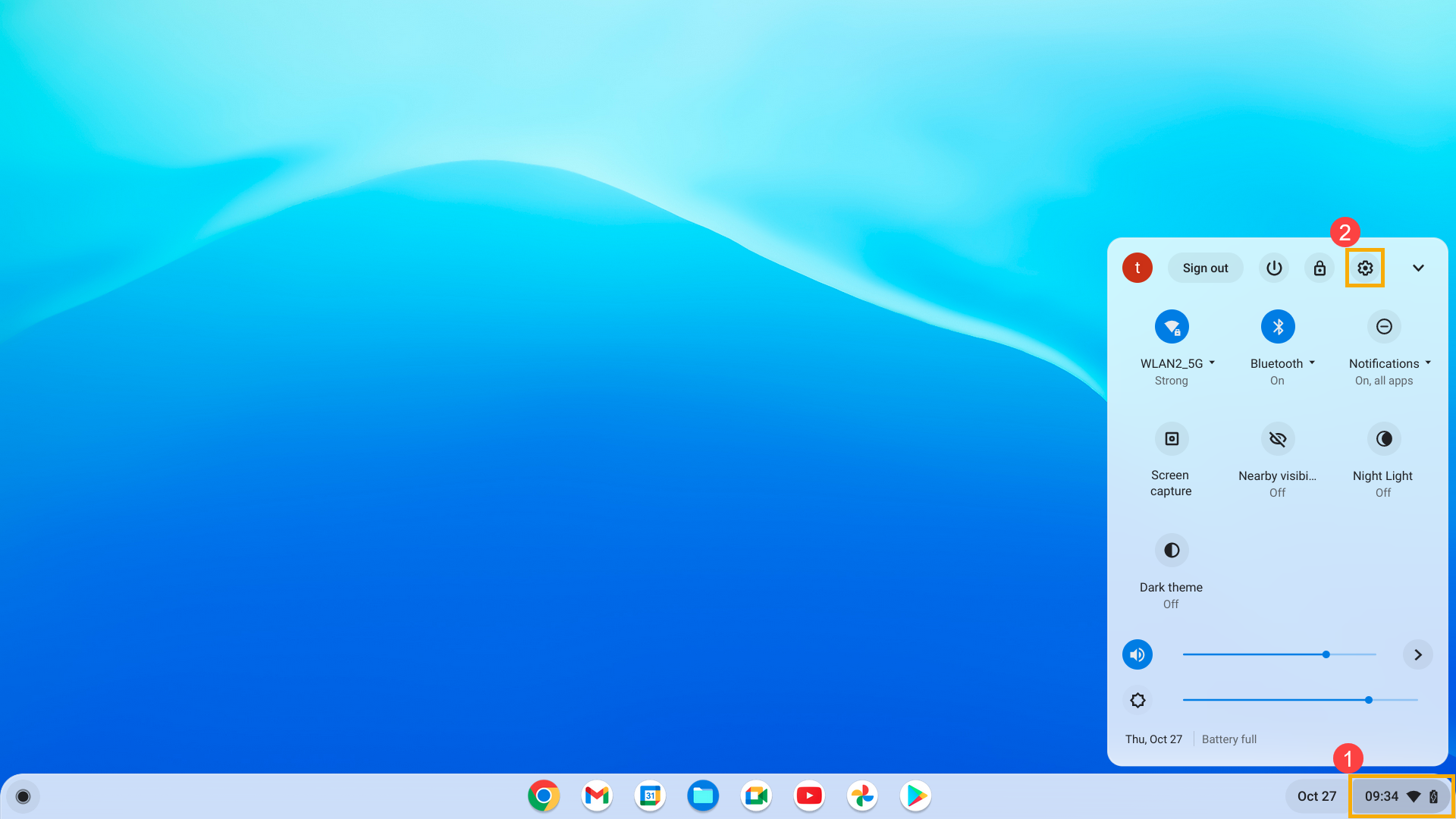
- Click [Status Bar]① at the bottom-right of the screen, then click [Settings]
 ②.
②.
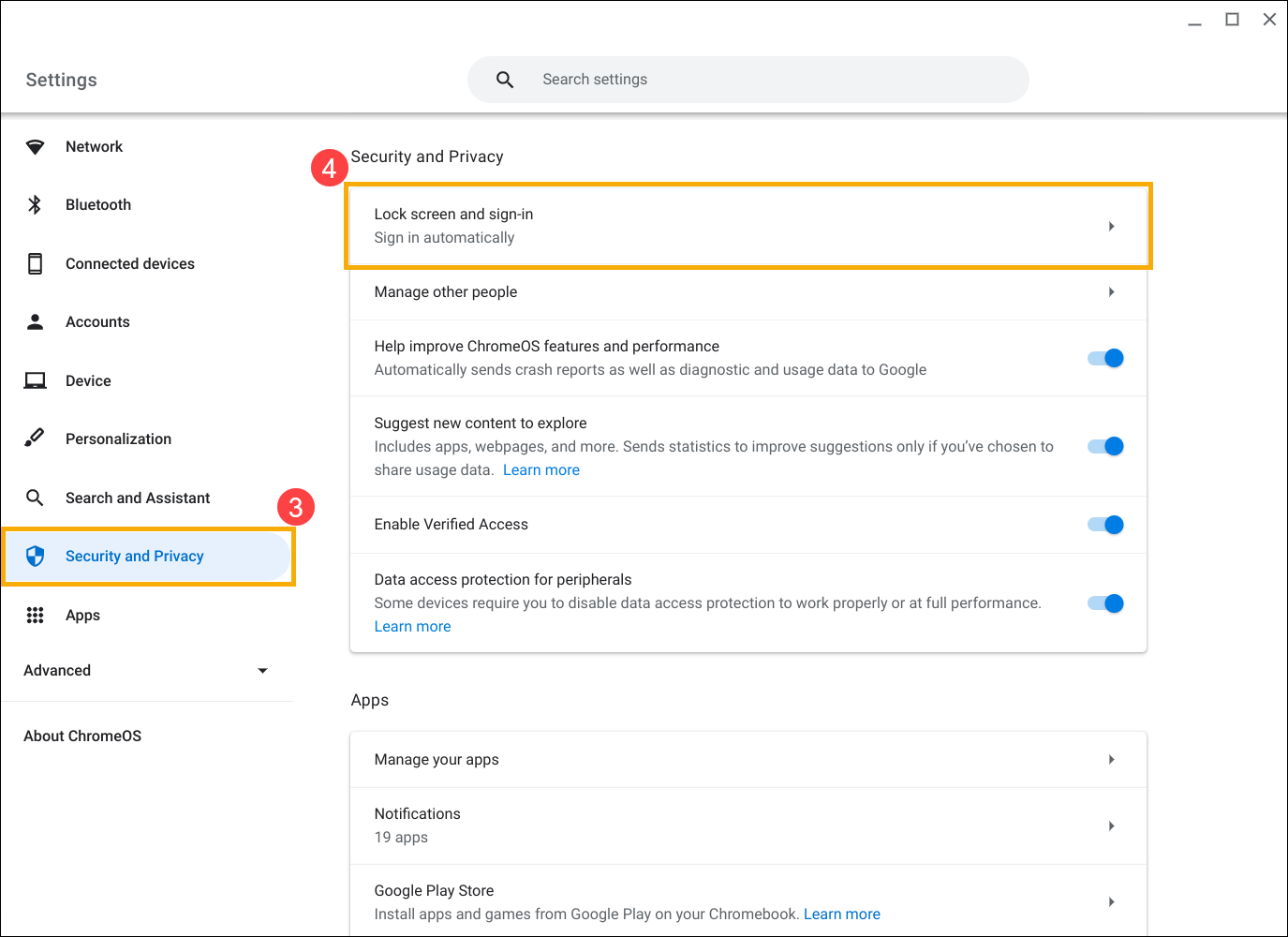
- After opening Settings, select [Security and Privacy]③, then select [Lock screen and sign-in]④.
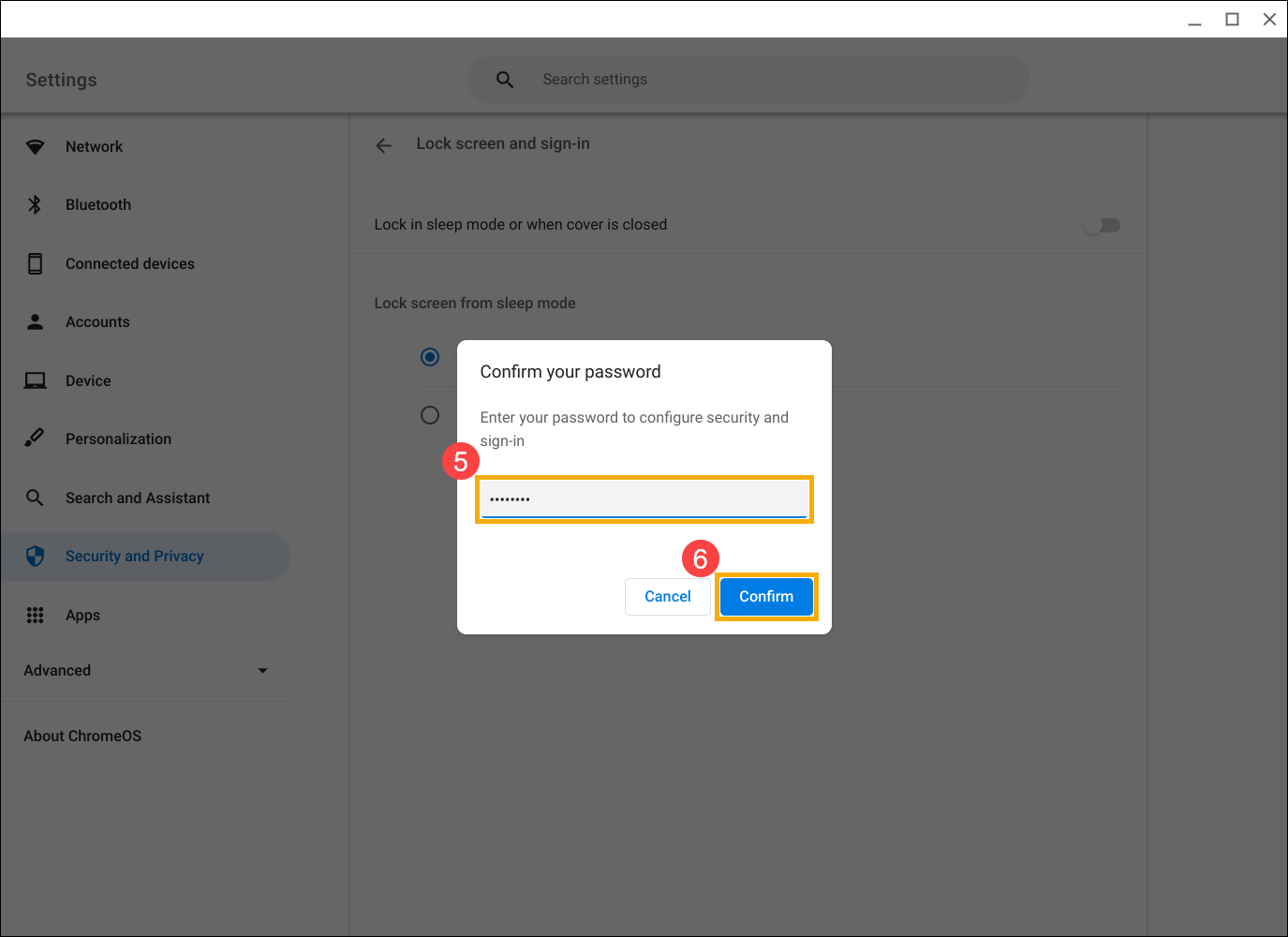
- Enter your Google Account password⑤, then select [Confirm]⑥.
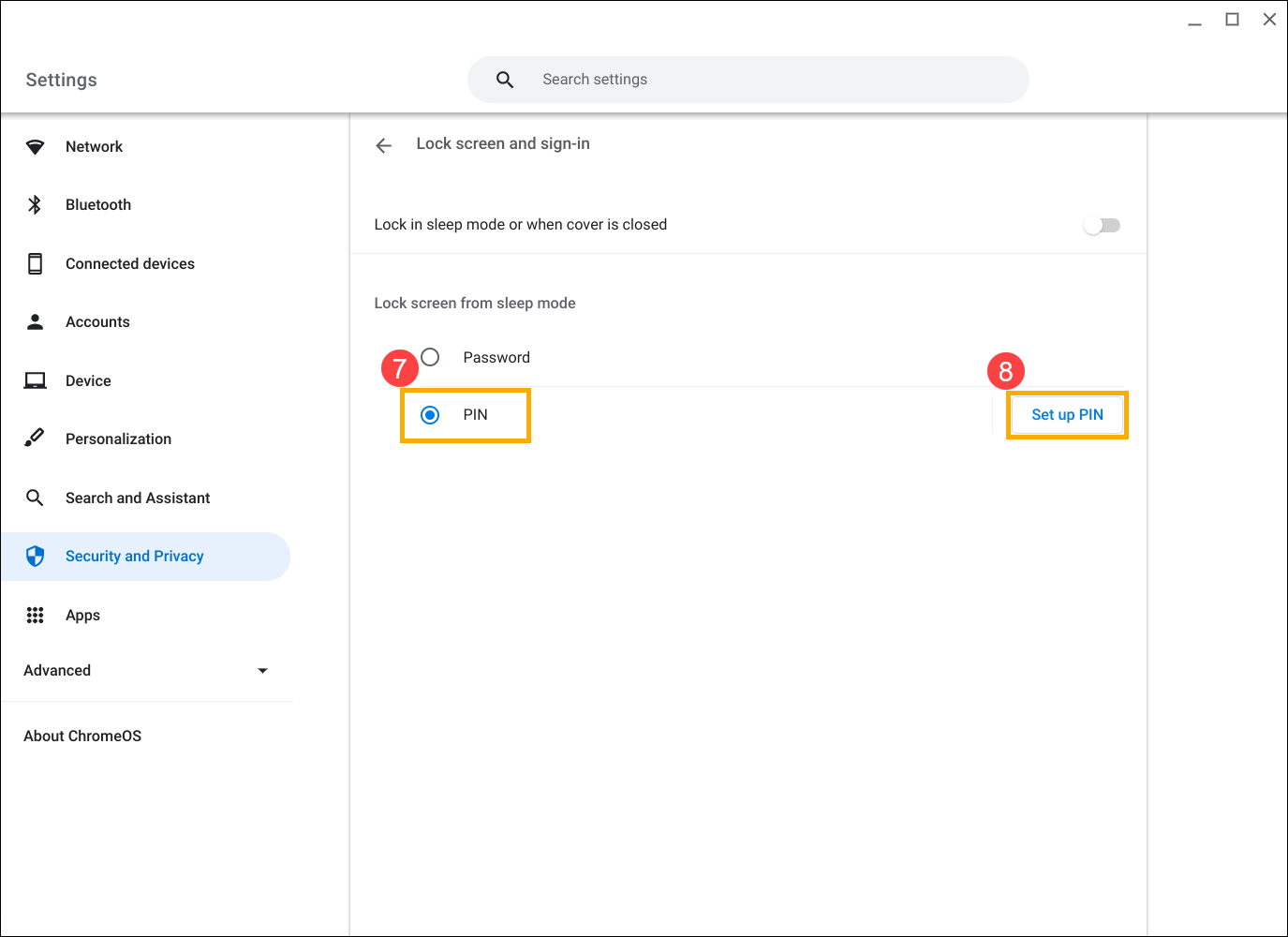
- Select [PIN]⑦, then click [Set up PIN]⑧.
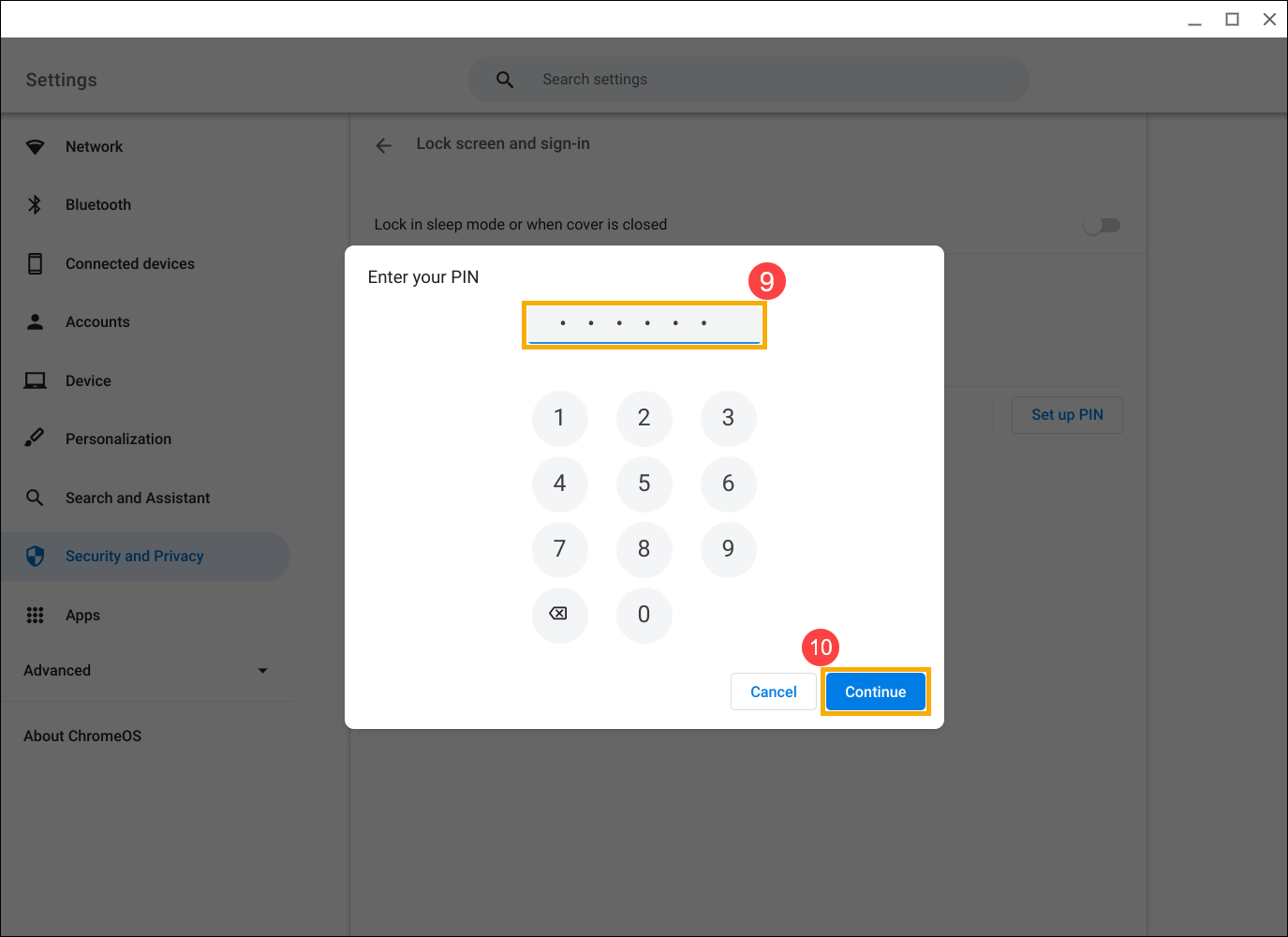
- Enter a PIN of six digits or more⑨, then select [Continue]⑩.
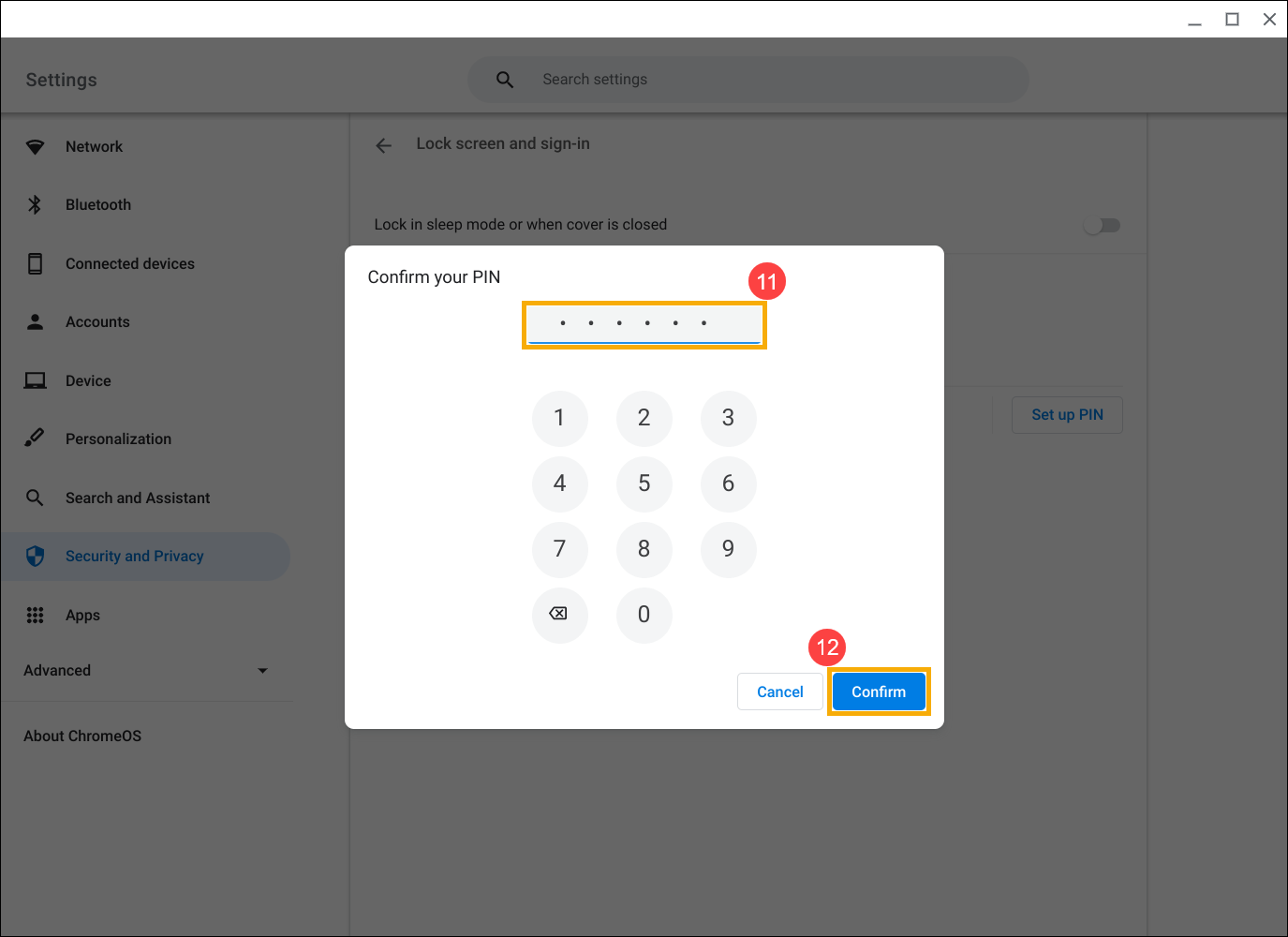
- Re-enter your PIN⑪, then select [Confirm] to complete the PIN setting⑫.
Above contents are from Google official website, you also can refer to Chromebook Help for more details.
If your problem is not worked out with above solution and information, please contact ASUS customer service center for further information.



