This widget could not be displayed.
This widget could not be displayed.
Turn on suggestions
Auto-suggest helps you quickly narrow down your search results by suggesting possible matches as you type.
Showing results for
- English
- Other Products
- FAQ
- [Windows 11/10] Troubleshooting - Memory Card (SD ...
Options
- Subscribe to RSS Feed
- Mark as New
- Mark as Read
- Bookmark
- Subscribe
- Printer Friendly Page
- Report Inappropriate Content

 FAQBot
Community Manager
Options
- Article History
- Subscribe to RSS Feed
- Mark as New
- Mark as Read
- Bookmark
- Subscribe
- Printer Friendly Page
- Report Inappropriate Content
on
01-29-2024
06:07 PM
- edited on
10-07-2025
03:39 AM
by
ZenBot
[Windows 11/10] Troubleshooting - Memory Card (SD Card)/Card Reader Issues
Applicable Products: Notebook, Desktop, All-in-One PC, Gaming Handheld, MiniPC, ASUS NUC
A memory card (SD card) is a widely used storage medium in devices such as digital cameras, smartphones, and computers. Sometimes, you may encounter issues with memory cards, such as the card reader not detecting the memory card or errors occurring during reading or writing. In this article, we will provide some common troubleshooting methods to help you resolve these issues.
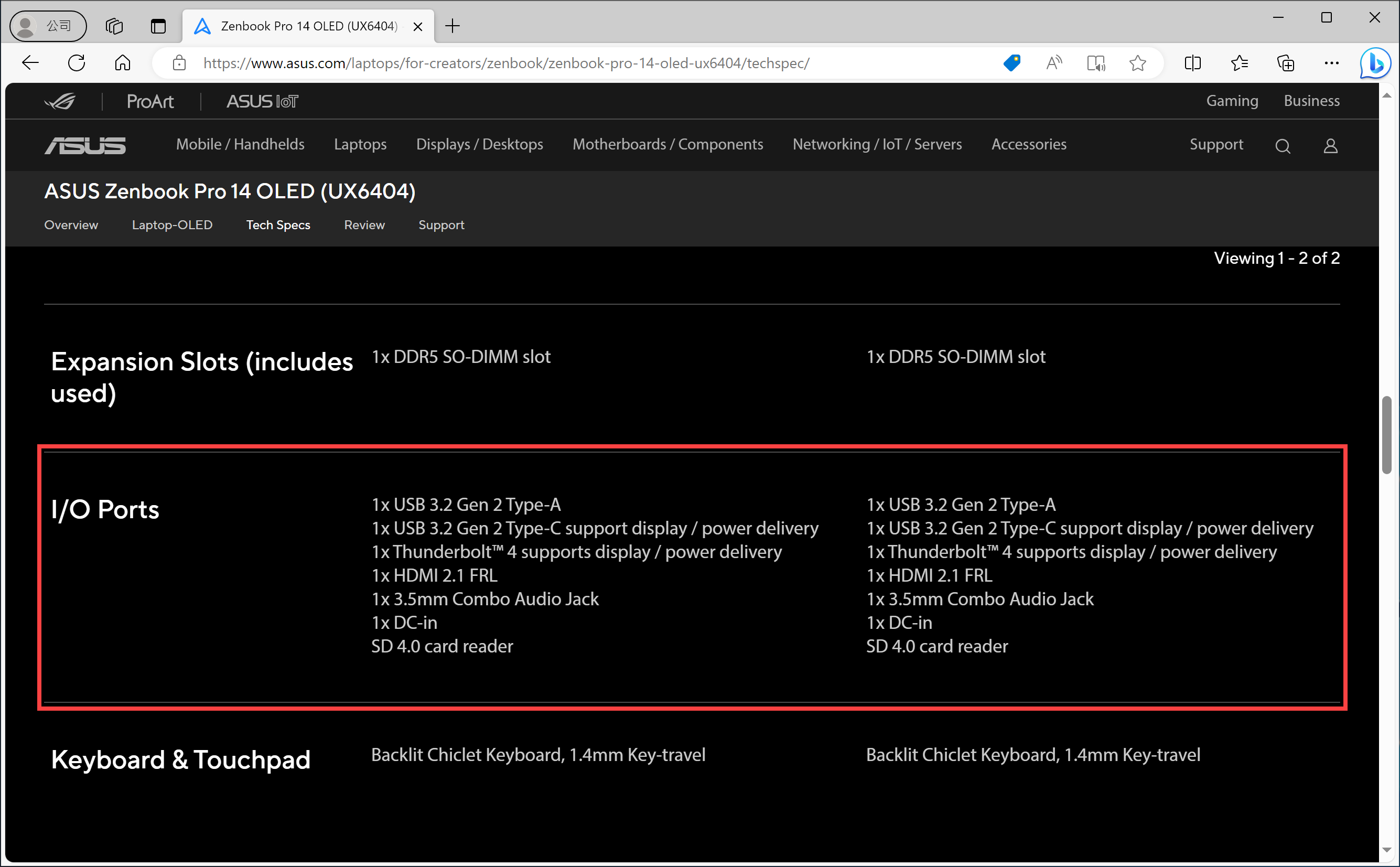
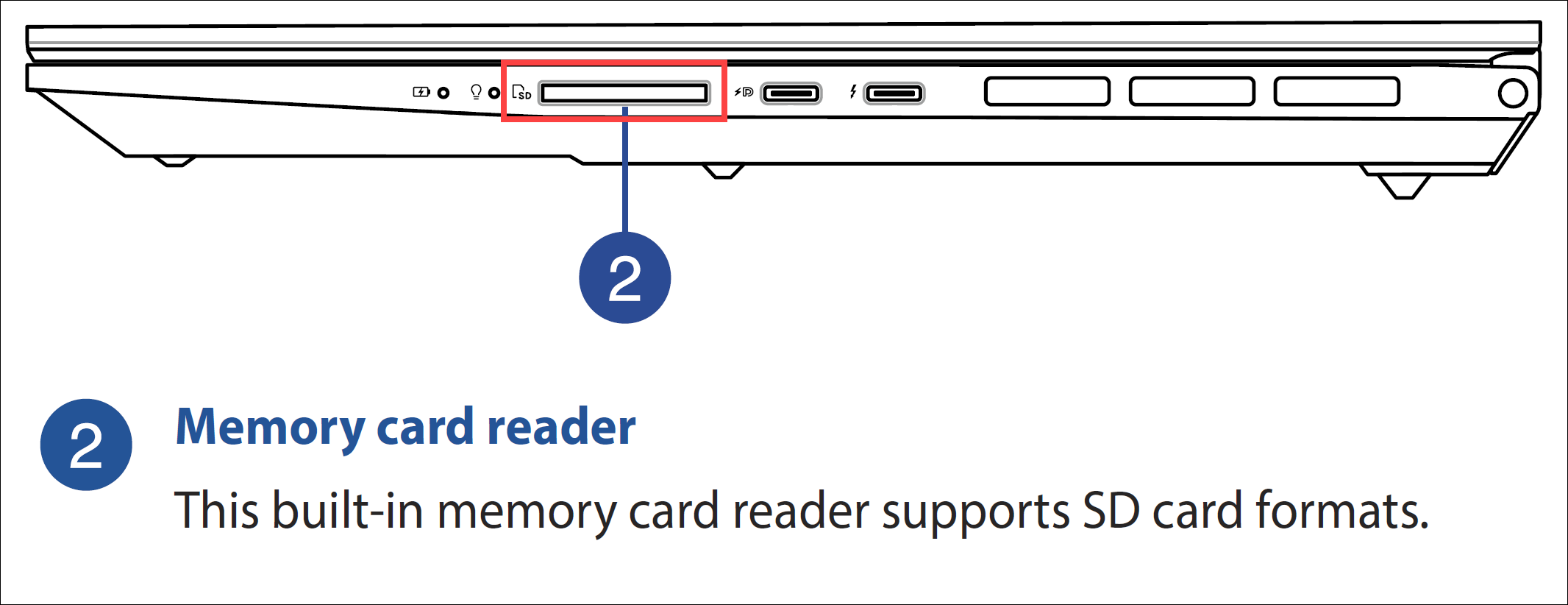
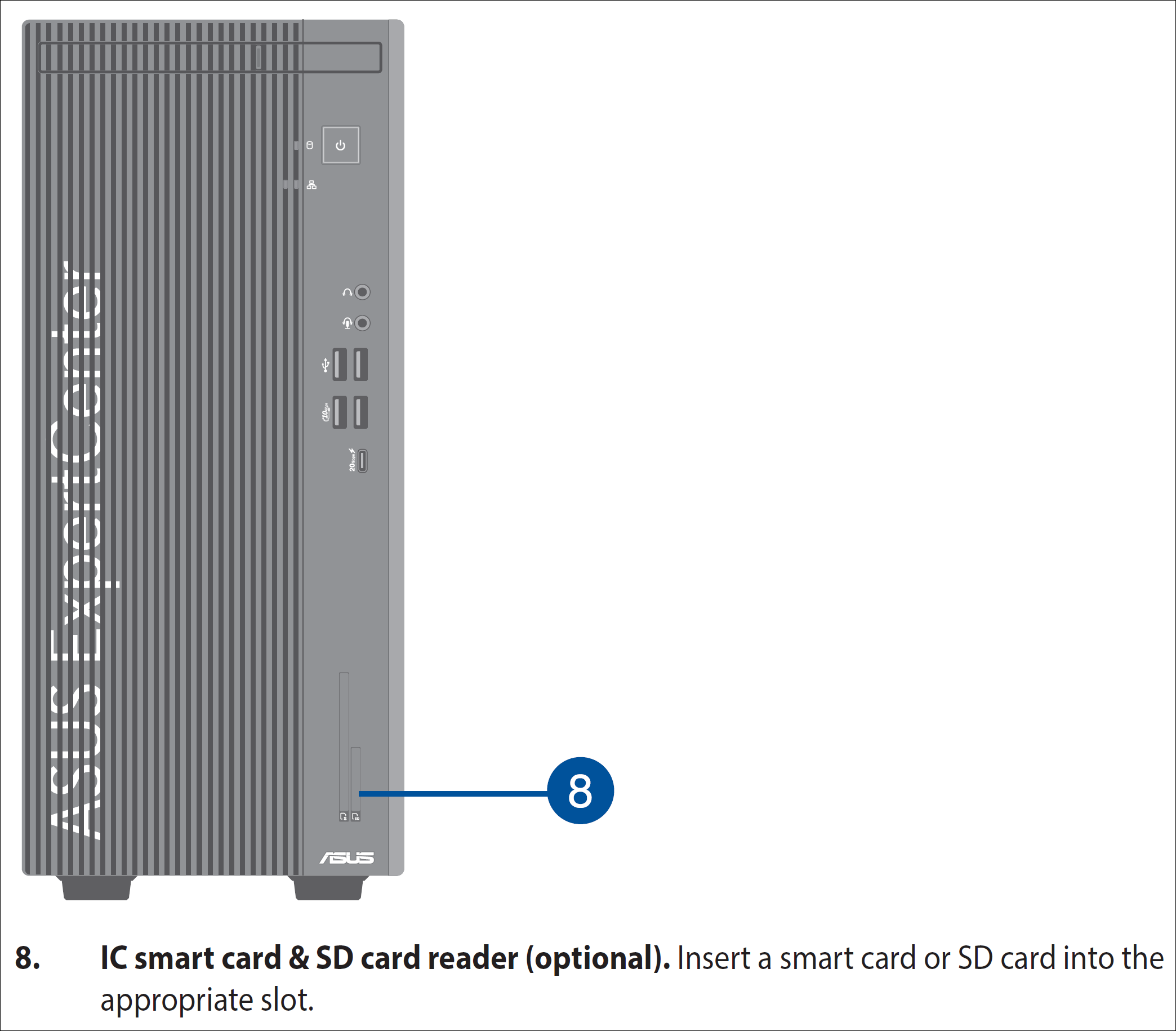
There are several different types of memory cards, including standard SD cards, miniSD cards, and microSD cards. Before using a memory card, please ensure that your device supports the specific memory card format. You can check the supported memory card formats on the ASUS product specification page on our official website or in the product user manual. If you are unsure how to download the user manual, please refer to this article: How to Search for and Download User Manuals.
Note: When using memory cards, it is advisable to consult the usage documentation provided by the device manufacturer to ensure proper connection and installation of drivers or software. Occasionally, memory cards may require the creation of a new partition before their initial use. You can refer to this article to learn How to create a new partition.
Unlock the Memory Card
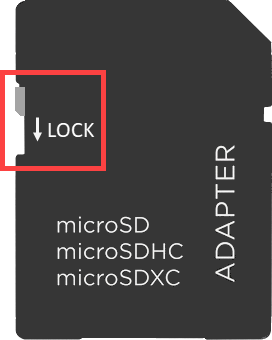
Some memory cards have a read/write security switch. Before using the memory card, make sure to set this switch to the unlocked position.
Check the Memory Card
Ensure that the memory card is correctly inserted into the device and check for any loose or improper insertion.
Try inserting another memory card of the same type into the device to ensure the problem is not due to a damaged memory card.
Clean the Memory Card Contacts
Gently wipe the metal contacts of the memory card with a soft cloth or eraser to remove any dirt or oxidation.
Check the Card Reader Slot
Try inserting the memory card into another compatible device to ensure that the issue is not due to a damaged card reader slot.
If the card reader slot is clogged with dust, try cleaning it to see if the problem can be resolved. When cleaning the memory card slot, make sure to turn off the device and disconnect the power cord. You can use a commercially available cleaning brush or an air blower to remove dust from the slot.
Update and Confirm BIOS, Windows Updates, and Drivers
Software updates often improve system stability and optimization, so it's recommended to regularly check for the latest versions for your device. Learn more about how to update BIOS:
How to update the BIOS version in Windows system
How to update BIOS with ASUS Firmware Update/EZ Flash
(For desktop products, please refer to ASUS Motherboard EZ Flash 3 Introduction.)
For executing Windows update and drivers update, here you can learn more about:
How to update drivers via System Update in MyASUS
Check Card Reader Interface Settings in BIOS
For those utilizing Notebook, All-in-One PC, or Gaming Handheld devices, the following are the metho...
- Access the BIOS settings on your device. In a non-boot situation, press and hold the [F2] key on the keyboard, then press the [Power] button until the BIOS setup screen appears, and release the [F2] key. Learn more about How to enter the BIOS setup screen.
Note: Gaming handhelds require pressing the volume key (-) and then pressing the power button to boot. - Upon entering the BIOS configuration screen, you will encounter two types of interfaces: UEFI interface and MyASUS in UEFI. Please refer to the following steps based on the BIOS screen of your device:
How to Check Card Reader Interface Settings in the UEFI mode
In the UEFI interface, you can navigate and confirm using the Arrow Keys and Enter key on the keyboard, Touchpad, or Mouse.
Note: The BIOS configuration screen below may vary slightly depending on the model.
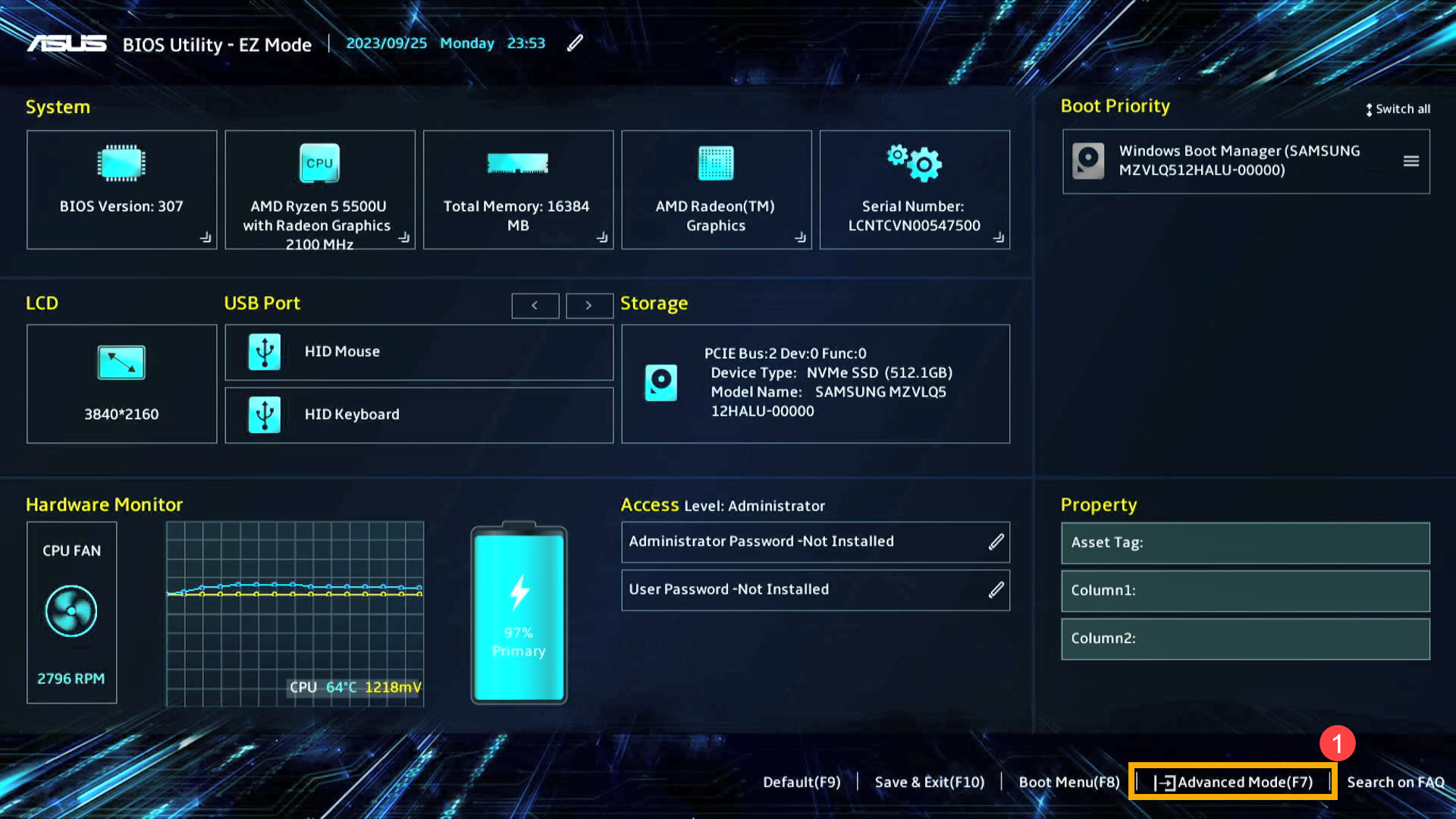
- Once in the BIOS settings screen, press the [F7] key on your keyboard or click [Advanced Mode]① on the screen.
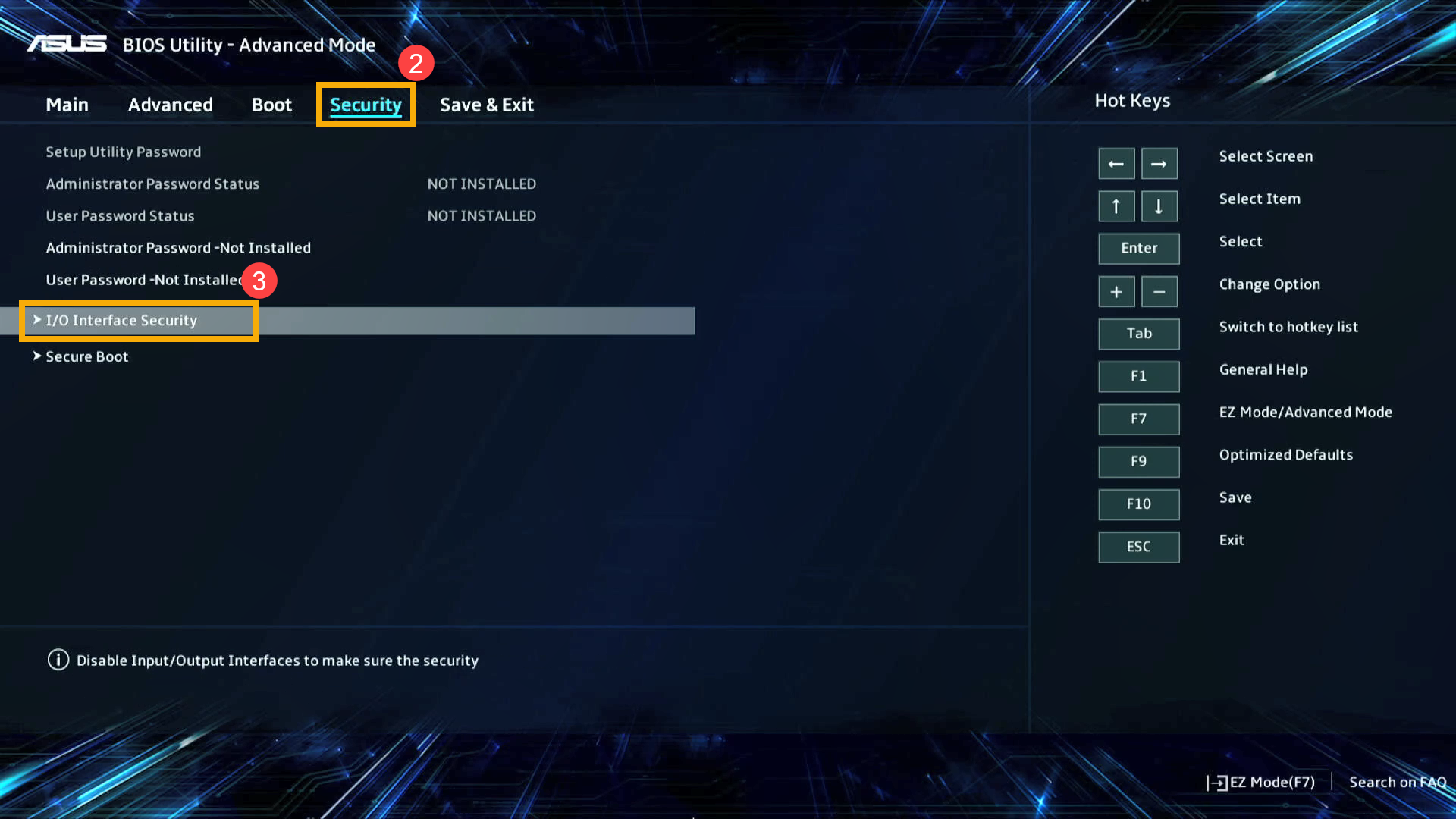
- In Advanced Mode, enter the [Security] page② and select [I/O Interface Security]③.
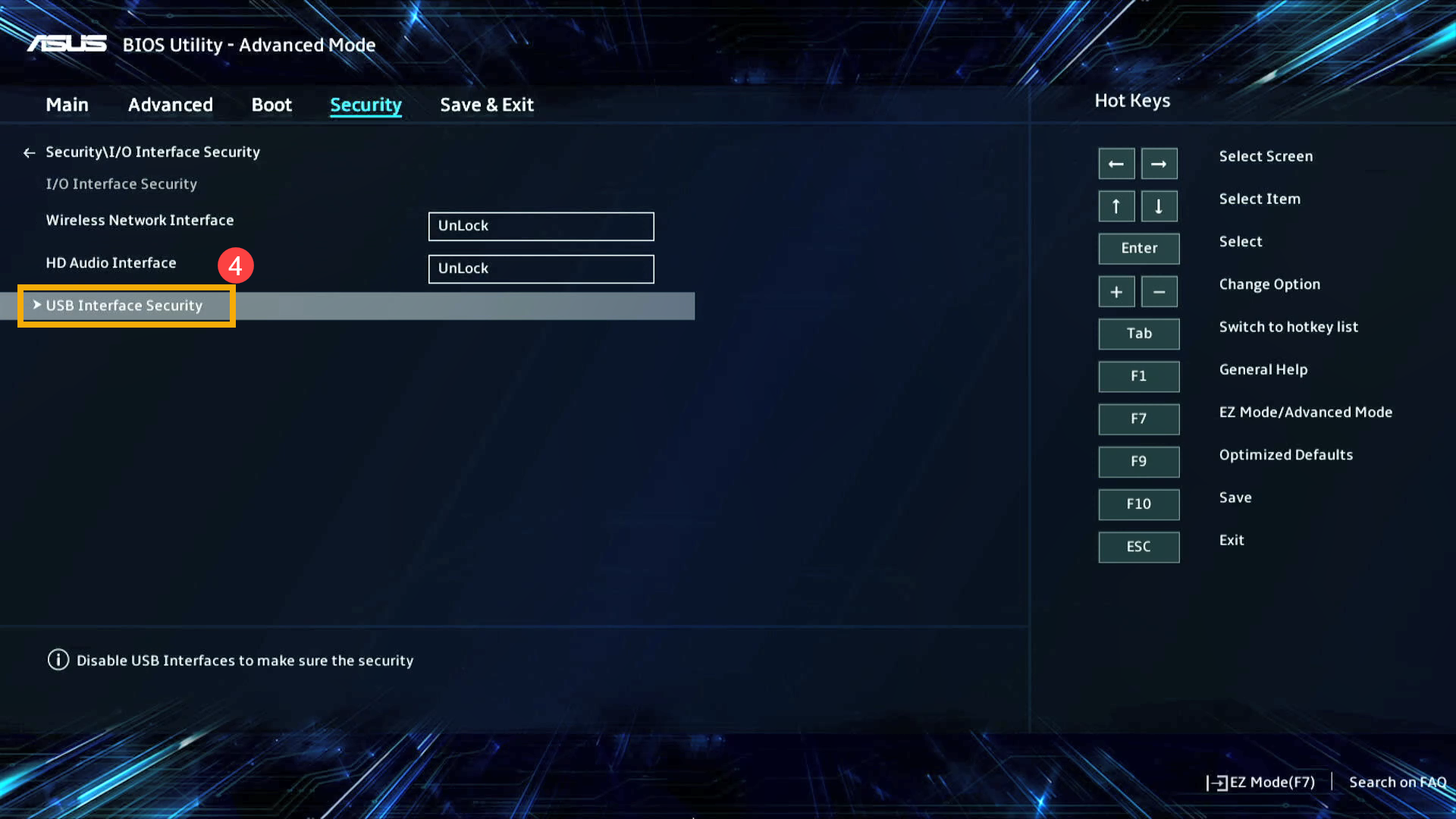
- In the I/O Interface Security settings, select [USB Interface Security]④.
- After entering USB Interface Security, select [Card Reader]⑤ and then choose [Unlock]⑥.
Note: If set to 「Lock」, the card reader function will be disabled.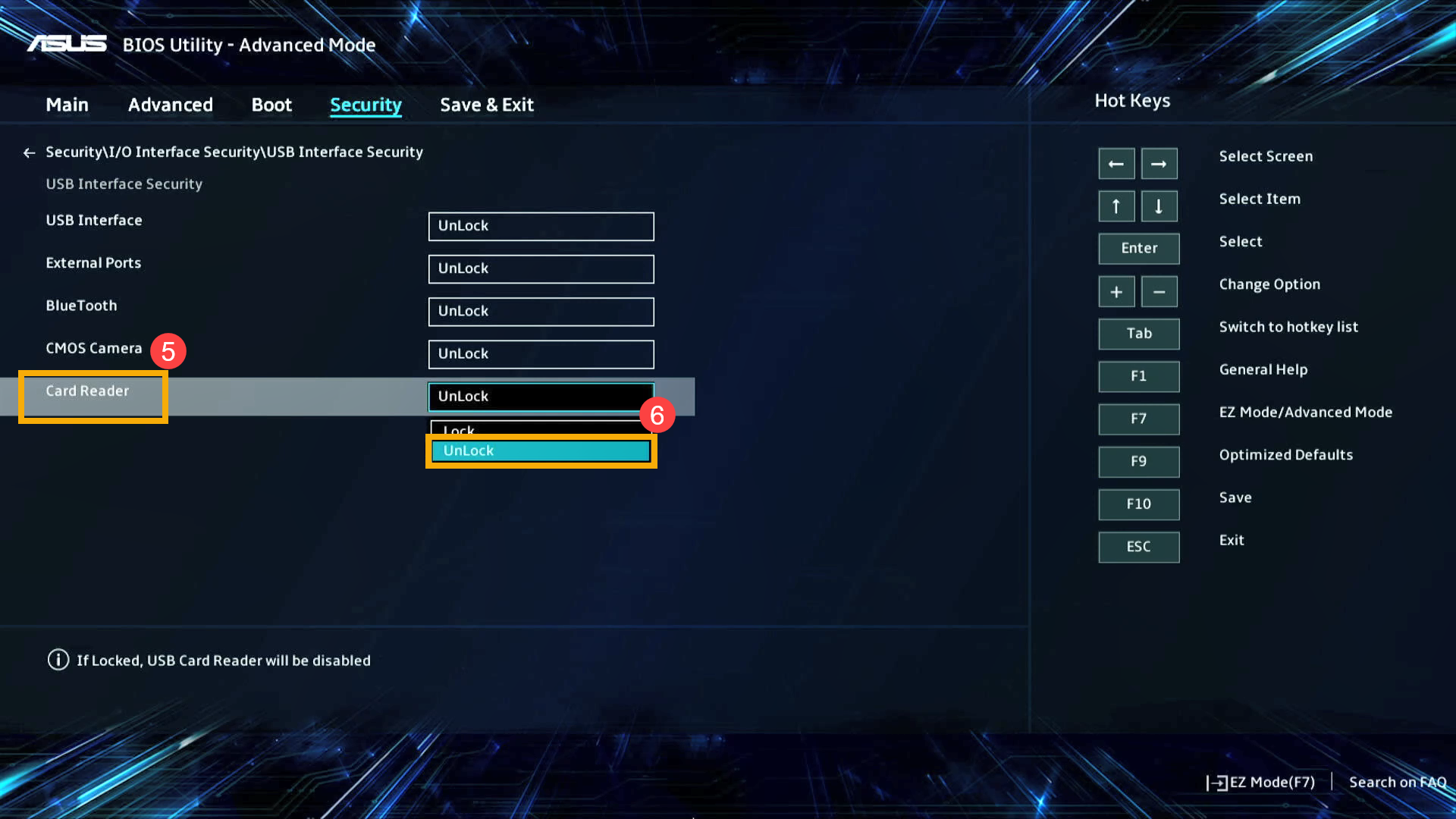
- Save the settings and exit. Press the [F10] key on the keyboard, then click [Ok]⑦. The device will restart. After entering the operating system, check if the card reader function works correctly.
Note: You can also save your settings and exit by entering the 'Save & Exit' page and selecting 'Save Changes and Exit'.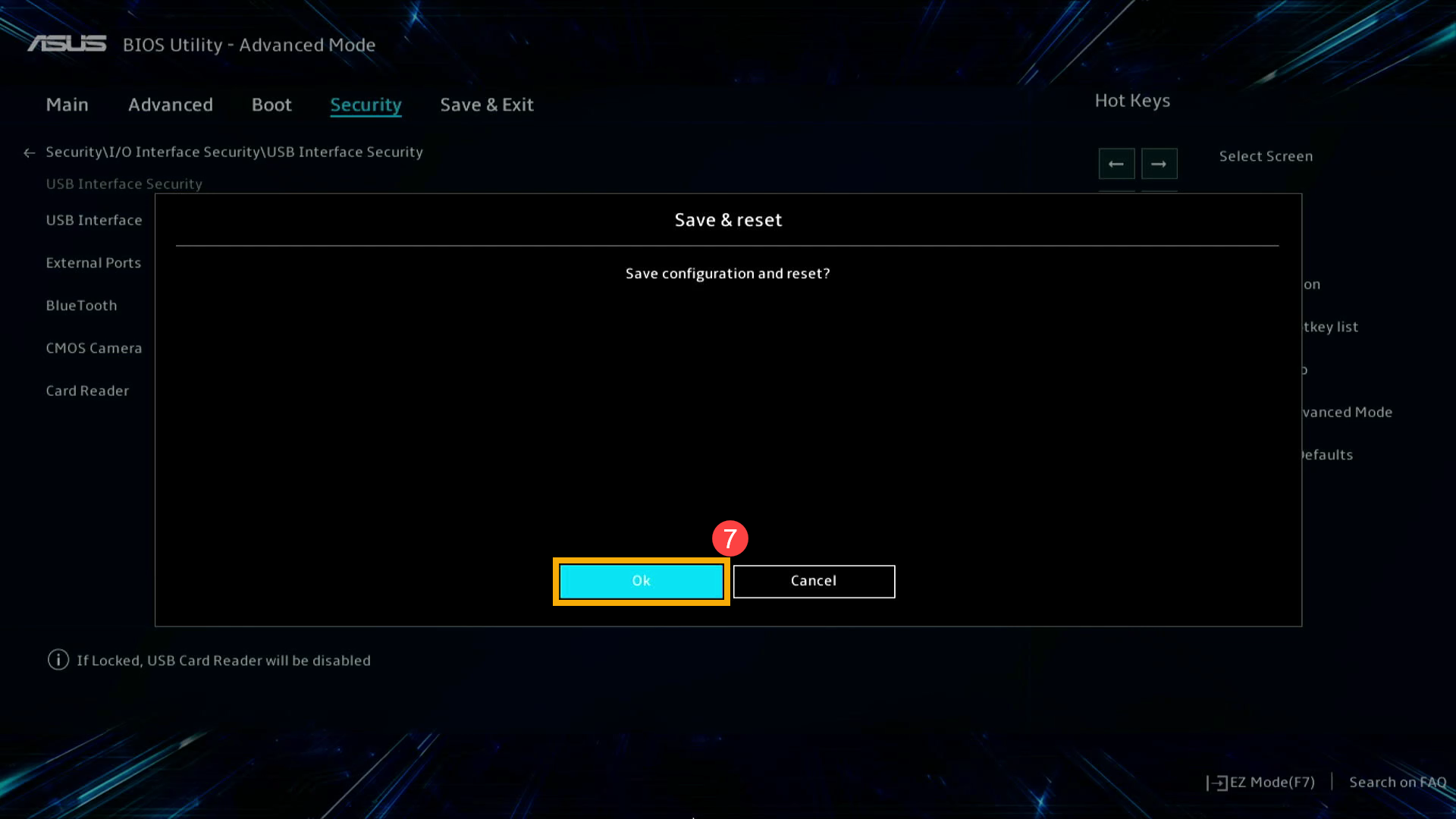
How to Check Card Reader Interface Settings in the MyASUS in UEFI mode
In the MyASUS in UEFI interface, you can navigate and confirm using the Arrow Keys and Enter key on the keyboard, Touchpad, or Mouse.
Note: The BIOS configuration screen below may vary slightly depending on the model.
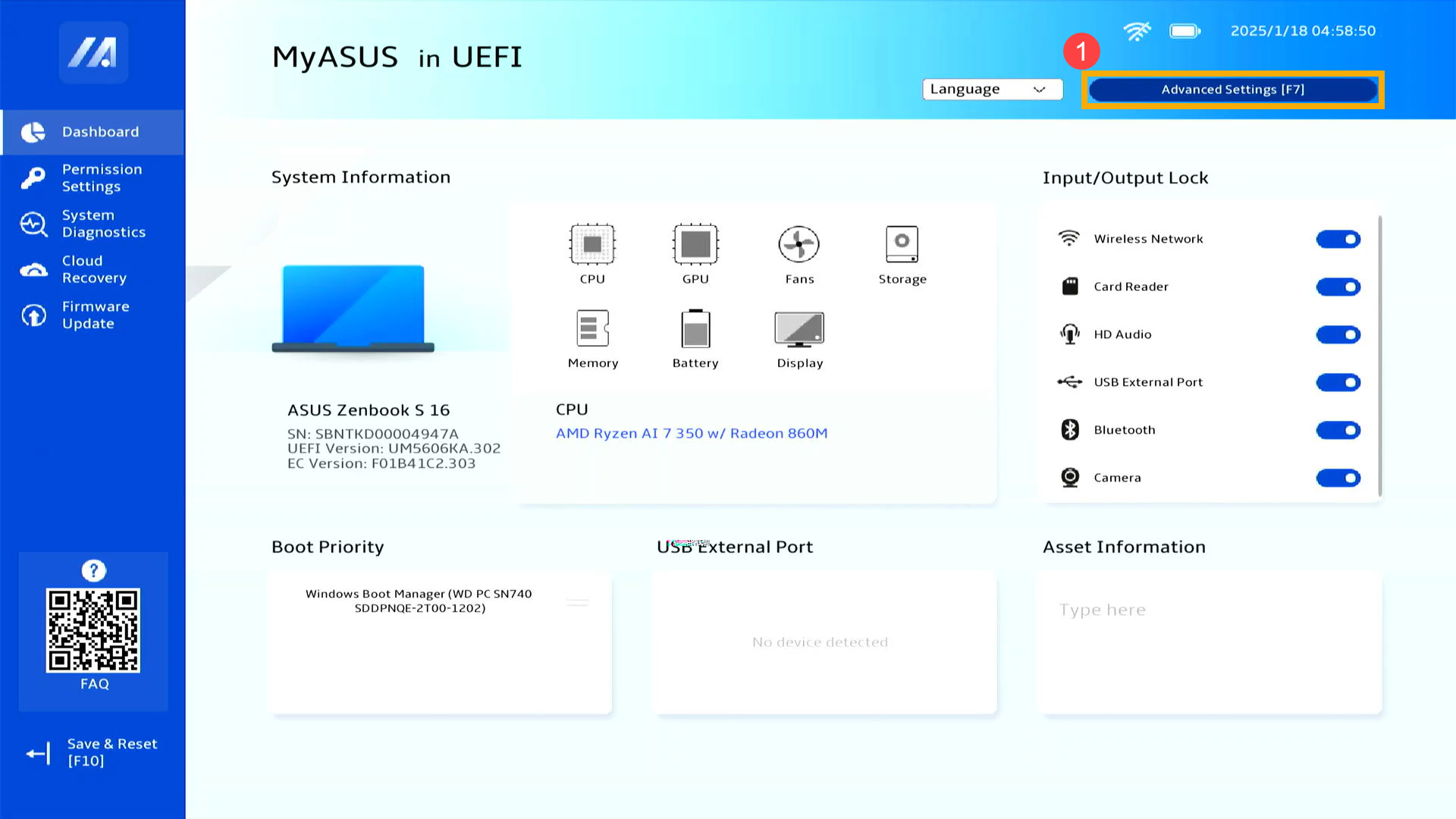
- Once in the BIOS settings screen, press the [F7] key on the keyboard or click [Advanced Settings]① on the screen.
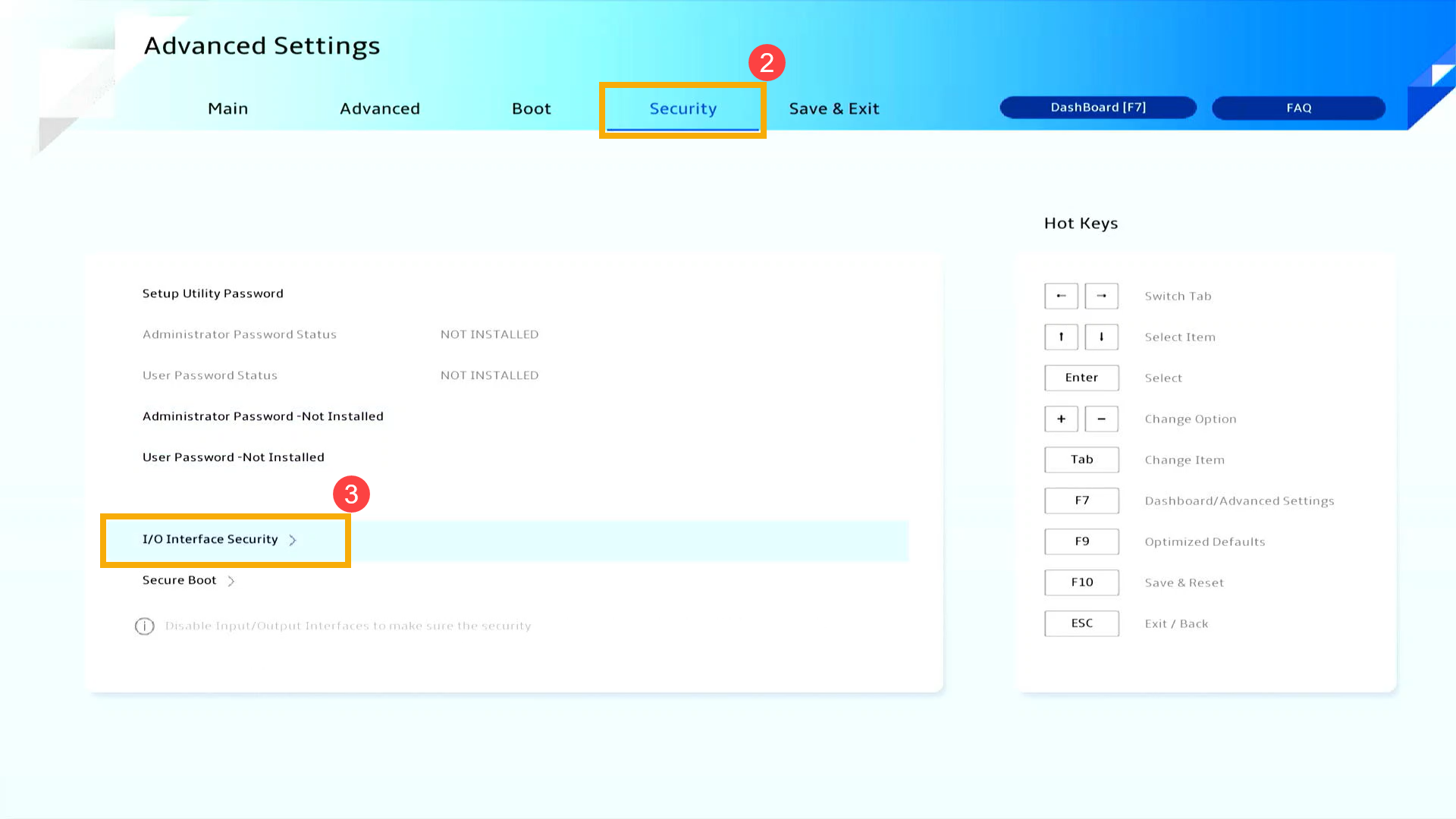
- In Advanced Settings, enter the [Security] page② and select [I/O Interface Security]③.
- After entering I/O Interface Security, select [Card Reader Interface]④ and then choose [Unlock]⑤.
Note: If set to 「Lock」, the card reader function will be disabled.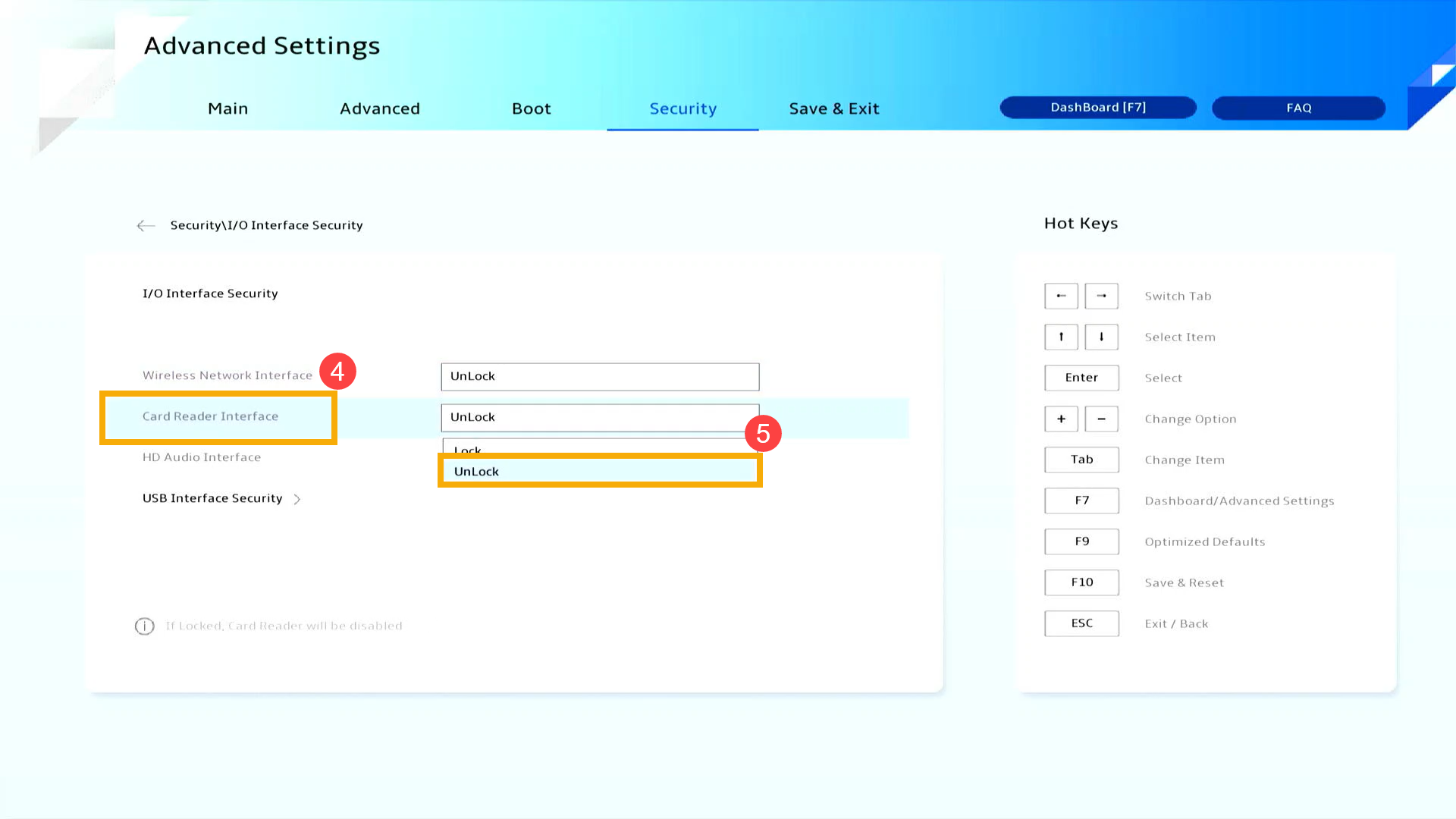
- Save the settings and exit. Press the [F10] key on the keyboard, then click [Confirm]⑥. The device will restart. After entering the operating system, check if the card reader function works correctly.
Note: You can also save your settings and exit by entering the 'Save & Exit' page and selecting 'Save Changes and Exit'.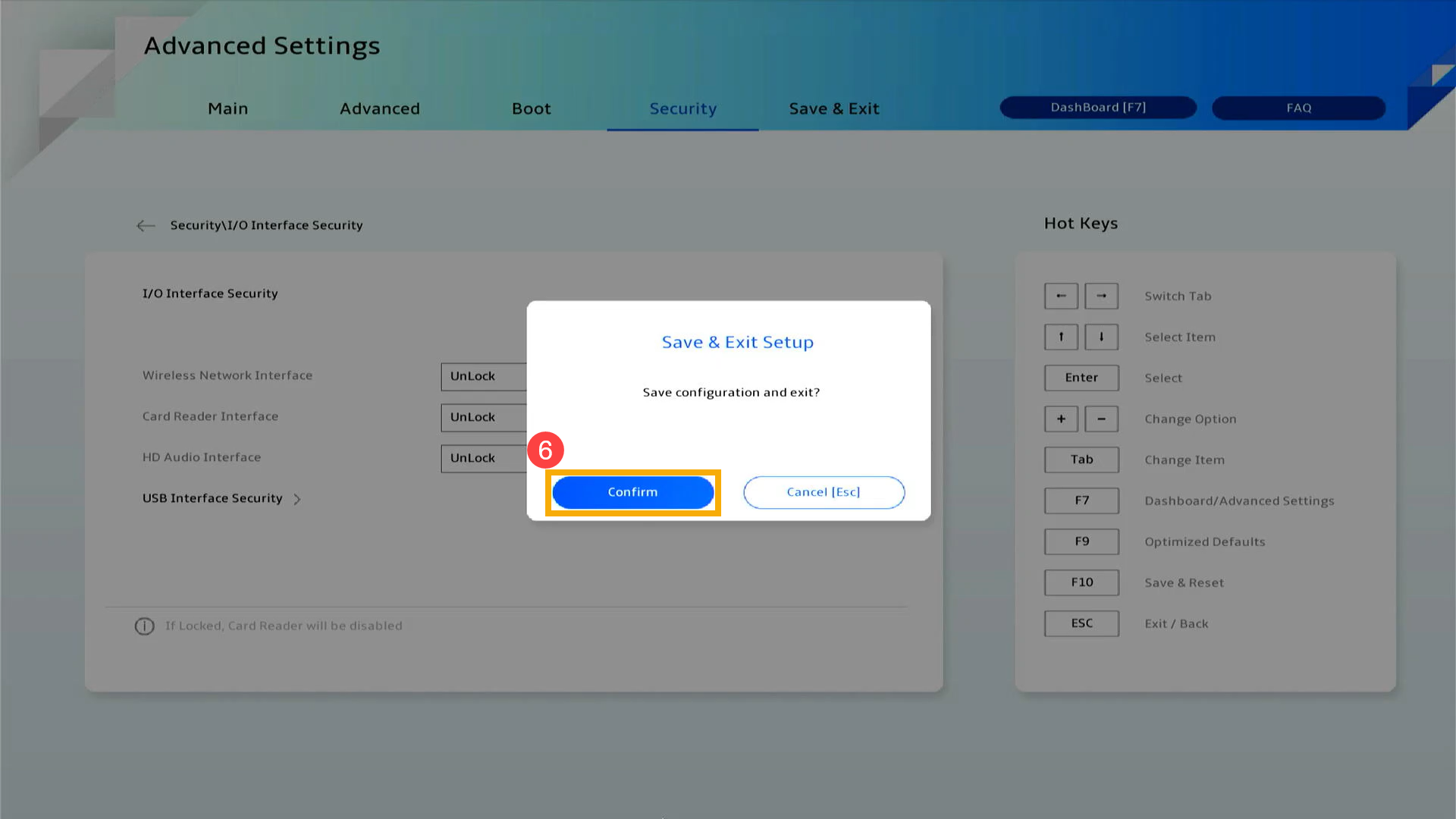
Check Card Reader Interface Settings on a Desktop Computer
First of all, the device needs to enter BIOS configuration. When the device is completely shut down, persistently hold the [F2] key on the keyboard and simultaneously press the [Power button] to boot up. Once the BIOS screen appears, you may release the [F2] key. Here you can learn more about How to enter the BIOS utility. Upon entering the BIOS configuration screen, please refer to the following steps:
Note: For some older desktop models, you may need to press and hold the [Del] key during startup to access the BIOS configuration screen.
How to Check Card Reader Interface Settings in the UEFI mode
In the UEFI interface, you can navigate and confirm using the Arrow Keys and Enter key on the keyboard or Mouse.
Note: The BIOS configuration screen below may vary slightly depending on the model.
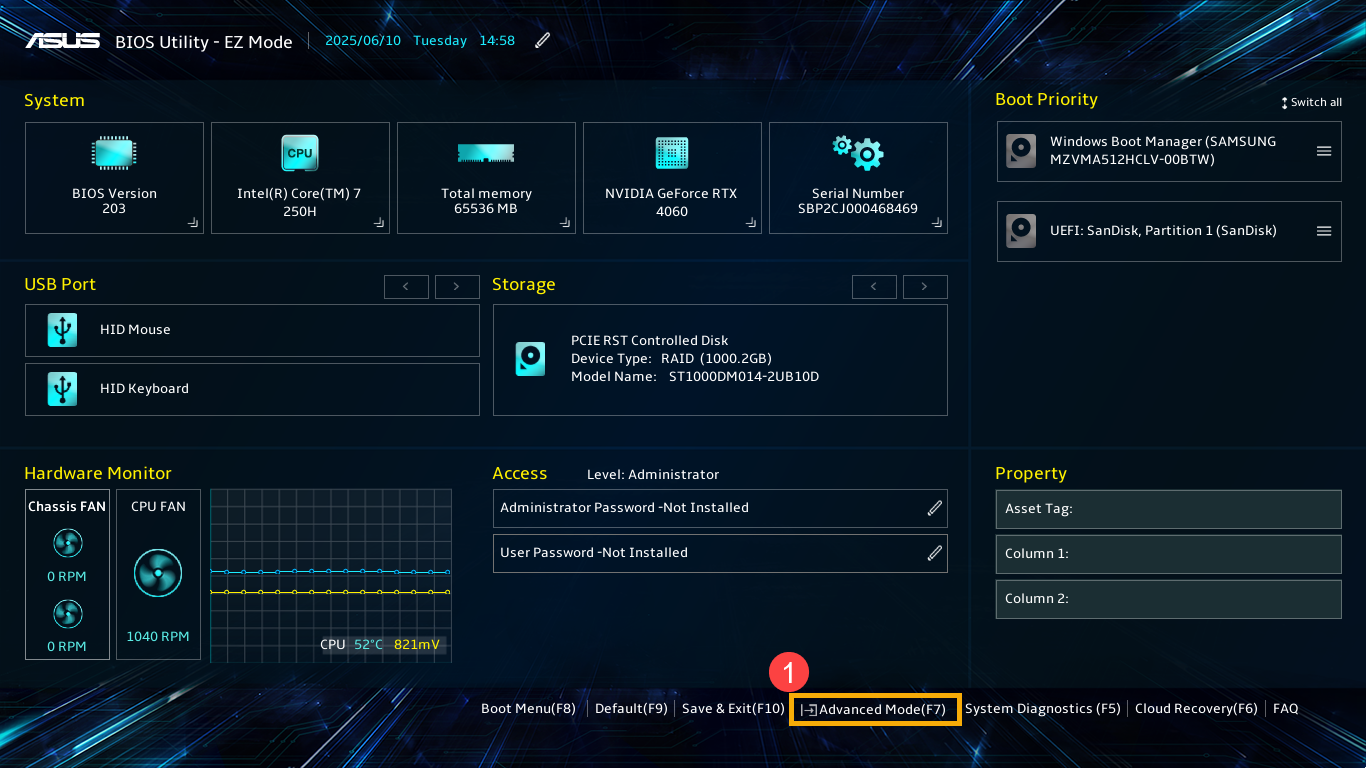
- Once in the BIOS settings screen, press the [F7] key on the keyboard or click [Advanced Mode]① on the screen.
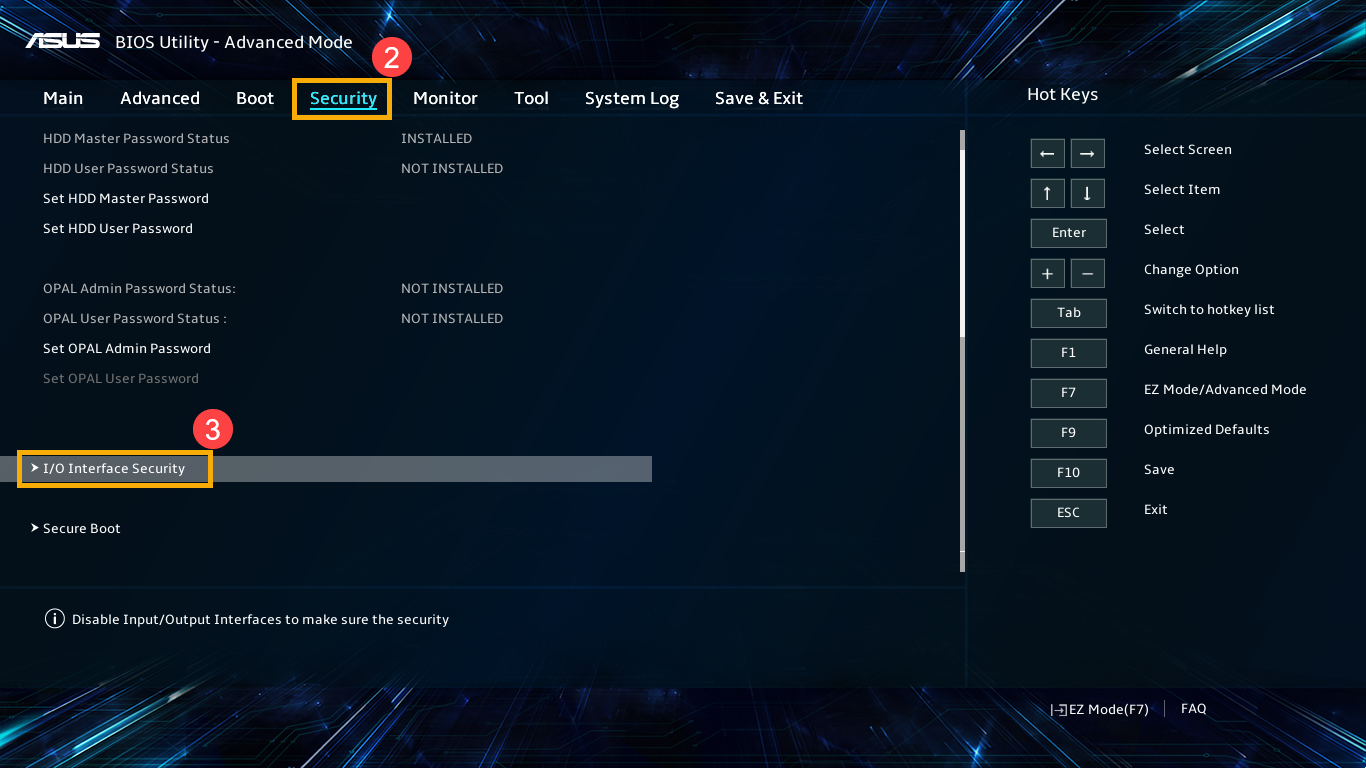
- In Advanced Mode, enter the [Security] page② and select [I/O Interface Security]③.
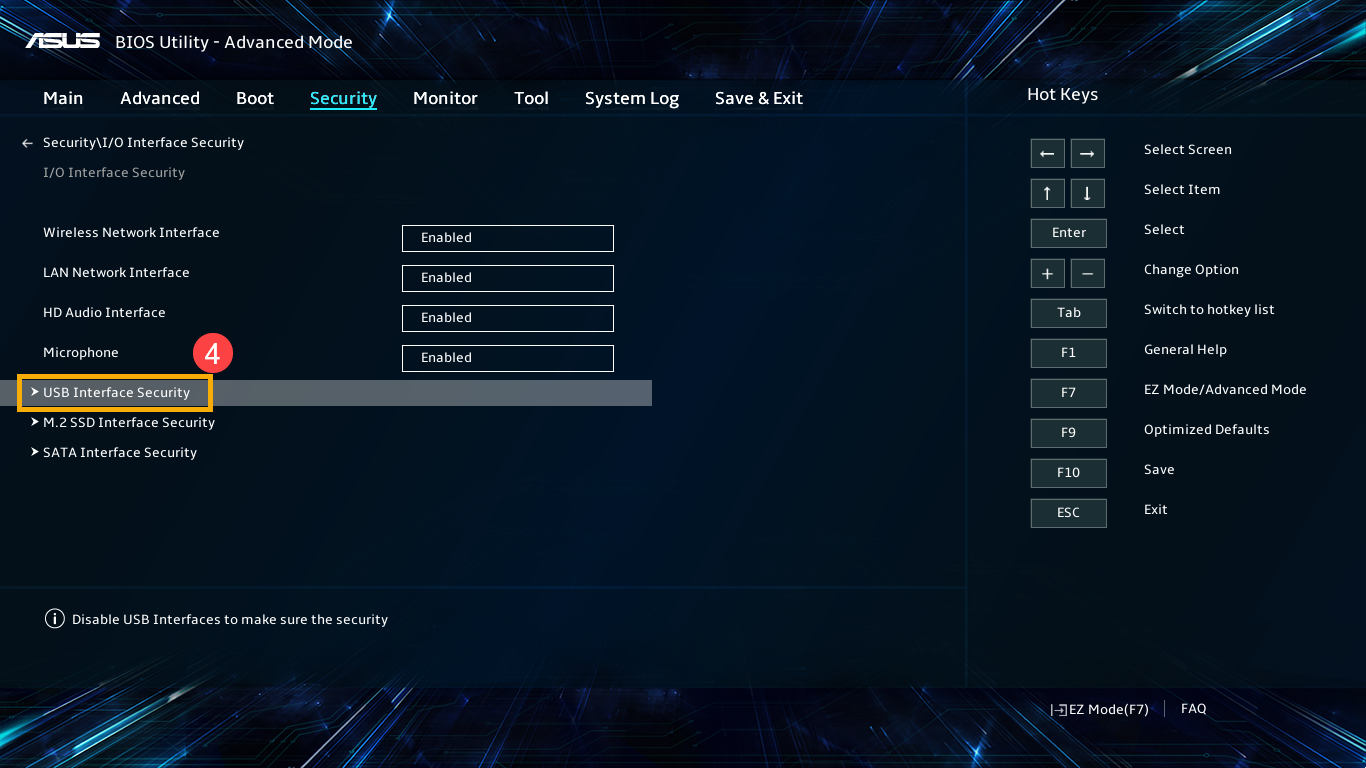
- In the I/O Interface Security settings, select [USB Interface Security]④.
- After entering USB Interface Security, select [Card Reader]⑤ and then choose [Enabled]⑥.
Note: If set to 「Disabled」, the card reader function will be turned off.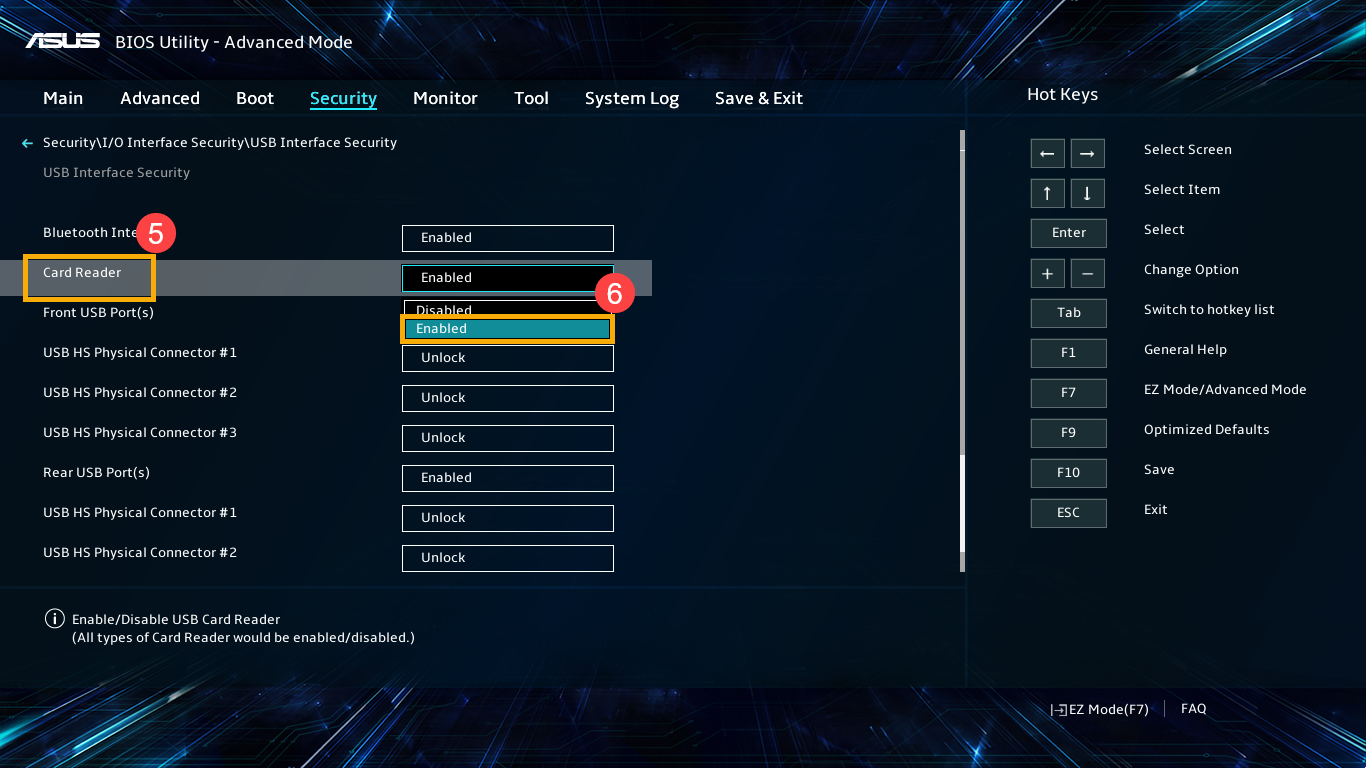
- Save the settings and exit. Press the [F10] key on the keyboard, then click [Ok]⑦. The device will restart. After entering the operating system, check if the card reader function works correctly.
Note: You can also save your settings and exit by entering the 'Save & Exit' page and selecting 'Save Changes and Exit'.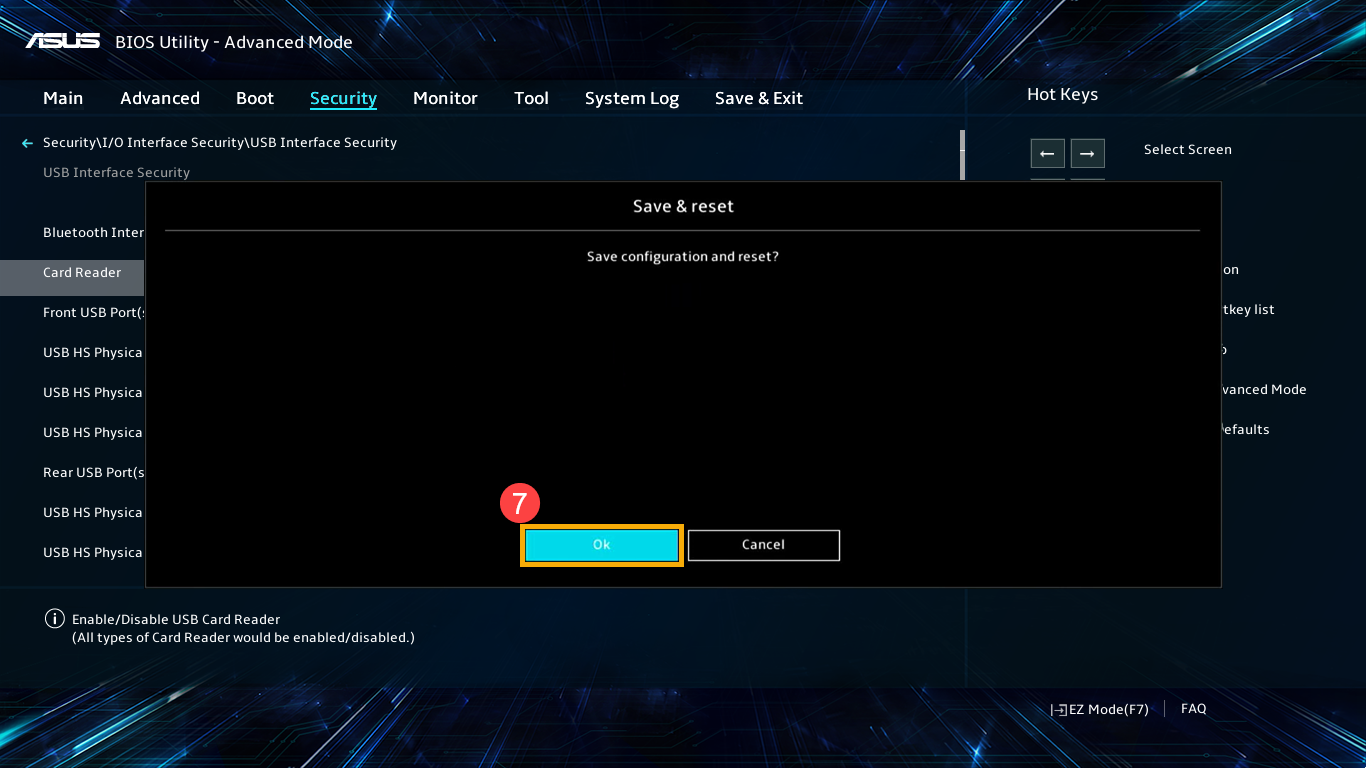
Use System Restore to Restore the System
If the issue started recently and you have previously created a system restore point or if the system has created an automatic restore point, you can try restoring the system to a point in time before the issue occurred. Learn more about How to restore the system from a created system restore point.
Perform a Windows System Restore
If all troubleshooting steps have been completed but the issue persists, back up your personal files and perform a system restore to return your device to its original configuration. Learn more How to Restore (Reinstall) the System.
If your issue remains unresolved, please contact the ASUS customer service center for further assistance.
